Reaching another machine
On this page
The File Manager can browse and copy files on another computer: a Deck, a desktop, a server holding your ROMs. This is how you get a game library onto a Deck without plugging anything in.
It is worth reading before you turn it on. The mechanism is SSH, which is the standard, sensible tool for the job, but setting it up grants real access to real machines. What that means is covered under Think before you enable this.
What it does
Two things, which are easy to confuse:
Finding machines. Junk Store Pro announces itself on your local network and listens for others doing the same. Machines running Junk Store Pro appear in the File Manager’s sidebar by themselves. This is discovery, and it only reaches your own network.
Connecting to them. Actually reading files needs SSH, and SSH needs the two machines to trust each other. Discovery finding a machine does not mean you can open it. The pairing step below is what grants access.
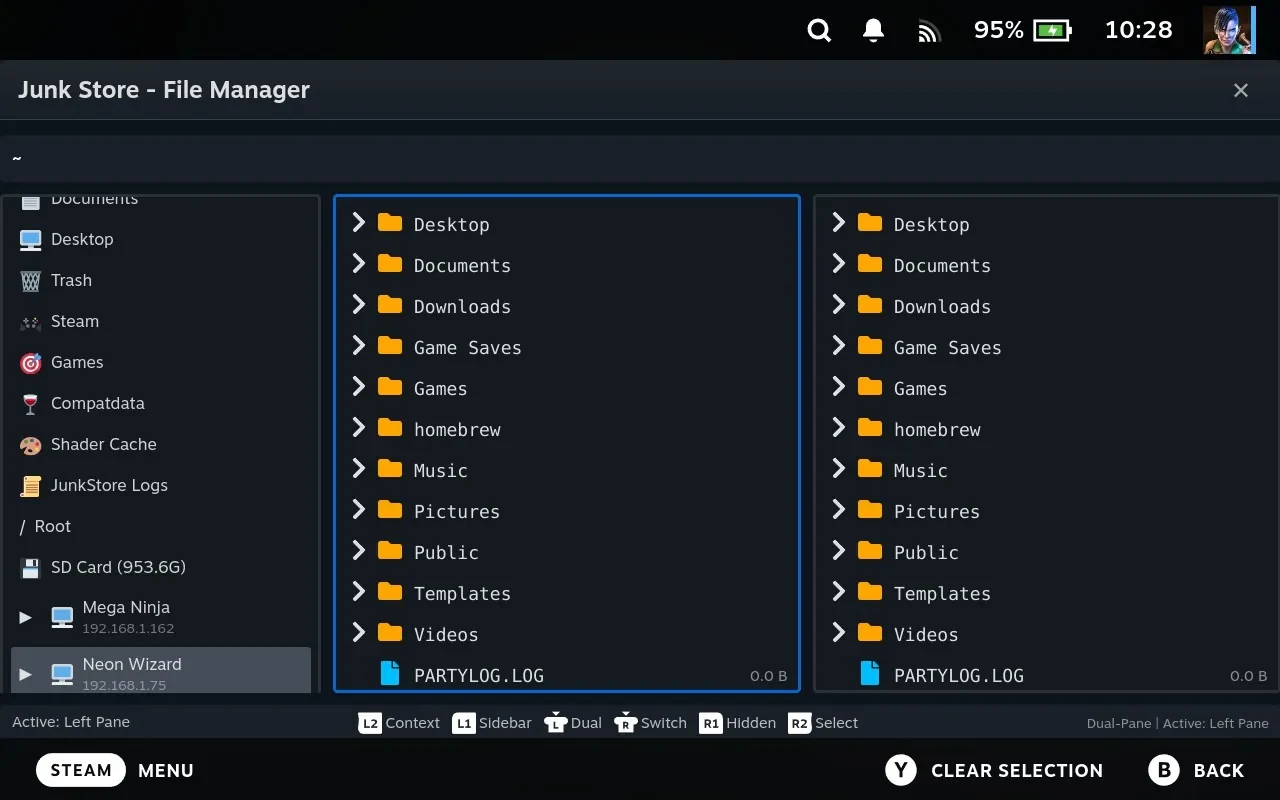
Machines have to be discovered to be reachable. There’s no way to type an address in by hand at the moment, so a machine that doesn’t appear in the sidebar can’t be browsed, even if you know where it is. Paths on a remote machine show as ssh://user@host/path once you’re in one, which is worth recognising when you see it.
Using it in the File Manager
Once two machines are paired, a remote folder behaves much like a local one. Put the remote machine in one pane and your Deck in the other, and copy between them the usual way. See Two panes.
Operations are slower than local ones, and how much slower depends on your network.
Turning it on, and naming your device
The settings live in Settings. There are three.
| Setting | Default | Does |
|---|---|---|
| Enable Network Discovery | On | Whether this device announces itself and looks for others |
| Machine Name | Generated | The name other devices show for this one |
| Respond to Game Queries | On | Whether this device answers when another asks what games it has |
Discovery is on by default, so machines usually find each other with no setup. If you turn it off, this Deck stops announcing itself and stops looking for others, and the sidebar is the only way in, so remote browsing stops working here.
Your device already has a name, and it made it up. Rather than calling everything “Steam Deck” and leaving you to guess which is which, Junk Store Pro generates something like Cosmic Raider or Blazing Samurai from a list of adjectives and nouns. There are a few hundred combinations, so two devices on the same network are unlikely to collide, and the names are distinctive enough to actually remember.
That’s the real reason for doing it this way. The name is what appears in the sidebar and, more importantly, in the pairing request on the other machine. Deciding whether to accept a request from “Steam Deck” when you own two is guesswork. Deciding one from Mighty Wizard is not, because you’ve seen that name on the device in your hands.
Change it to whatever you like, or press Generate Random Name for a different one. Eben’s Deck is clearer than Rogue Titan if you can be bothered, though plenty of people keep the generated one because it’s more fun. Either way, know your device’s name before you pair anything. See Settings.
Respond to Game Queries is what lets another Junk Store Pro on the network ask this one which games it has. Turning it off leaves file browsing unaffected, and does not stop game names appearing against prefix directories when someone browses this machine, that travels over the SSH connection rather than over discovery.
Discovery only ever reaches your local network. It is not a service, there is no account, and nothing is announced beyond the network you are on.
What SSH is, and why keys
SSH is the standard way to reach another computer over a network. Junk Store Pro uses it because it is encrypted, universally available, and already installed on the Deck.
Junk Store Pro never asks for a password, and cannot use one. SSH here is authenticated with keys instead, for two reasons: typing a password on a Deck is miserable, and background file transfers cannot stop to prompt.
A key is a pair of files:
| Part | Where it lives | What it is |
|---|---|---|
| Private key | Only on your machine, never sent | Proves you are you. Treat it like a password |
| Public key | Copied to machines you connect to | Lets them recognise you. Safe to share |
A machine allows connections from anyone whose public key is listed in its ~/.ssh/authorized_keys file. Pairing, below, is the act of getting your public key into that file on the other machine.
The private key is the sensitive one. Anyone who copies it can connect as you, to every machine that trusts it. It never leaves your device during any of this.
You need a key first
Junk Store Pro looks for an existing key and uses it. It does not create one for you.
It checks, in order:
~/.ssh/id_ed25519
~/.ssh/id_ed25519_sk
~/.ssh/id_rsa
If you have never made one, nothing here will work, and this is the most common reason remote browsing fails. Make one in Desktop Mode, or over SSH from another computer:
ssh-keygen -t ed25519
Press Enter at each prompt to accept the defaults. It is reasonable to leave the passphrase empty for a Deck used this way, because a passphrase would have to be typed on every connection and cannot be entered from Game Mode. That is a real trade-off: an empty passphrase means anyone with the file has the key. Set one if the Deck holds access to something that matters.
Do this on both machines. Each needs its own key.
Where the keys live, and turning SSH on
The key files, how to get a terminal on the Deck, and how to enable SSH so other machines can reach this one are covered in Settings, alongside the screen that shows them.
Pairing two machines
Once both machines have a key, they need to trust each other. Junk Store Pro handles this by showing the same six digit number on both screens and asking you to check they match. You never touch a key file, and you don’t type anything.
- On the machine you want to connect from, find the other in the File Manager’s sidebar and start the key exchange.
- A six digit number appears.
- Walk over to the other machine. A request is waiting, showing who’s asking, which username, and its own six digit number.
- Look at both numbers. If they match, accept. If they don’t, reject.
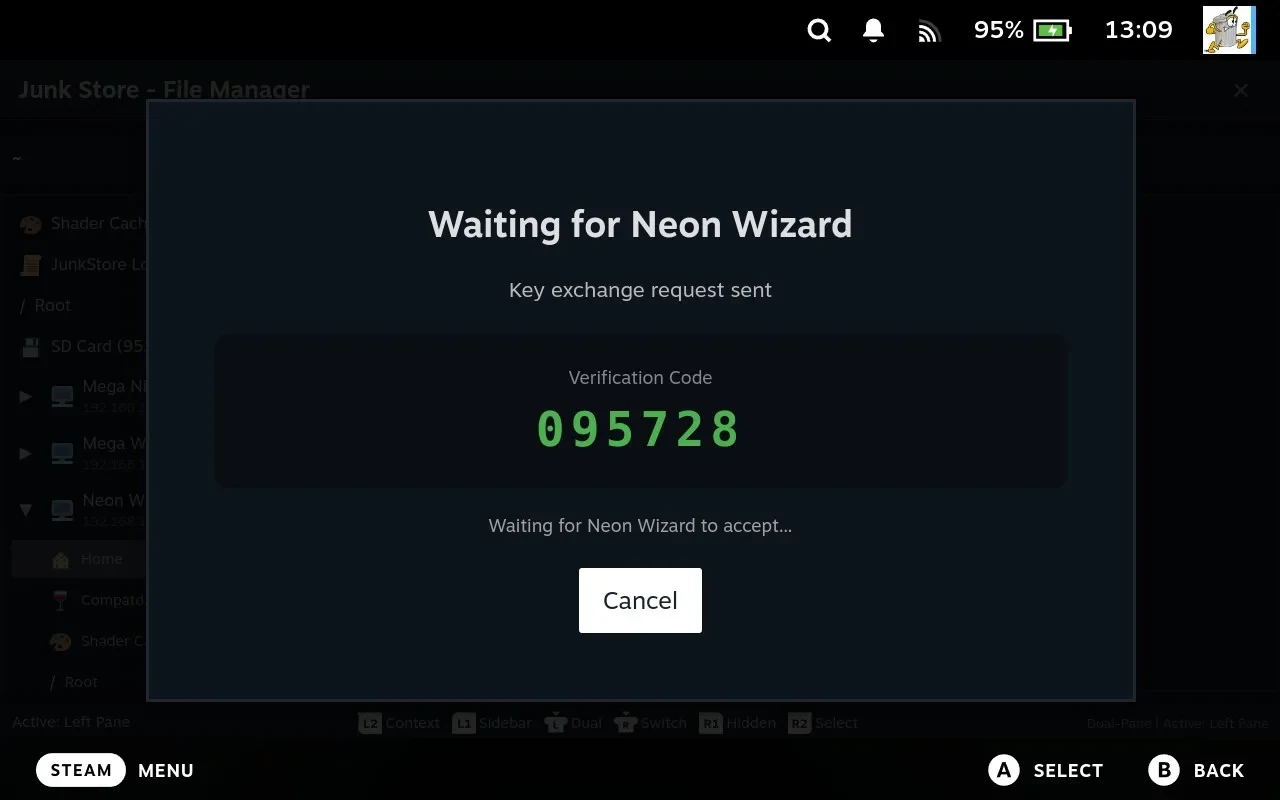
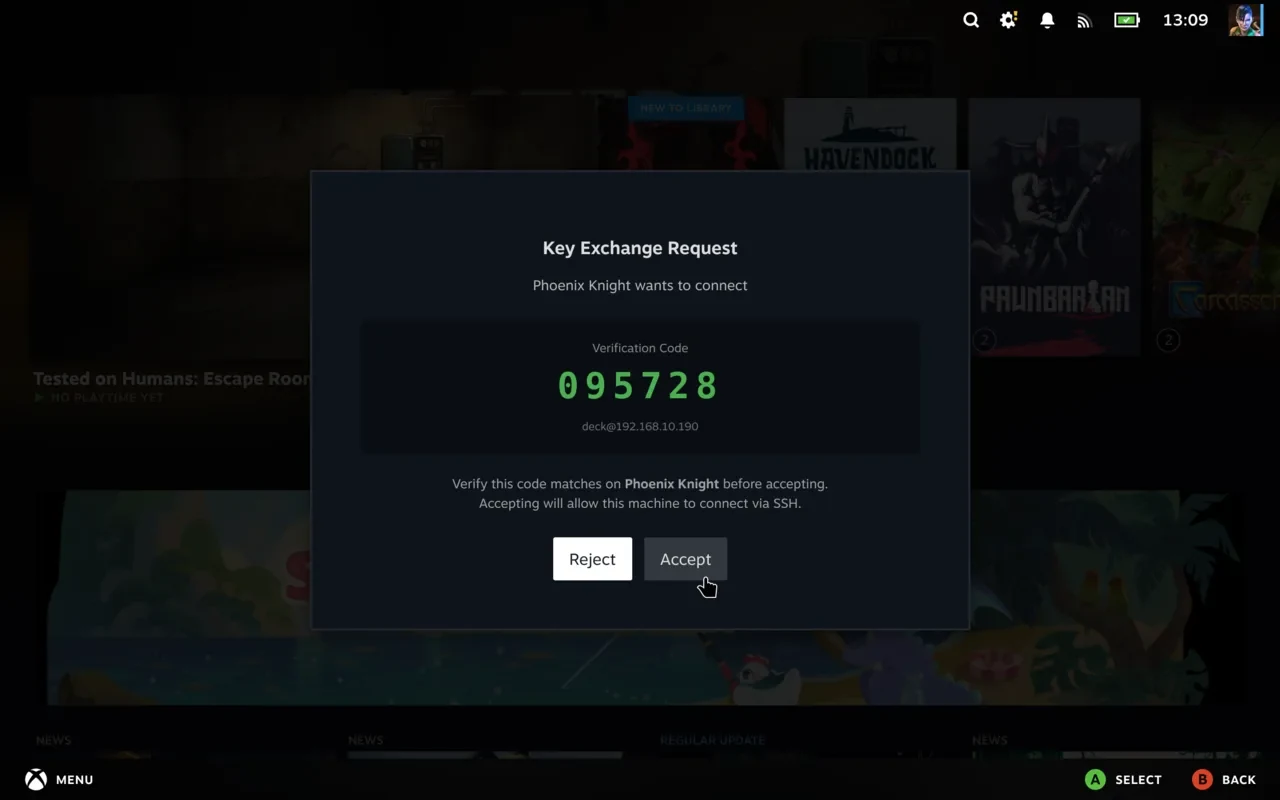
You need to be able to see both screens, which is the point. Pairing two machines means having both to hand.
Accepting adds the requesting machine’s public key to authorized_keys. From then on, that machine can connect without asking again.
Those matching numbers are the whole security check, which is why it’s worth doing properly rather than accepting on reflex. They tell you the request in front of you is the one you just started, and not somebody else’s that happened to arrive at the same moment. Numbers that don’t match mean something else is asking for access.
Requests expire after five minutes. An old one will not work; start again.
Pairing grants access in one direction. If you accepted a request from machine A on machine B, A can now reach B. For B to reach A, pair the other way as well.
Think before you enable this
Everything above is ordinary, well understood technology used properly. The risk is not in the mechanism, it is in what it grants. Three things are worth understanding before you accept a request.
A trusted key is not limited to Junk Store Pro. authorized_keys grants SSH access to the whole user account, not to a folder. Anyone using that key can read, change, or delete anything your user can, and run commands. The File Manager is one program that uses that access; it is not a boundary around it.
Access lasts until you remove it. There is no expiry. A machine you paired once stays trusted indefinitely, including after you stop using it, sell it, or lend it to somebody. This is the main reason to review the list occasionally.
Only pair with machines you control. The right question is not “do I trust this person” but “do I trust this machine, and everyone who can use it”. A shared or public computer is not a good candidate.
Two things that are fine, worth saying so nobody worries about the wrong thing. Your keys and passwords never pass through any Junk Store Pro server, because there aren’t any involved. And discovery stays on your local network, so a machine out on the internet can’t advertise itself into your sidebar.
Where this is a good idea: your own Deck and your own desktop or NAS, on your home network, so your library lives on the big disk and your Deck pulls from it.
Where it is not: anything you do not administer, a machine other people log into, or a network you do not trust. On a shared network, be aware that discovery announces your device’s presence to it.
Nothing is mounted
Worth understanding, because it explains several things that would otherwise look like faults.
Junk Store Pro does not mount remote machines. There is no network drive, no mount point, and nothing attached to your filesystem. Each action, listing a directory, copying a file, opens an SSH connection, does that one thing, and closes it. Between actions nothing is connected.
What follows from that:
- Nothing to connect or disconnect. There is no session to establish and none to tear down. A remote path either works when you use it or it does not.
- A remote machine going to sleep breaks nothing. No stale mount, no hung file manager, no reboot. The next action simply fails, and works again when the machine returns.
- Other programs cannot see remote files. A game cannot be run from a remote path, and nothing outside Junk Store Pro can open one, because there is no path on your filesystem to open. Copy it across first.
- Viewing does not work on remote files. The viewers read local disk. Pressing X on a file in a remote pane does nothing.
- Each operation pays its own connection cost. Listing a directory of thousands of files is slower than locally, and many small copies are slower than one large one.
The trade-off is on purpose: mounts are the part of network file access that goes wrong, and when they do they take the whole file manager, or the machine, with them. Statelessness costs a little speed and removes an entire category of problem, which matters more on a Deck that sleeps constantly and moves between networks.
If you do want a genuine mount, that is a job for Desktop Mode and the usual Linux tools, outside Junk Store Pro.
Managing trusted keys
Junk Store Pro shows every machine your device currently trusts, with a button to revoke each one. That list is the only place that answers “what can reach this machine”, and reviewing it occasionally is a habit worth having.
See Settings.
When it does not work
Nothing appears in the sidebar. Discovery is local network only. Check both machines are on the same network and both are running Junk Store Pro. A network that isolates clients from each other, common on guest and public Wi-Fi, blocks discovery entirely.
A machine appears but will not open. Discovery and access are separate. Being listed means it was found, not that you may connect. Pair with it.
Everything looks right and it still refuses. The most likely cause is a missing key. Check ~/.ssh/ on both machines for id_ed25519 and its .pub, and create one if it is absent. Junk Store Pro will not generate it.
It asks for a password. It cannot; Junk Store Pro has no way to send one. If a connection fails silently, treat it as key authentication not being set up rather than a wrong password.
A transfer is slow. Copies run at the speed of the slower link. Wi-Fi to a Deck is usually the limit, and a large game will take a while.
A machine vanished from the sidebar. It went to sleep, left the network, or Junk Store Pro is not running on it. Pairing survives this; it will return. Because nothing is mounted, there is nothing left in a bad state and nothing to clean up.
A remote file will not open, or a game will not run from one. Remote paths exist only inside Junk Store Pro’s file browsing. Copy the file to the Deck first. See Nothing is mounted.
No machines appear even though discovery is on. Check Enable Network Discovery in Settings on both devices, and that they are on the same network.
Related
- Using the panes, and copying between local and remote: The File Manager
- Games stored on a server, set up through an extension: Emulators and ROM discovery
- Vocabulary used here: Glossary