File Manager reference
On this page
Every shortcut, and what to do when the File Manager behaves in a way you didn’t expect.
Pressing ? inside the File Manager shows the shortcut list on screen, so you don’t have to keep this page open.
When something doesn’t work
A shortcut does nothing. Shortcuts are blocked while a Steam dialog or the on-screen keyboard is open. Close it and try again.
A game-specific option is missing. Almost always because the File Manager was opened from the main menu rather than from a game. See Two ways to open it. The Steam submenu additionally needs exactly one item focused, and an item suiting the operation.
X doesn’t view the file. If something else opened the File Manager to pick a path, X means Accept. The hint at the bottom of the screen says which. The viewers are still in the left-trigger menu, so use those instead. See When it opens as a picker.
An option isn’t in the menu. Menus are built from what applies to the focused item, so entries come and go: extraction only on archives, artwork only on images, working directory only on directories.
You can’t view a file on another machine. Viewing only works on files that are on this device, so X does nothing and the viewer entries are missing from the menu. Copy the file across first, then view it.
A file went somewhere unexpected. Check which pane was active. With two panes open, F5 and F6 act from the active pane toward the other one.
A remote location won’t open. The machines aren’t paired, there is no SSH key, or the host is unreachable. See Reaching another machine.
You can’t paste into a zip. That’s on purpose; zips open for reading only. Extract first, change what you need, and repackage outside Junk Store Pro.
Something was deleted by accident. Check the trash in Desktop Mode.
Every shortcut
Pressing ? shows the same list on the device, grouped the same way.
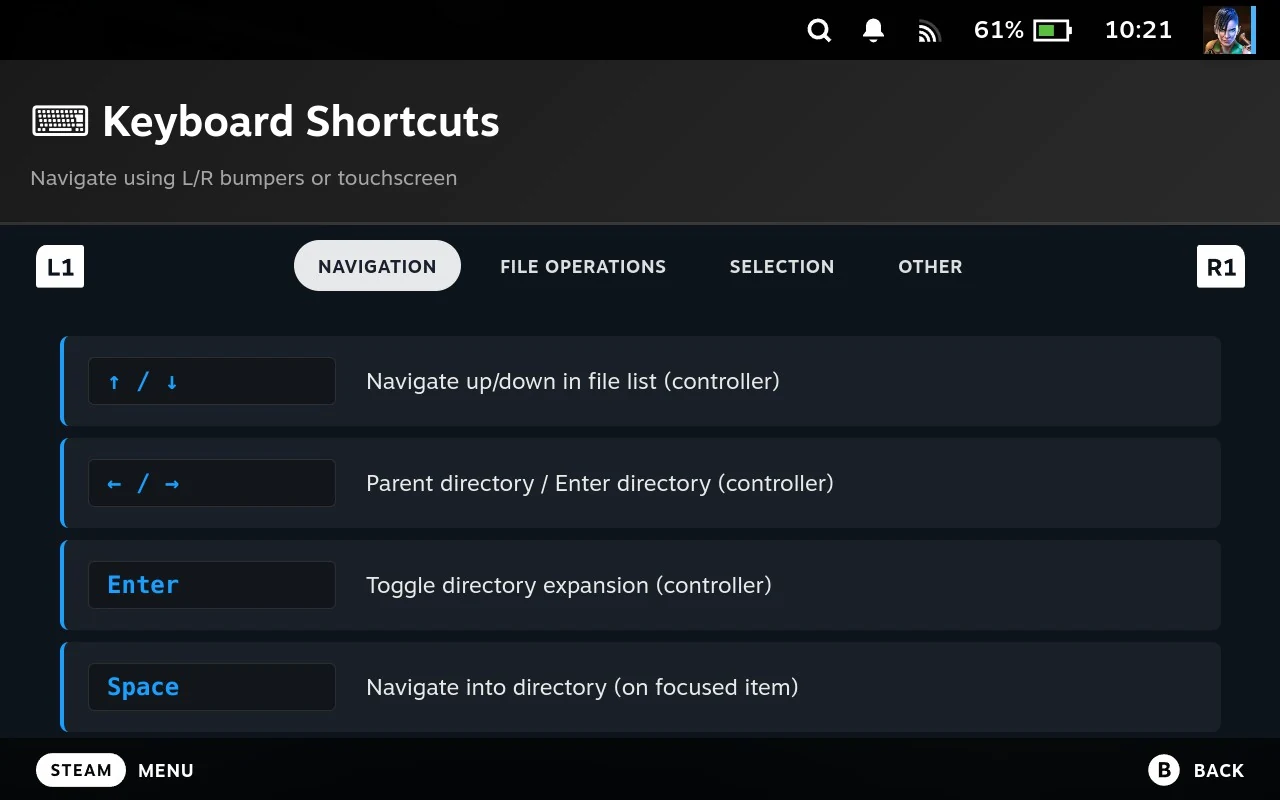
The complete list, which is also available inside the File Manager by pressing ?.
Navigation
| Key | Action |
|---|---|
| ↑ / ↓ | Navigate up/down in file list |
| ← / → | Parent directory / Enter directory |
| Enter | Toggle directory expansion |
| Space | Navigate into directory |
| Tab | Switch between panes (dual-pane only) |
The first two rows describe list movement in general terms. In practice you go up through the .. entry and unfold folders in place, as described in Moving around.
File operations
| Key | Action |
|---|---|
| Ctrl+C | Copy selected files to clipboard |
| Ctrl+X | Cut selected files to clipboard |
| Ctrl+V | Paste files from clipboard |
| Ctrl+R | Refresh current directory |
| F2 | Rename selected item |
| F5 | Refresh directory (single-pane) or copy to other pane (dual-pane) |
| F6 | Move files to other pane (dual-pane only) |
| Delete | Move selected items to trash |
| Ctrl+Shift+N | Create new folder |
Selection
| Key | Action |
|---|---|
| Ctrl+A | Select all files |
| Ctrl+D | Deselect all files |
| Ctrl+I | Invert selection |
Other
| Key | Action |
|---|---|
| Ctrl+U | Toggle dual-pane mode |
| Ctrl+H | Toggle hidden files visibility |
| Escape | Clear selection or close modal |
| Backspace | Close modal |
| ? | Show the shortcut list |
Getting here from anywhere
Hold SELECT and press a face button. These work throughout the Steam interface, not only inside Junk Store Pro.
| Chord | Keyboard | Opens |
|---|---|---|
| SELECT + X | Ctrl+B | The File Manager |
| SELECT + B | Ctrl+O | The File Operations panel |
| SELECT + Y | Ctrl+D | Diagnostics |
| SELECT + A | Settings |
Hold SELECT for two seconds without pressing anything and the interface lists these for you, so there is nothing to memorise.
Controller
Junk Store Pro shows these along the bottom of the File Manager, so you don’t have to remember them.
| Button | Action |
|---|---|
| Left trigger | Open the menu for the focused item, or for a sidebar entry |
| Right trigger, held | Paint-select while moving |
| LB | Show or hide the sidebar |
| RB | Show or hide hidden files |
| L3 (left stick click) | Turn two panes on or off |
| R3 (right stick click) | Switch the active pane, from the sidebar |
| A | Unfold a folder or archive in place; open a file |
| X | View the focused file |
| Y | Clear the selection |
| Start | Make the focused directory the pane’s root; on .., go up |
Nearly every operation is behind the left trigger. The others are shortcuts for things common enough to deserve their own button.
Related
- Driving the File Manager: The File Manager
- Editing your Steam library: The File Manager and Steam
- Viewers, disk usage and the sidebar: File Manager tools