Diagnostics
On this page
Hold SELECT and press Y, or press Ctrl+D with a keyboard. It works anywhere in Steam, not just inside Junk Store Pro, and pressing it again closes it.
This is where you look when something’s wrong and you want to know what, rather than guessing. Four tabs, and the first one is the most useful.
Processes
A live list of everything running on your Deck, updating every couple of seconds.
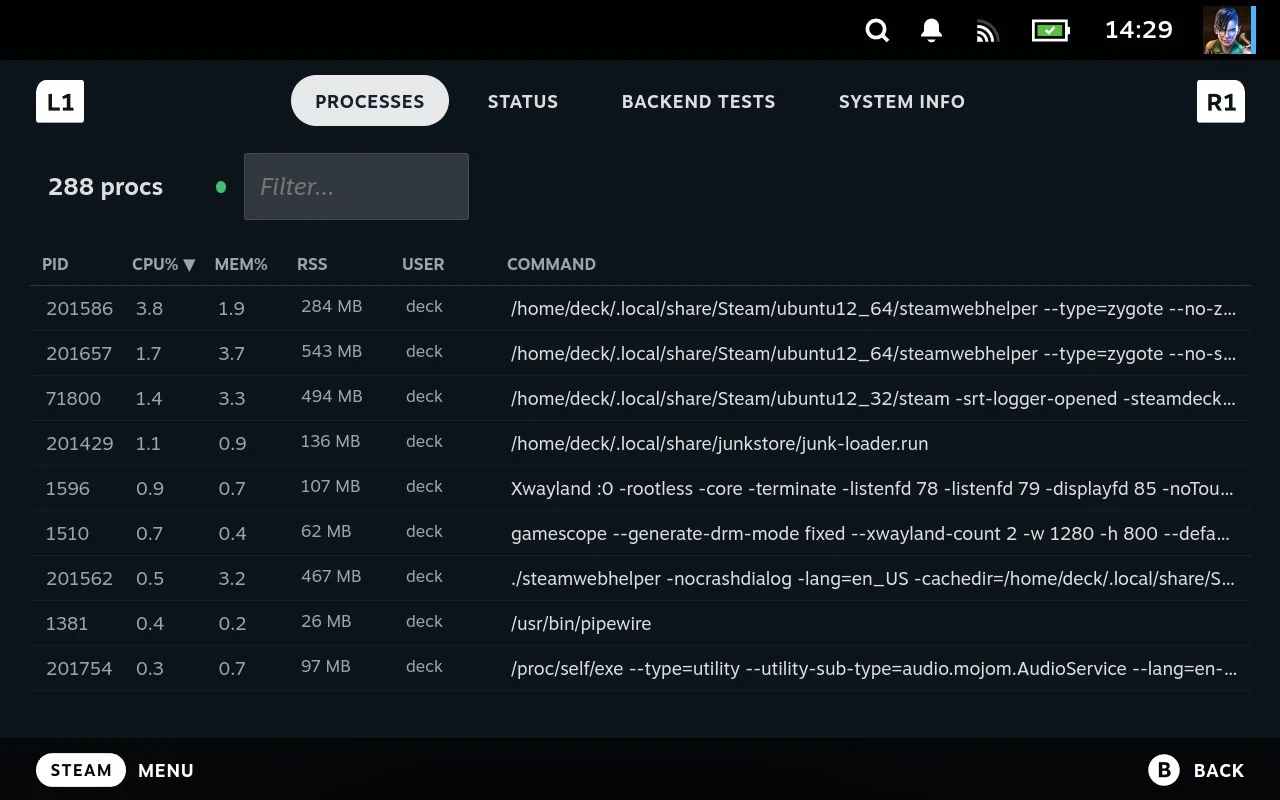
This answers the question nothing else on the device can: did the thing I just started actually start? Launch a game, open this, and either it’s in the list or it isn’t. If it isn’t, the launch failed rather than the game being slow. If it is and you’re still staring at a black screen, the game is running and something else is wrong.
For each process you get its ID, the user running it, how much processor and memory it’s using, how long it’s been going, and the full command that started it. That last column is the useful one for games, because it shows the whole launch command including Proton and every argument.
The numbers are coloured so you don’t have to read them all. Processor and memory usage shade from normal through yellow and orange to red as they climb, which means a runaway process is visible at a glance rather than something you have to hunt for.
Finding what you’re after
Hundreds of processes run on a Deck, so the list is filtered and sorted rather than scrolled.
Filter by typing part of a name. Enter the game’s name, proton, or junk and everything else drops away.
Sort by processor use, memory use, or process ID, in either direction. Sorting by processor descending puts whatever is working hardest at the top, which is usually what you want when the Deck has gone sluggish. Sorting by memory finds the thing that’s filling your RAM.
Your filter and sort choices are remembered, so the monitor comes back the way you left it.
The buttons
The buttons do different things depending on where you are. On the filter box at the top they work on the whole filtered set; down in the list they work on the one process you have highlighted. Junk Store Pro shows the current meaning along the bottom of the screen, so you can check rather than remember.
On the filter box:
| Button | Does |
|---|---|
| Start | Clears the filter |
| X | Force kills everything matching the filter |
In the process list:
| Button | Does |
|---|---|
| Y | Changes what the list is sorted by |
| Start | Flips between ascending and descending |
| X | Kills the highlighted process |
Killing something
Two strengths, and the difference matters.
X on a single process asks it to stop, the polite way. Most things shut down cleanly when asked, and a game that’s hung after you quit it usually goes with this.
X on the filter box force kills everything matching, which is the blunt instrument. It doesn’t ask the processes to stop, it stops them, and it does it to every process your filter is currently showing. Filter for proton and you’ll take out every Proton process on the device.
Both ask you to confirm first, and the confirmation tells you what’s about to happen, including how many processes a Kill All would take. Read it. The count is the part worth checking, because a filter that matches more than you expected is easy to type by accident.
Don’t kill things you don’t recognise. Steam, gamescope and the various system processes are all in this list, and stopping the wrong one will take your session with it. Filtering to the thing you actually mean before pressing anything is the safe habit.
What it’s good for
A game that won’t start. Launch it, open this, filter by its name. Nothing there means it never got going, and the logs will say why.
A game that’s still running when you thought you’d closed it. Games sometimes leave processes behind, holding memory and stopping a clean relaunch. Filter and see.
The Deck feeling slow for no reason. Sort by processor use and look at the top of the list.
Checking Proton is involved at all. The command column shows the actual launch line, so you can see which Proton version a game got and what was passed to it.
Status
Whether Junk Store Pro’s own pieces are running and talking to each other. If the interface is behaving strangely, this tells you whether the problem is the backend, the loader, or something above them.
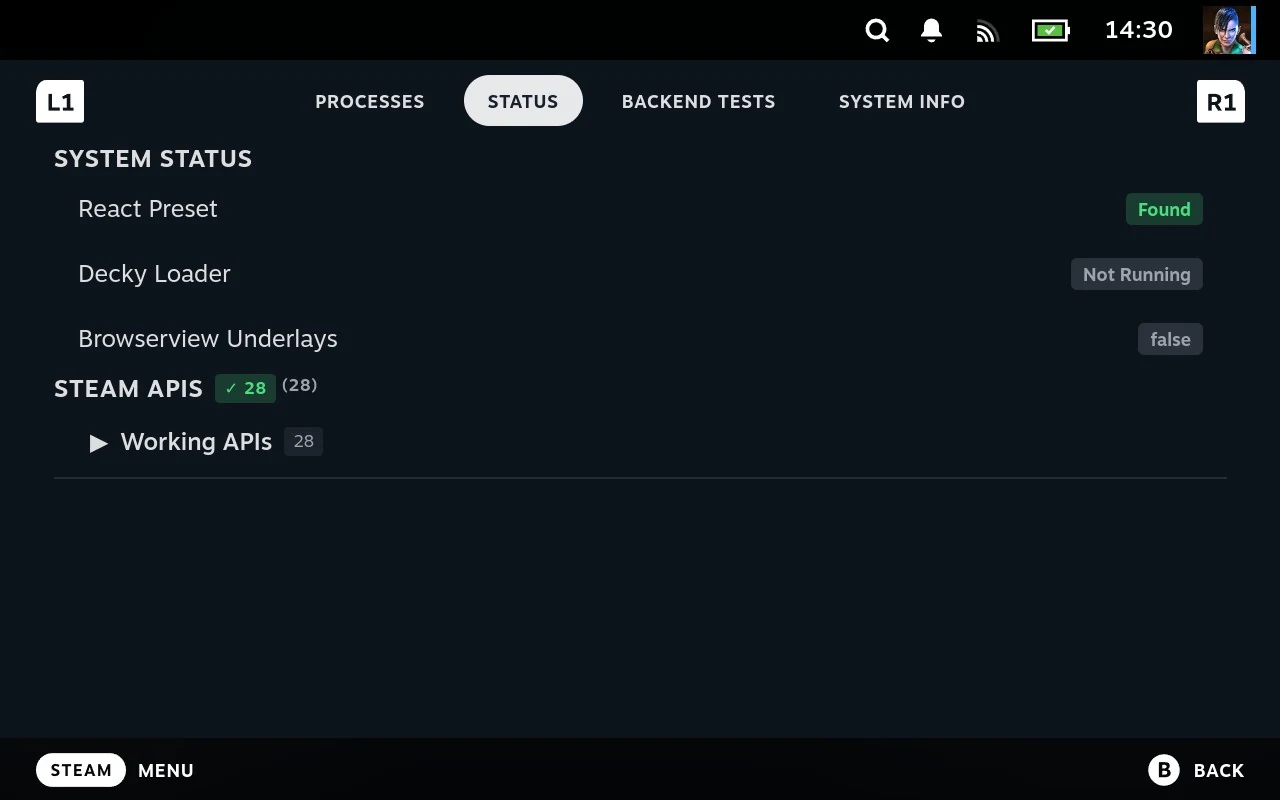
Sections start collapsed. A opens and closes the one you’re on.
Backend Tests
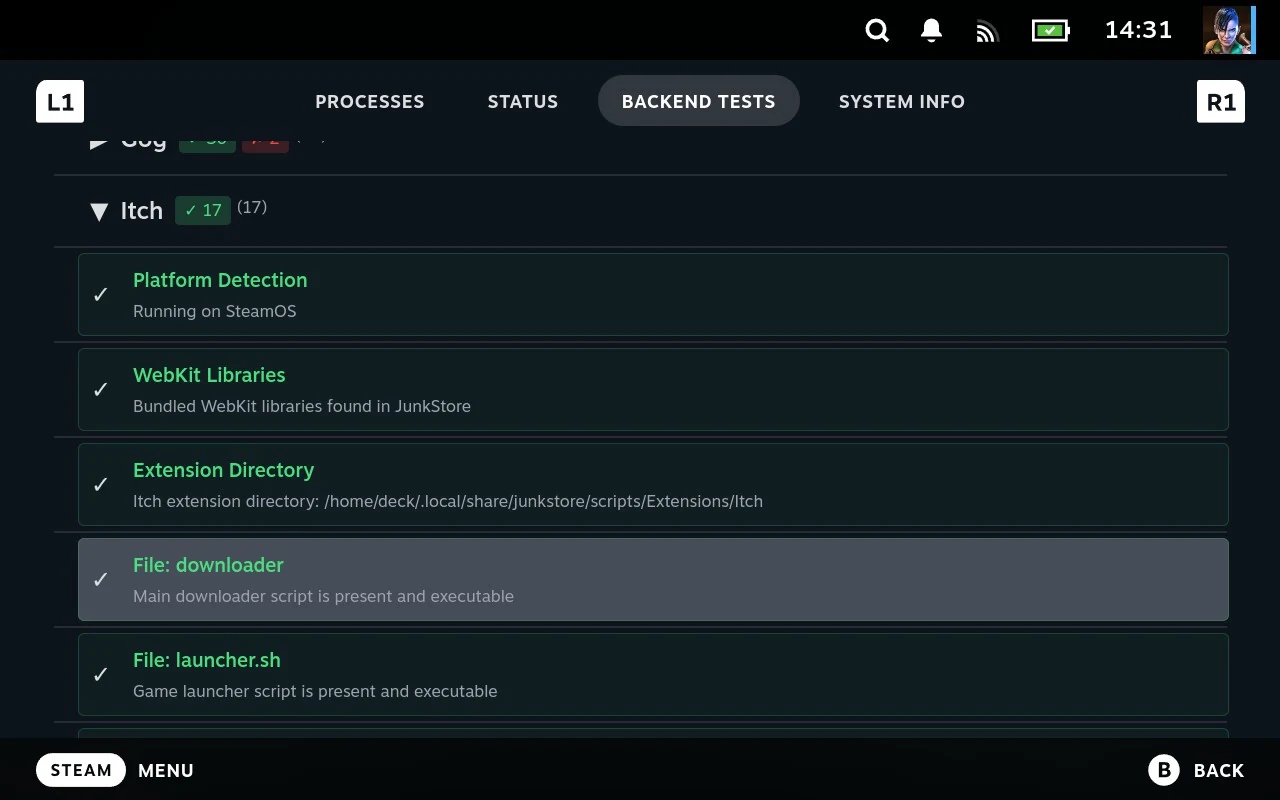
Checks that run on demand and report pass, warn or fail, grouped by area. A expands a group to show the individual checks and what each one said.
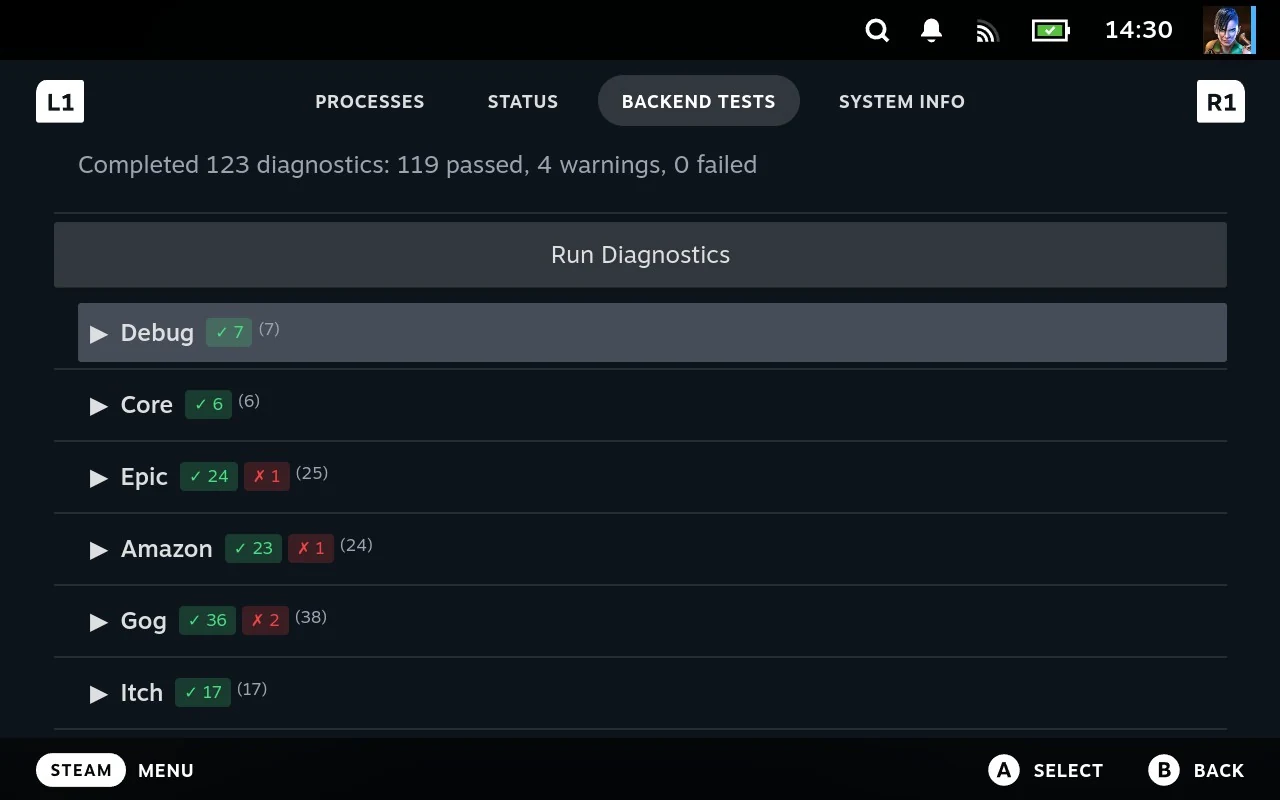
Extensions can add their own tests, which is what makes this more than a self-check. An extension can ship checks for the things it depends on, so a store can tell you its login has expired or its download tool is missing, in the same list as everything else.
This is the first place to look when a store stops working but the rest of Junk Store Pro is fine.
System Info
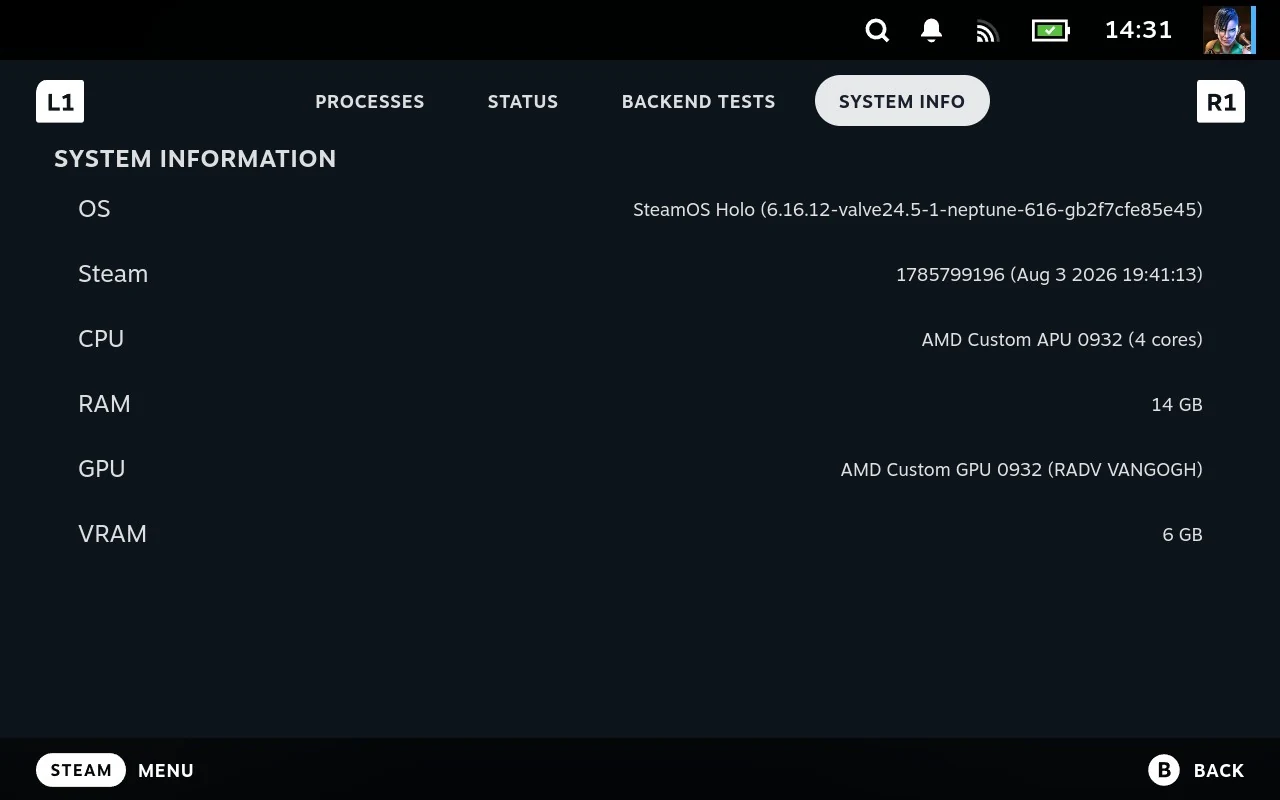
What the device is, what versions are installed, and where things live. Mostly useful when someone is helping you and asks what you’re running, and it’s the sort of thing worth including in a support ticket.
Before you dig in: check offline mode
If the symptom involves downloads failing, logins not working, or a store refusing to do anything while your network is plainly fine, check offline mode before anything else.
Junk Store Pro switches offline mode on and off by itself as your connection comes and goes, and it occasionally gets stuck on when you’re actually connected. Everything that needs the network then quietly declines to work, which looks like a broken download rather than a setting.
It’s in Settings, and it’s a five-second check that explains a surprising number of “downloads are broken” reports.
Every button
| Where | Button | Does |
|---|---|---|
| Anywhere | SELECT + Y | Opens and closes Diagnostics |
| Anywhere | LB / RB | Moves between the four tabs |
| Anywhere | B | Closes |
| Processes, filter box | Start | Clears the filter |
| Processes, filter box | X | Force kills everything matching |
| Processes, list | Y | Changes the sort column |
| Processes, list | Start | Flips the sort direction |
| Processes, list | X | Kills the highlighted process |
| Status, Backend Tests | A | Expands or collapses a section |
Related
- Reading the logs a diagnostic points you at: File Manager tools
- Sending a log to an open ticket: Sending a file to support
- The other chords: File Manager reference