The download queue
On this page
Everything Junk Store Pro downloads goes through one queue, and this is where you watch it. Installs, updates and imports all end up here together, whichever store they came from.
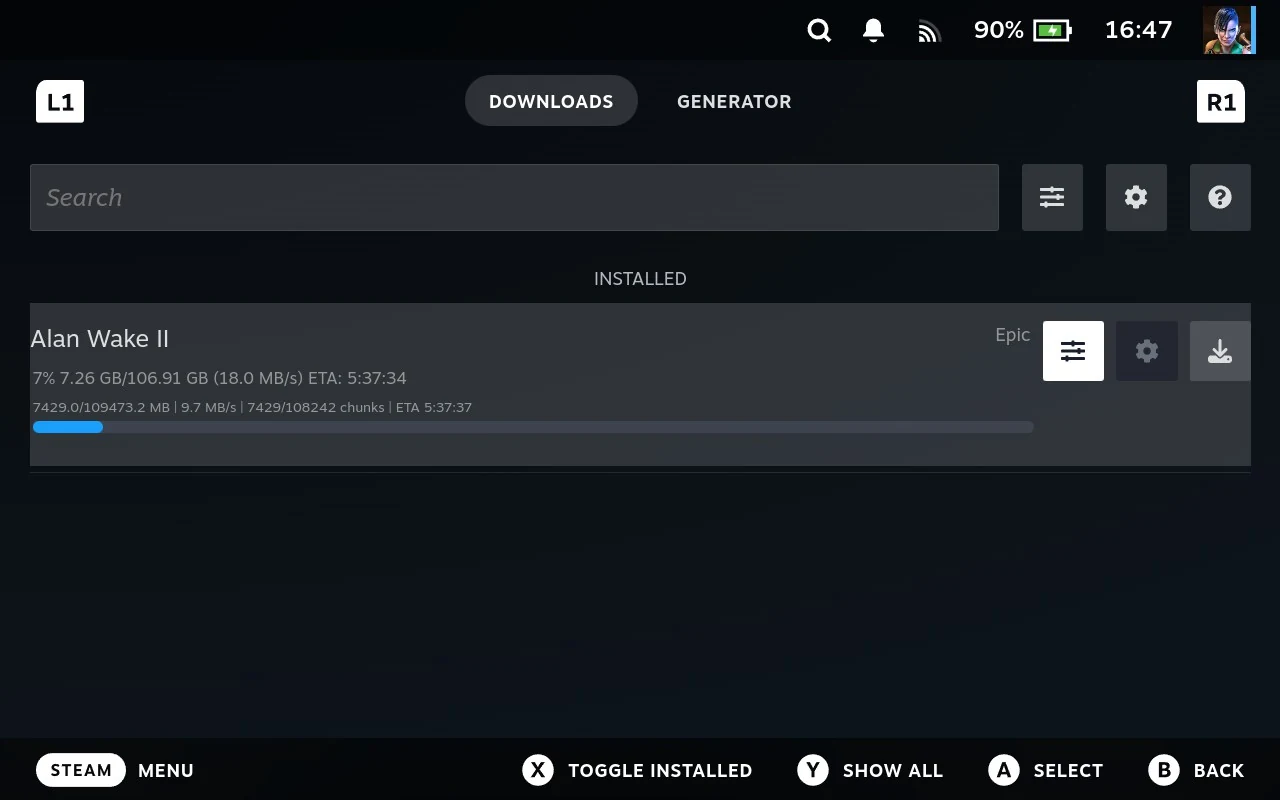
It’s a tab, not a menu. Open the main menu, choose Tools, and it sits alongside the Generator. That’s because the queue is an extension like any other, which is also why it looks like a store tab: same search box, same row of buttons, same hints along the bottom. See Store, tab, extension.
What you see
Each row is one download, with its progress underneath: how much has transferred, the total size, the current rate, and an estimated time to finish.
Downloads start on their own. Add a game to the queue and it begins immediately, without you pressing anything else. You don’t have to stay on this screen, or even keep the game’s page open.
One at a time. The queue works through its list rather than downloading everything at once, which is why the order matters and why you can change it.
Reordering
Press the download button on a row to move it to the front. That’s the whole mechanism: there’s no drag, no menu, no priority setting. The game you press jumps the queue and the rest shuffle down.
Worth knowing when you’ve queued half a library and decided you want to play one particular thing tonight.
Pausing everything
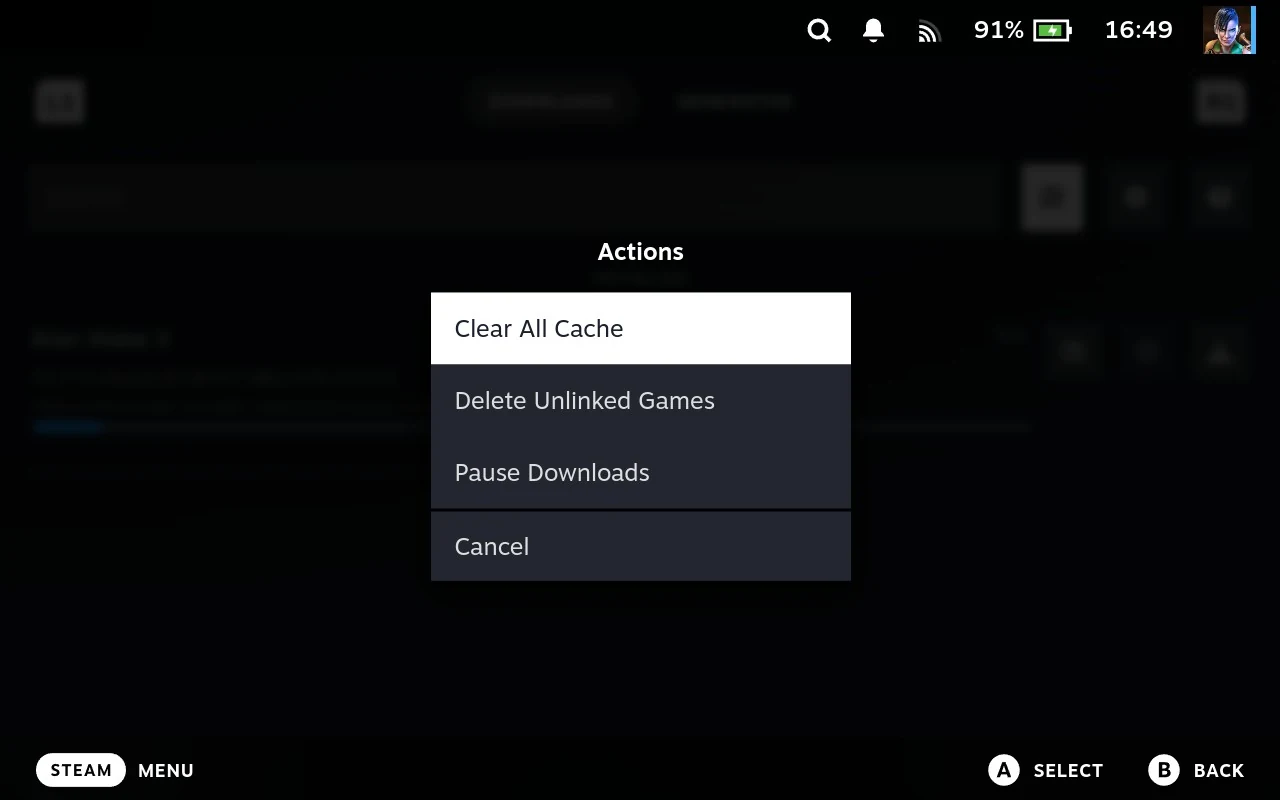
Pause Downloads is on the tab’s own sliders menu, next to the search box, and it stops the queue as a whole rather than any one download.
Use it when you want the bandwidth back for something else.
Pause it before you play something. A download running while you’re in a game competes for bandwidth and disk, which can cost you performance and, on a bad day, leave you with a corrupted download.
Closing Junk Store Pro, and rebooting
Downloads don’t continue in the background. Close Junk Store Pro, or turn the Deck off, and whatever was downloading stops.
The queue itself survives. Everything that hadn’t finished is still listed when you come back. It doesn’t start again by itself, though: press the download button on a game that’s still there and the queue picks up from that one.
Stopping one download
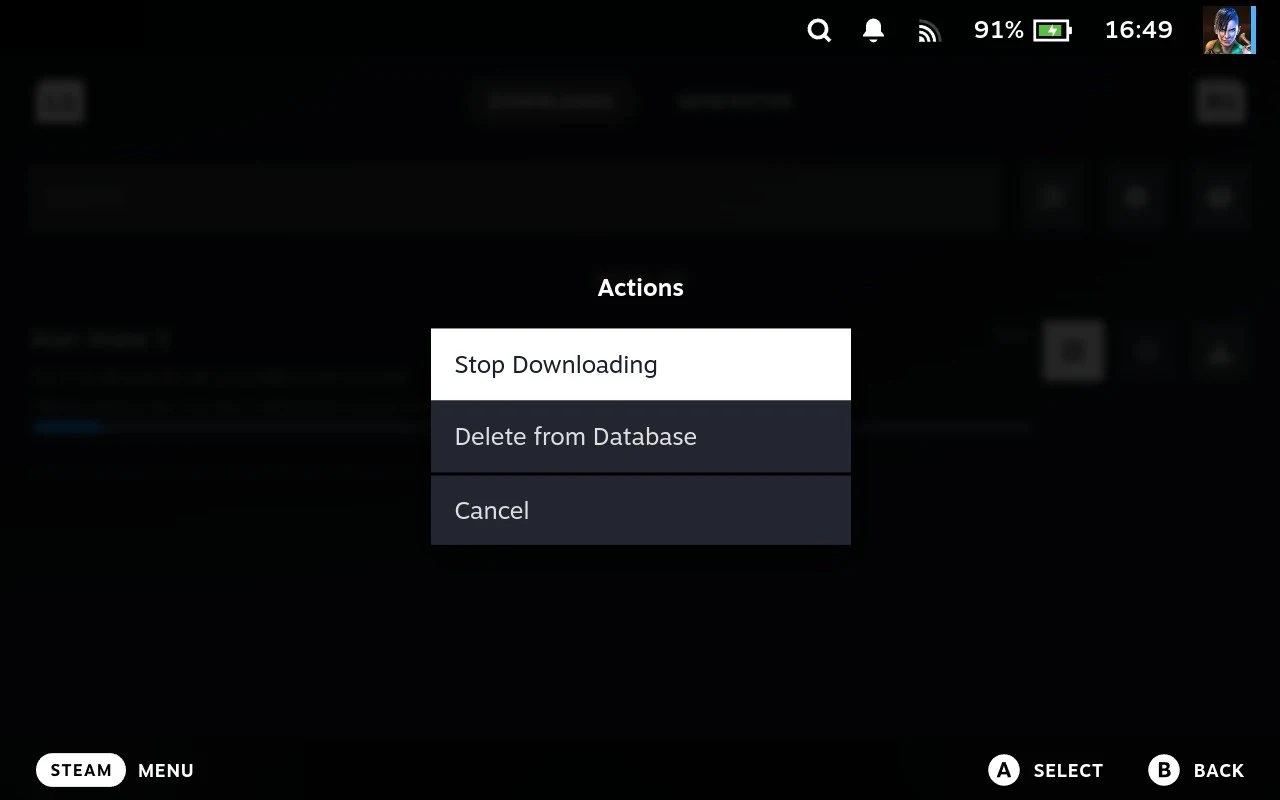
Each row has its own sliders menu, and that’s where stopping lives.
| Entry | Does |
|---|---|
| Stop Downloading | Stops that download and takes the game out of the queue |
| Delete from Database | Removes the queue’s own record of that download, and nothing else |
Stopping removes it from the queue, so this isn’t a pause for one game. If you want it later you’ll be starting again rather than resuming.
Delete from Database is a tidying tool, not a stop button. It won’t halt a download. It removes the entry from the queue’s records, which is what you want when something has hung and won’t clear any other way. It’s a different thing from Delete from Database on a game’s Manage menu, which is about the game rather than the download.
When a download fails
A failure stays in the queue rather than disappearing, and the row tells you what went wrong. Common reasons:
- Not enough space at the install location for that store
- The game isn’t on the account you’re signed in with, which happens if you use more than one account with a store. See More than one account with the same store
- The store simply failed to fetch the files. Itch does this occasionally
Leaving the failed row in place is deliberate: you can read the reason, fix it, and start the download again.
Two entries that do nothing
Clear All Cache does nothing here, and Delete Unlinked Games returns an error.
They’re on the menu because the queue is built as an extension, and a tab inherits the standard set of store actions whether or not they apply to it. On a real store both do useful work, described on the store tabs page. On this tab they were never wired up.
The cog is the same. It opens the ordinary settings screen, which has nothing on it that applies to the queue.
Worth knowing so you don’t spend time working out what you did wrong.
Related
- Where downloads start: A game’s page
- Copying a game from another machine instead: Taking it from another Deck
- Why the queue is a tab rather than a menu: Store, tab, extension
- Choosing DLC and languages before a download starts: Per-game installation settings