Store tabs and game grids
On this page
Each store you have installed is a tab across the top of Junk Store Pro: Epic, GOG, Amazon, Itch, and anything else you’ve added. Selecting one shows that store’s games.
This is where you’ll spend most of your time, and there’s more in it than the grid suggests.
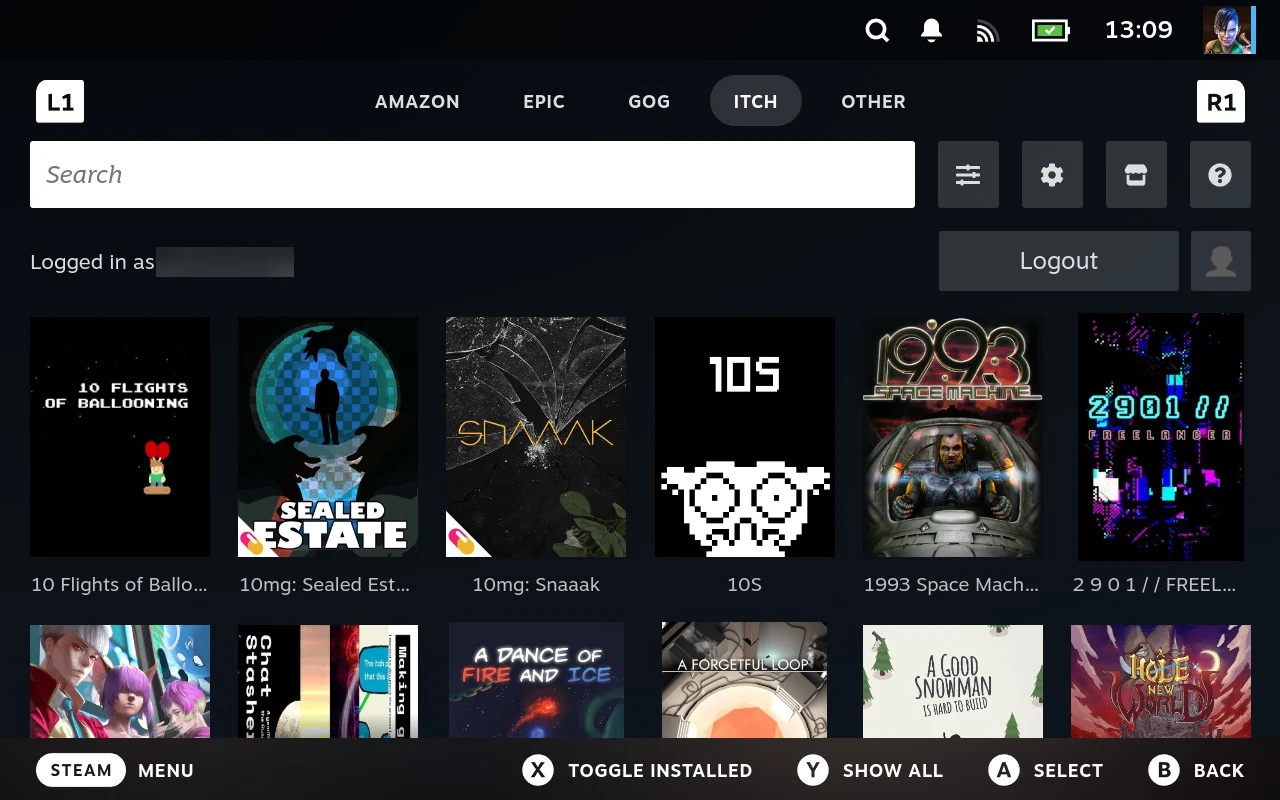
Moving between tabs
L1 and R1 step through the tabs, right and left, from anywhere on the page. You don’t have to navigate up to the row of tabs first, which is the slow way people tend to do it at the beginning.

These are Steam’s own tab controls rather than anything Junk Store Pro adds, so they behave the same way here as they do elsewhere in Big Picture Mode.
Worth building the habit early. With several stores installed it’s the difference between one press and a trip up and across the screen.
Store, tab, extension
You’ll see all three words used, and for most purposes they’re the same thing seen from different angles.
An extension is the thing that teaches Junk Store Pro about a place your games come from. Install one and it appears as a tab, and the games behind that tab are its store. Epic is an extension; the Epic tab is where you see it; the Epic store is what it gives you.
That matters more than it sounds, because none of the tabs are built in. The stores that came with Junk Store Pro are extensions like any other, which is why you can remove one you don’t use, and why new tabs can appear without waiting for a new version of Junk Store Pro. A store for an emulator, a folder of DOS games, or a machine on your network is the same kind of thing as Epic, and sits alongside it.
The Generator and the download queue are extensions too, which is why they’re tabs rather than menus. See The download queue. If you want to know how any of this works, or build one yourself, that’s the extension documentation.
This is the whole shape of Junk Store Pro, not a detail about tabs. See It’s a platform, not a launcher.
Grids and lists
Game stores show a grid of artwork, and that’s what the rest of this page describes.
An extension can display itself as a list instead, and that’s there for extensions that aren’t game stores: a downloader for compatibility layers, say, where the items are versions rather than games and there’s no artwork to show. None of the shipped game stores use it.
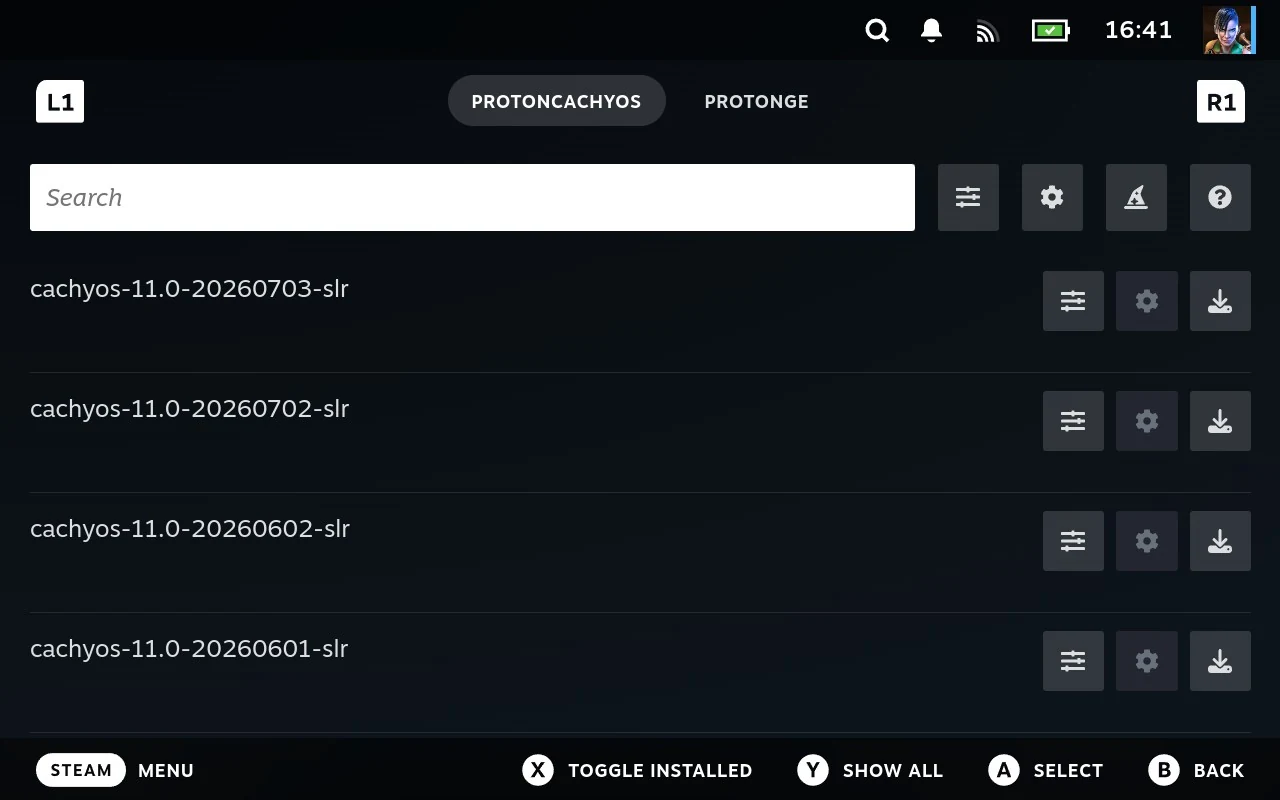
It’s the extension’s choice, not a setting, and it’s decided when the extension is built. Everything below is about the grid.
Press A on a game to open its page, where installing, launching and everything else happens.
Finding a game
Above the grid is a search box, which filters as you type. Useful the moment a library gets past a screenful.

Beside it are four small buttons, left to right:
| Button | Does |
|---|---|
| Sliders | The store’s own actions, covered below. Greyed out for stores that don’t offer any |
| Cog | That store’s settings. See A store’s settings |
| Shop | Opens the store’s website. See Visiting the store’s website |
| Question mark | Help for this screen, as a set of slides you can page through |
Sliders and cog mean the same thing everywhere in Junk Store Pro: sliders are actions that happen, the cog is settings that stay. See Two buttons worth recognising.
The shop button only appears where the store has a website set, so some tabs have three buttons rather than four. Nothing is wrong when it’s missing.
The question mark is worth a look at least once. It’s a short illustrated guide to the screen you’re on, and it’s there on most screens in Junk Store Pro, not just this one.
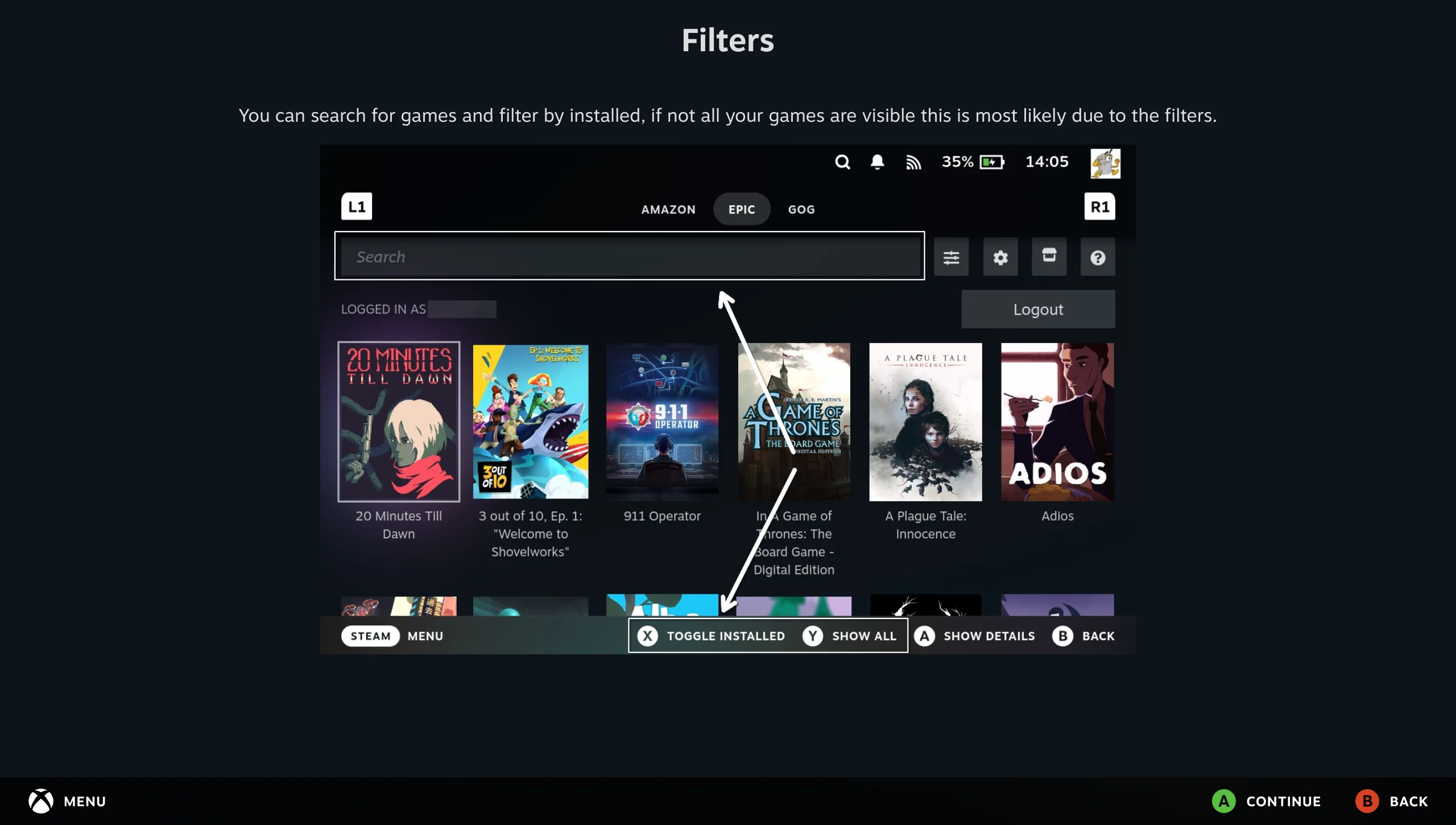
Two more filters are on the controller rather than the screen, and they combine with the search.
X shows only installed games. An INSTALLED divider appears above the grid when the filter is on. The hint at the bottom reads Toggle Installed either way, so the divider is what tells you which state you’re in. This is the fastest way to answer “what have I actually got on this Deck”, especially with a large library where most of it lives in the cloud.
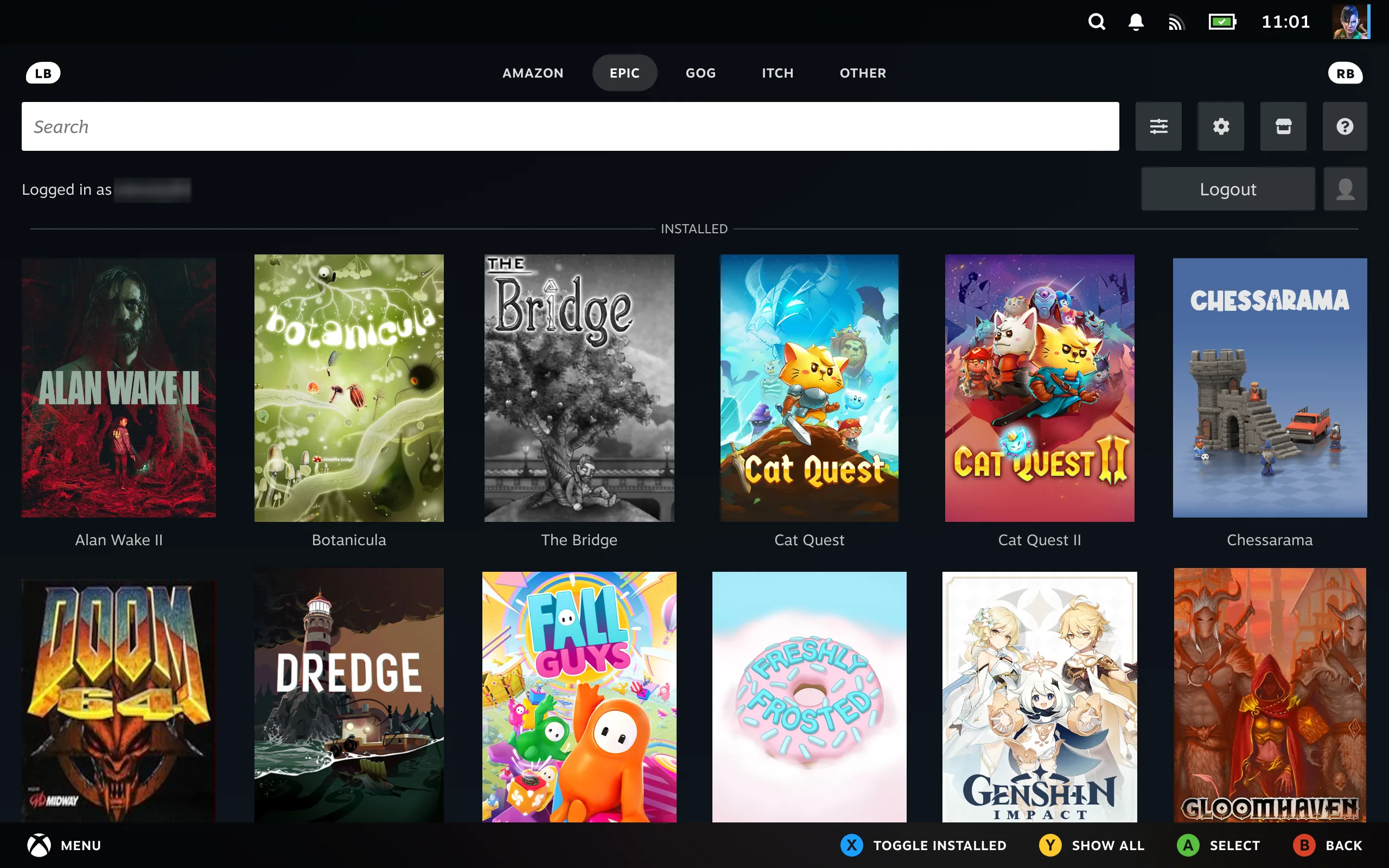
Y takes the limit off. A store tab loads the first 1000 games and stops there, so a large library draws quickly instead of crawling. Press Y and the rest load: scroll down and you’ll carry on to the end of your library rather than stopping at the end of the first thousand.
Worth knowing if you own more than a thousand games somewhere. Until you press Y, the bottom of the grid isn’t the bottom of your library.
Search isn’t affected. The box above the grid looks at your whole library whatever the grid is showing, so you can find a game you own without pressing Y first. The limit is about how much gets drawn, not how much Junk Store Pro knows about.
The store’s actions
The button beside the search box holds actions that belong to the store rather than to any one game. Which ones you get depends on the extension, but three are common to most.
This is the clearest place to see that the menu belongs to the extension, not to Junk Store Pro. Amazon, GOG and Itch all offer exactly the same three; Epic adds three of its own for the EOS overlay, which nothing else has.
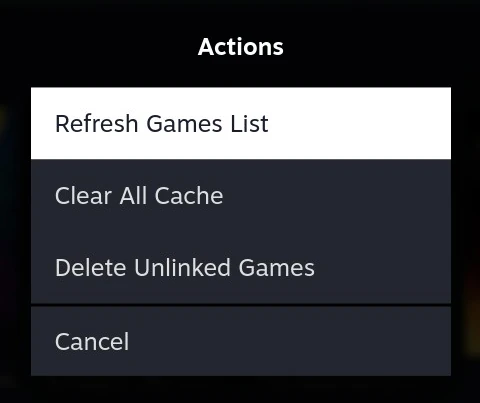
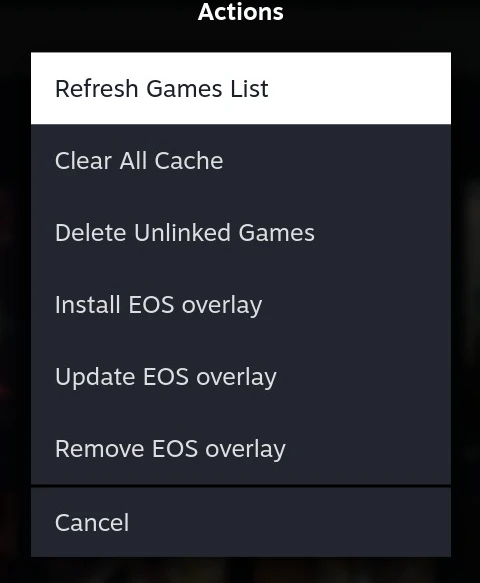
The three common ones are described below. Anything beyond them comes from that particular store, and its own documentation is the place to look.
Refresh Games List
Asks the store for your library again and updates what’s shown. This is the fix when a game you own isn’t listed, or a game you’ve since bought hasn’t appeared.
It takes a while. How long depends on how big your library is and how good your connection is, and a large library on slow Wi-Fi can take a few minutes. It isn’t stuck. Start it and leave it alone.
The newer command line clients are quicker than the old flatpak ones, so if refreshing feels slower than you remember, or slower than someone else’s, that’s usually the difference.
Clear All Cache
Throws away what the store has remembered locally so it gets worked out again from scratch.
At the moment that’s mostly the login status, Junk Store Pro’s note of whether you’re signed in. Clearing it doesn’t sign you out; it just makes Junk Store Pro go and check again rather than trusting what it wrote down earlier.
That’s the fix for a store that thinks you’re signed out when you aren’t, or the other way round. More will be cached over time and cleared by the same button, so treat it as “forget what you know about this store” rather than a fixed list.
Worth trying when a store is behaving oddly in a way refreshing doesn’t fix, before assuming something is broken.
Delete Unlinked Games
Removes games from Junk Store Pro’s own records when they have no Steam shortcut, meaning they were never added to your library or the shortcut has since gone.
This exists mainly for testing, and most people will never need it. It’s genuinely useful in two situations, though.
Records that have drifted out of step, if you’ve been experimenting or removing shortcuts by hand. This clears the leftovers so a refresh can rebuild cleanly.
Getting a game’s details fetched fresh. Combined with a refresh, it’s the way to pick up corrected information from the store, or to undo an edit made in Game Details. Uninstalled games come back with whatever the store says now.
It only touches Junk Store Pro’s records. Installed games and their files aren’t affected, and nothing in your Steam library is removed. Anything deleted comes back on the next refresh if the store still lists it.
Visiting the store’s website
Most tabs have a button that opens the store’s own website on the Deck. Handy for claiming a weekly free game, buying something, or looking up a title without reaching for a phone.
Signing in there is not signing in to Junk Store Pro. This is the mistake we see most often, so it’s worth being plain about it.
The website is just the store’s website, shown on your Deck. It has its own session, the same as it would in any browser. Junk Store Pro installs games using a separate client program that keeps its own login, and that login is the one made through Login on the main menu. The two know nothing about each other.
So logging in to the website:
- Doesn’t sign in the client. If Junk Store Pro said you were signed out before, it still is. Use Login on the menu for that.
- Doesn’t make claimed games appear. They’re on your account now, but Junk Store Pro is working from the list it fetched earlier. Run Refresh Games List and they’ll turn up.
- Doesn’t sign you out of anything either, so it’s safe to use.
Claiming free games is the usual reason to go there, and the habit that works is: claim on the website, then refresh the tab.
Next: the game’s page
What’s on a game’s own page, including its menu, Run Exe and artwork, is in A game’s page.
Related
- What tabs actually are, and why they can be added: Extensions
- Editing a game’s shortcut, artwork and files: The File Manager and Steam
- Signing in to a store: The main menu