The File Manager
On this page
The File Manager lets you work with the files on your Deck without leaving Game Mode. Copy, move, rename and delete them, look inside zip files, read files on another computer over your network, and do a few Junk Store Pro jobs you can’t do anywhere else.
It can do a lot, and most of it isn’t obvious.
Where it comes from
If the File Manager feels unfamiliar, it helps to know what it’s built after.
It follows the “commander” style: two folders shown side by side, with the keyboard doing the work. That shape has been around since the 1980s, in Norton Commander and everything that followed it, Midnight Commander on Linux, Total Commander on Windows, and plenty of others. LapLink used it too, with the other machine in the second pane, which is much the same idea as browsing another computer over your network.
All of that influenced the design, though it isn’t a faithful copy of any of them. If you’ve used one you’ll find your way around quickly, but expect differences.
The reason it’s built that way isn’t nostalgia. Two folders side by side suits the job people mostly use this for: getting files from one place to another. You see where things are coming from and where they’re going at the same time, and the copy is one keypress. Compared with a single window where you navigate somewhere, copy, navigate back, and paste, it’s faster and harder to get wrong.
It also happens to suit a controller. There’s no mouse on a Deck in Game Mode, and a design where every action is a button was always going to work better than one built around pointing and dragging.
It works with a keyboard and mouse too
Junk Store Pro is used on desktops as well as Decks, so the File Manager isn’t controller-only. If you have a keyboard and mouse, the usual things work the way you’d expect:
| Double click | Opens a file, or goes into a folder |
| Right click | Opens the menu |
| Shift+click | Selects a range |
| Ctrl+click | Picks items one by one |
| Tab | Switches between the two panes |
| F5 | Copies to the other pane |
| F6 | Moves to the other pane |
| Ctrl+C | Copies |
| Ctrl+X | Cuts |
| Ctrl+V | Pastes |
| Delete | Moves to the trash |
| F2 | Renames |
Most of those match what the older file managers used, so muscle memory helps, but check the full list at the end of this page rather than assuming. Pressing ? shows it on screen too.
The one thing that differs from a desktop file manager: a single click on a folder highlights it rather than opening it. See Moving around.
Start with these four
Four ideas explain nearly everything people find confusing about the File Manager.
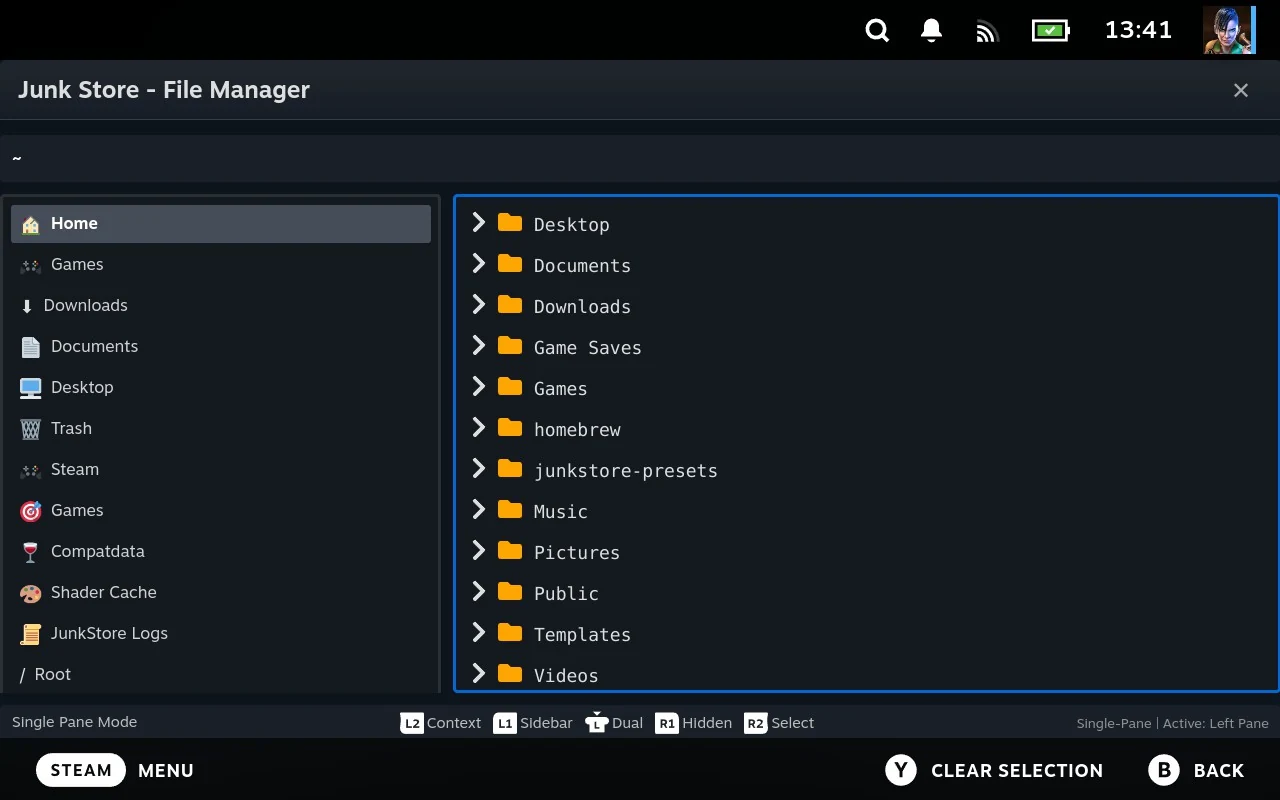
The left trigger opens the menu. Most of what the File Manager can do is in there, including everything that changes your Steam library. If you only remember one thing from this page, remember this.
It can show two folders at once. These are called panes, and you get two side by side, so you can copy from one to the other. If a file ever ends up somewhere you didn’t expect, it’s usually because the other pane was the active one.
Focus and selection aren’t the same. The item your cursor is on is focused. Items you’ve selected are marked, and there might be none. If you’ve selected anything, commands act on your selection instead of the focused item.
Zip files open up, they don’t open into. Press A on a zip and its contents appear underneath it, like a folder unfolding. You don’t go inside it the way you’d go into a folder.
What people actually use it for
If you’re wondering why you’d open it at all, these are the jobs it’s best at:
- Work out why a game won’t start. Read its log without leaving Game Mode. The logs shortcut
- Fix a game’s artwork, or point a shortcut at the right
.exe. The Steam submenu - Find out what’s eating your disk. A picture of your drive where the biggest rectangle is the biggest folder. Follow it down to whatever’s responsible and delete it without leaving the screen. Disk Usage
- Copy games or ROMs from another computer over your network. Reaching another machine
- Clean up after uninstalled games, which leave Proton prefixes and shaders behind. Orphans
- Find saves you thought you’d lost. A reinstalled game often leaves its old saves in the prefix it used before. Check for saves before you delete a prefix
- Add something to Steam that isn’t a game you installed, like an emulator or a tool. Add to Steam
- Set up a DOS game from a folder with its own
dosbox.confand.batfiles. Importing a DOSBox conf - Send a log to support on an open ticket, without copying it off the Deck first. Sending a file to support
Two ways to open it
Which way you open the File Manager decides what it can do, so it’s worth knowing the difference.
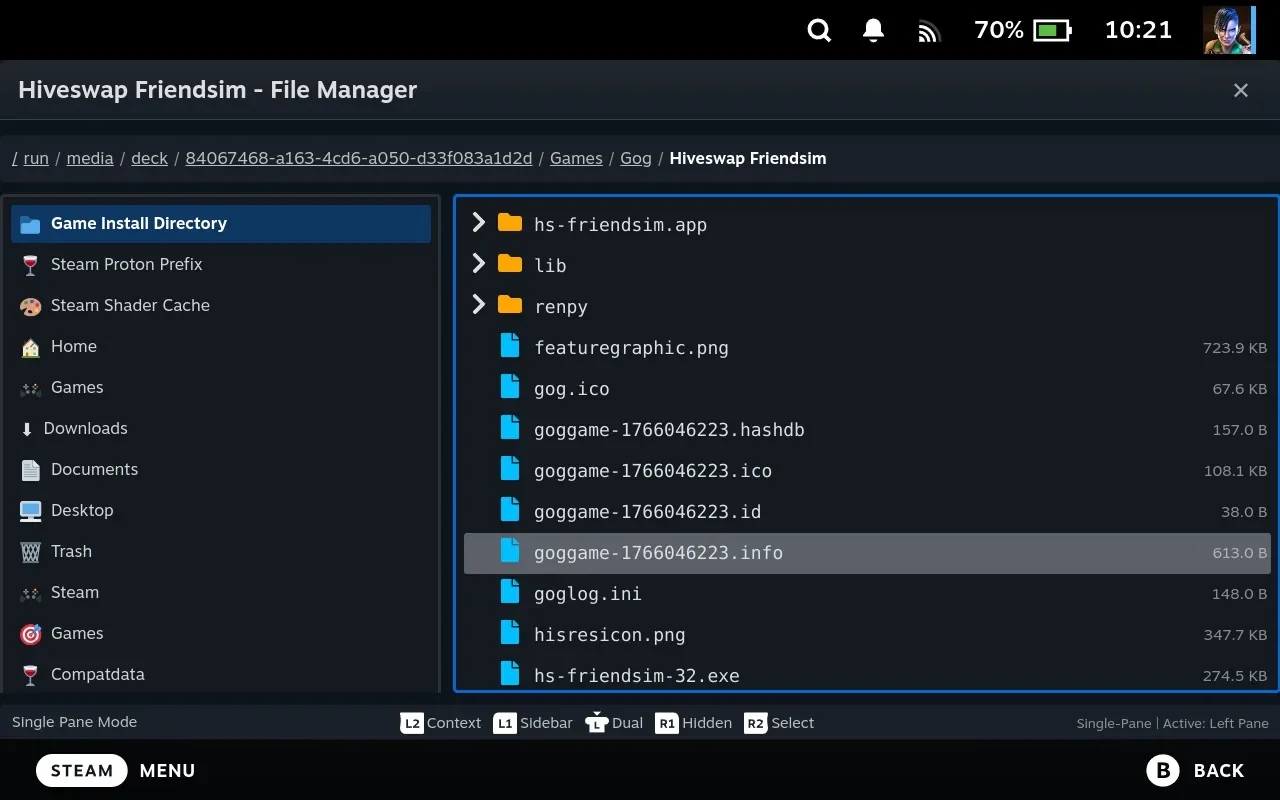
From a game. Open a game, then choose File Manager from its actions menu. The File Manager knows which game you came from, so you get everything that needs a game: its files, its settings, its artwork.
From anywhere else. Hold SELECT and press X. It’s also on the main menu, and Ctrl+B works if you have a keyboard. You get plain file browsing, starting in your home folder. The game-specific bits aren’t there, because there’s no game.
The SELECT+X shortcut works anywhere in Steam, so the File Manager is never more than two buttons away.
| From a game | Standalone | |
|---|---|---|
| Browse, copy, move, rename, delete | Yes | Yes |
| Archives, viewers, disk usage, remote machines | Yes | Yes |
| Sidebar shortcuts to that game’s install directory, prefix, shader cache | Yes | |
| Steam submenu: set executable, working directory, artwork | Yes | |
Import a .bat or DOSBox .conf into the game | Yes | |
| Add to Steam, prefix and shader names, orphan cleanup | Yes | Yes |
Nearly every “why can’t I see that option” comes down to this. If a feature is described here and isn’t in your menu, the likeliest reason is that you opened the File Manager from the main menu rather than from a game.
There is no way to attach a game to a File Manager already open standalone. Close it and reopen from the game.
There is also a third, briefer appearance: opened by something else to pick a path. See When it opens as a picker.
Opened from a game, the sidebar already points at that game’s folders: where it’s installed, its Proton prefix, and its shader cache. You don’t need to know any ID numbers see Prefixes, shader caches, and the numbers problem.
When it opens as a picker
Sometimes the File Manager opens on its own, because something else needs you to point at a file or a folder. Importing a game asks you for a folder this way, and so do settings that hold a path.
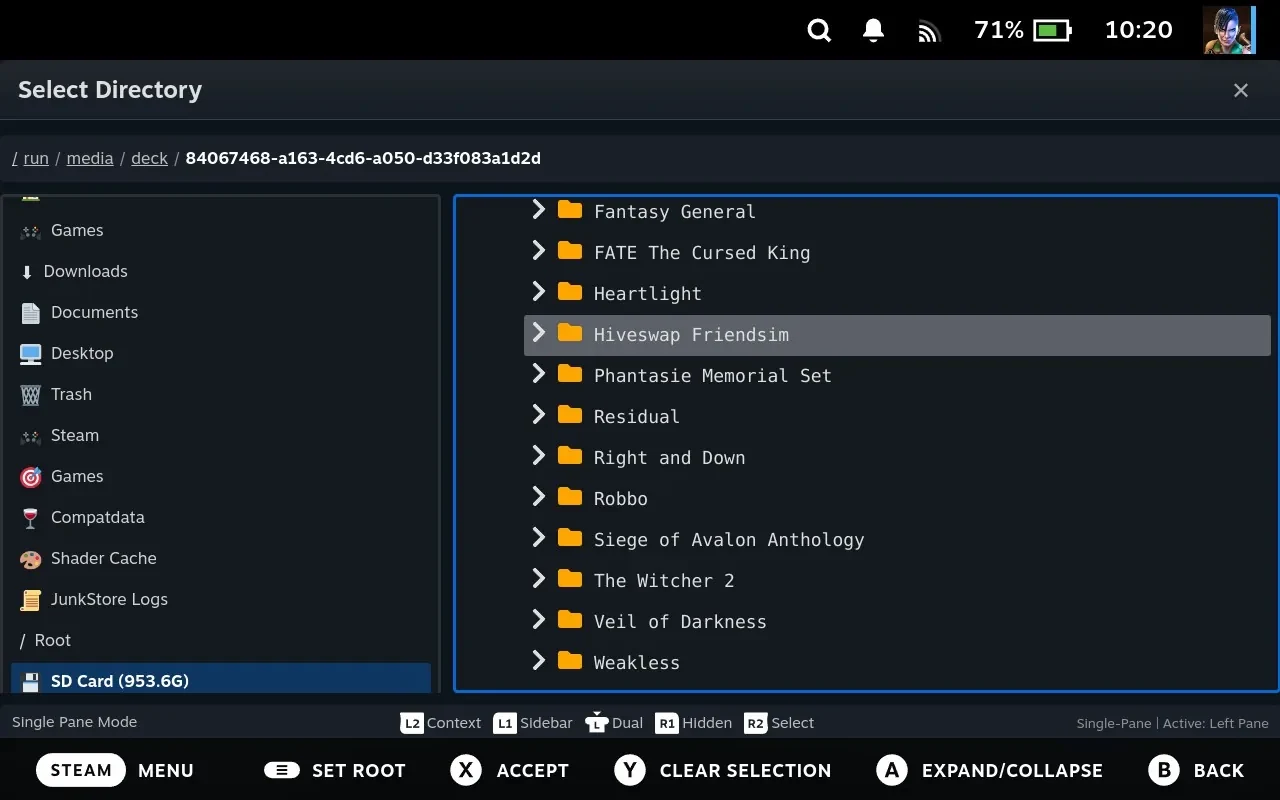
It’s the same File Manager doing a different job, and a few things change:
X means “this one” instead of “show me this one”. That’s the one that catches people. Normally X opens the focused file in a viewer. As a picker, X hands your choice back and closes. The hint at the bottom of the screen says Accept instead of View, which is how you can tell.
It might only take one kind of thing. Some pickers want a file, some want a folder. If you press X on the wrong kind, nothing happens, no error, no message, it just doesn’t respond.
You usually can’t pick more than one. Most pickers want a single answer, so paint-select and the selection shortcuts may be switched off. Where several are allowed, X hands back everything you selected.
B cancels. Whatever asked for the path is left alone.
Everything else works as usual: browsing, unfolding, the sidebar, switching panes, the menu. X being busy doesn’t stop you looking at files either, the viewers are in the left-trigger menu as well, so you can check a file is the right one before you pick it.
Next: driving it
Moving around, the two panes, selecting several files, copying and deleting, and archives are all in Using the File Manager.
Related
- Editing your Steam library, prefixes and DOS games: The File Manager and Steam
- Viewers, disk usage, the sidebar and logs: File Manager tools
- Every shortcut, and what to do when something misbehaves: File Manager reference
- Browsing another computer: Reaching another machine
- Vocabulary used here: Glossary