The main menu
On this page
Tap SELECT to open Junk Stores main menu. A quick press, not a hold, holding SELECT brings up the chord hints instead, and pressing SELECT along with another button does something else again. Tap it again to close.
It works anywhere in the Steam interface, so this is how you get into Junk Store Pro without navigating to it first.
If you have a keyboard
Steam maps its own hardware buttons to keys, which is how you press them on a desktop or any machine without a Deck’s controls. These come from Steam rather than Junk Store Pro, so they work everywhere Big Picture Mode does:
| Key | Button |
|---|---|
| Ctrl+1 | STEAM |
| Ctrl+2 | QAM (the quick access menu) |
| Ctrl+3 | SELECT: opens the Junk Store menu |
Ctrl+3 is the one you want here. Junk Store Pro’s own keyboard shortcuts are separate and listed in File Manager reference.
Signing in to Junk Store Pro
Junk Store Pro itself needs an account. It’s the one you made when you bought it, and it’s what proves your copy is licensed.
If you’re not signed in, opening the menu asks you to. A small window appears with two boxes, Username and Password, and a message saying you need to sign in to continue. Enter the details you used when you bought Junk Store Pro and it goes straight on to the menu.
Get them wrong and it tells you so, and you can try again.
Once you’re in, it stays that way. Your licence is checked in the background and cached, so signing in is normally a one-off. You won’t be asked again on that device unless something clears it.
The menu shows who you are. Signed in, it reads Logged in as with your email address, and there’s a Logout button beside it.
 Logging out asks you to confirm, and after that you’re back to the sign-in window.
Logging out is rarely something you want. It’s there for handing a Deck to somebody else, or if you need to sign in as a different account. If Junk Store Pro simply stops believing you have a licence, Refresh Licence on the Settings screen is the thing to try first, not logging out and back in.
This is separate from signing in to a store. Epic, GOG and the rest have their own accounts, covered further down. Signing in here doesn’t sign you in to any of them.
What’s on it
The menu is in two halves, and only the bottom one is always the same.
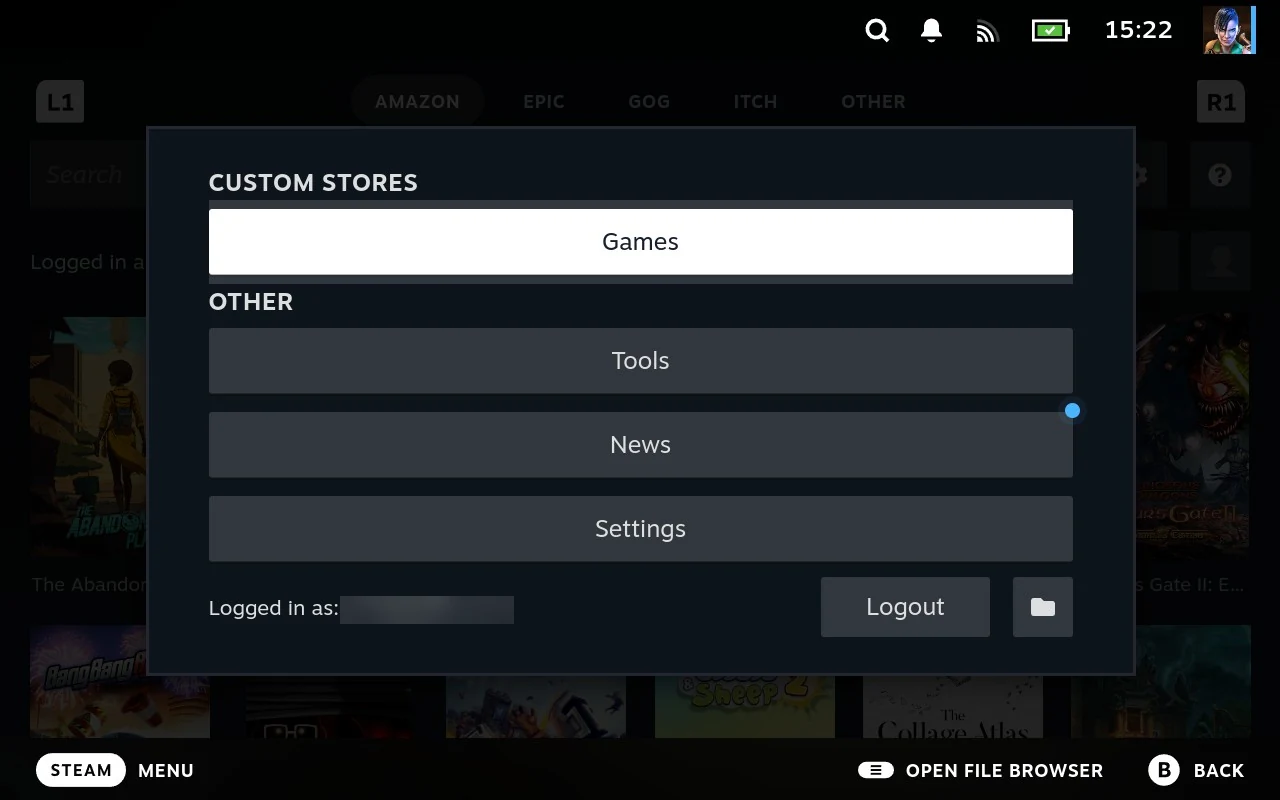
The top: whatever your extensions offer
Everything above the last section comes from the extensions you have installed, grouped under headings they choose. A store might offer to log you in, refresh its library, or open its settings. The Generator offers its own entries.
If you’re running the shipped extensions, your menu looks much like everyone else’s. It only diverges once you install something of your own, or remove one of the stores you don’t use.
This is worth understanding rather than treating as clutter. Nothing in this part is built into Junk Store Pro; it’s extensions putting their own actions somewhere you can reach them. If you install a new store, its entries appear here without anything else changing.
File Manager is on the menu too, which is one of the three ways to reach it. The others are SELECT+X from anywhere, and a game’s actions menu when you want it pointed at that game. See Two ways to open it.
Start opens the File Manager
Wherever you are in the menu, pressing Start opens the File Manager without your having to find the entry for it. The hint appears at the bottom of the screen as Open File Browser.
Worth learning if you use it often. It closes the menu on the way, so it’s one press rather than navigating to an item and selecting it.
The bottom: News and Settings
Two entries that are always present.
News is the Junk Store Pro blog, pulled in as a feed so you can read it on the device rather than going to the website. A blue dot means there’s a post you haven’t read.
Free games get posted weekly, which is the reason most people end up checking it. Epic and the others give games away on a rotation, and the round-up lands here so you can claim them without going hunting. Alongside that you’ll find release notes, known problems, and whatever else is worth writing up.
Reading the news
Posts are listed newest first, each with its title, date, a short summary, and any tags it was filed under. Unread ones are marked, so you can see at a glance what’s new since you last looked.
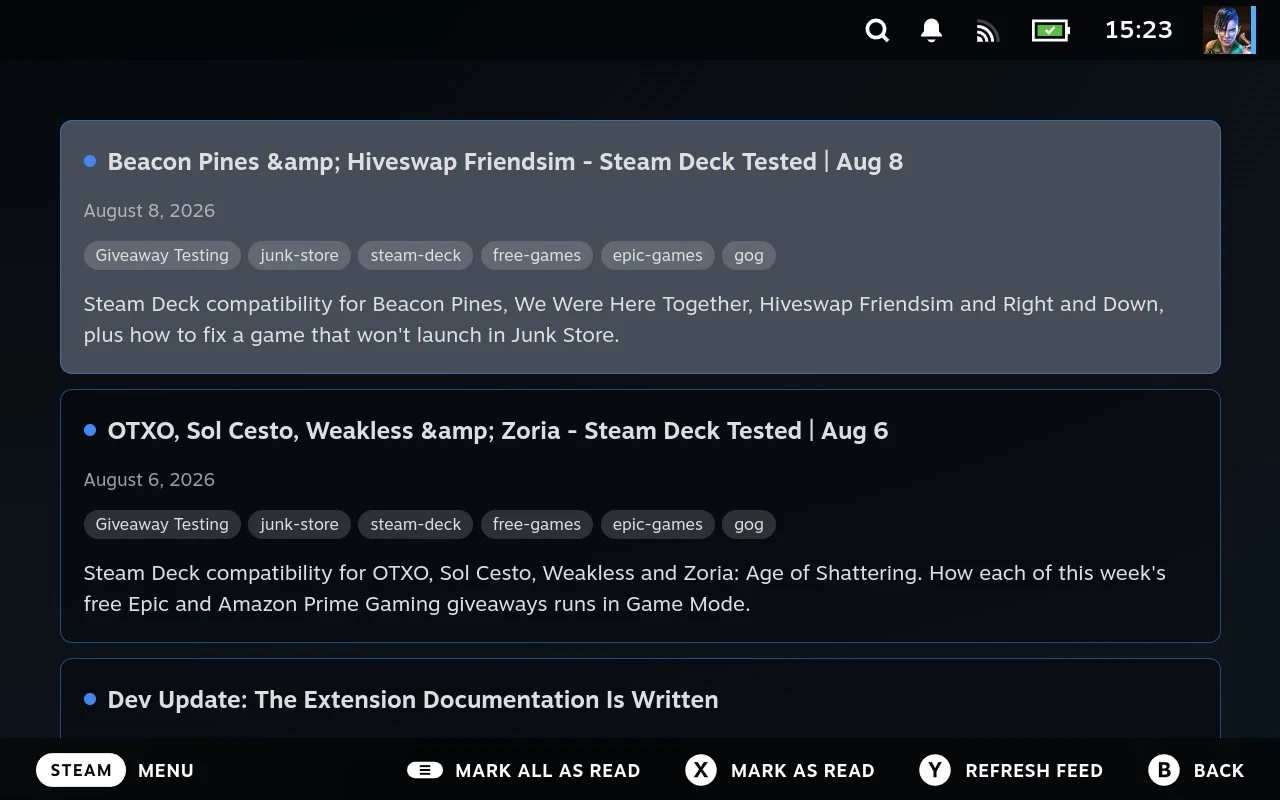
| Button | Does |
|---|---|
| A | Opens the full post in the Deck’s browser |
| X | Marks that post read, or unread if it already was |
| Y | Fetches the feed again |
| Start | Marks everything read, or everything unread if it all already was |
Opening a post marks it read, so the count looks after itself if you just read things as they arrive.
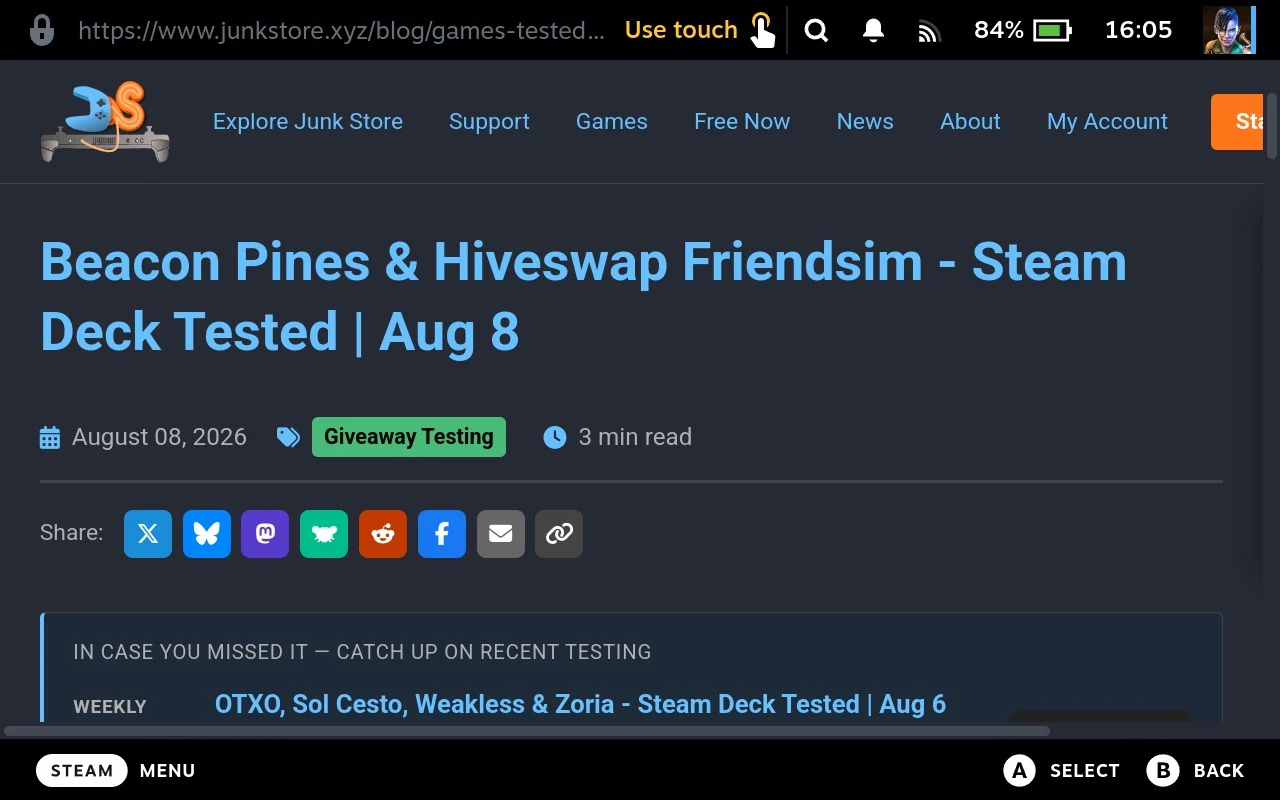
Y fetches the feed again. The list is loaded when you open the page, so this is what you press if you’re expecting something that hasn’t turned up yet, or if the page loaded while your network was down. If the feed failed to load at all, the same button is offered as Retry.
Start is the one to know about. Coming back to a long list you’ve no intention of reading, one press clears the lot and the dot goes away.
X is for keeping something in view. Mark a post unread and it stays flagged, which is handy for a free game you mean to claim later but can’t right now.
Read state lives on the device, so each Deck tracks its own.
Settings opens the Settings screen, where the update button, the channels, network options and SSH keys live. A blue dot here means an update is waiting.
Logging in to a store
This is a separate thing from the sign-in above. That one is your Junk Store Pro account. This one is your account with Epic, GOG or whichever store an extension is for, and the two are unrelated: signing in to Junk Store Pro doesn’t sign you in to any store, and logging out of a store doesn’t touch your licence.
It’s also separate from the store’s website, which some tabs have a button for. Signing in there doesn’t sign in the client Junk Store Pro installs games with, which catches people out regularly. See Visiting the store’s website.
Stores that need an account put a Login entry on the menu, and what happens next is unusual enough to be worth knowing before you try it.
Junk Store Pro never sees your password. It puts the store’s own login page on screen and you sign in with them directly, the same as you would on their website.
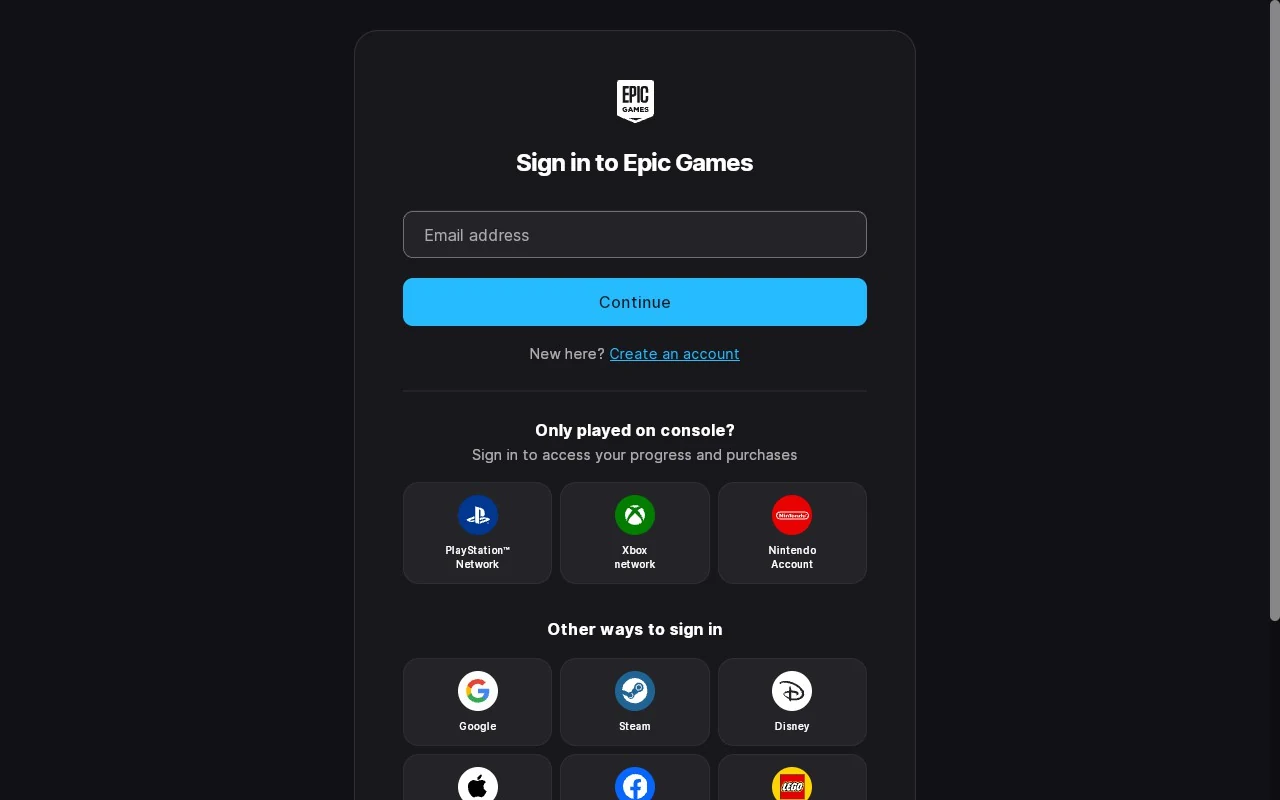
Getting that page onto a Deck in Game Mode is the awkward part. Junk Store Pro handles it by briefly adding a Steam shortcut called Login and launching a small web view through it. It’s a window showing one page, not a browser you can wander off in.
So:
- A shortcut called “Login” appearing in your library is normal. It’s temporary.
- Your credentials go to the store, not to Junk Store Pro. There’s nowhere for them to be kept on your device, because they never arrive there.
- It closes itself. Once you’ve signed in, the window goes away and the shortcut is removed, and you end up back where you started. Nothing to tidy up.
If you sign in through Google, Apple or another service rather than a username and password, this is the part most likely to give trouble. Those sign-ins bounce you between sites, and the older flatpak clients handled that badly. The newer command line clients are much better at it, so if you had trouble before, it’s worth another go.
It isn’t perfect. Some combinations still fail, and there’s rarely anything you can do about it from your side. Please raise a support ticket if you hit one. Which store and which sign-in service is usually enough to go on, and reports are the only way these get found.
If a log would help, you can send one straight from the File Manager once the ticket is open.
Logging out sits on the same menu and asks you to confirm. It clears that store’s saved session, so you’ll need to sign in again before installing anything from it.
If a store stops listing your games, or downloads start failing with permission errors, the session has probably expired. Logging out and back in is usually the fix.
More than one account with the same store
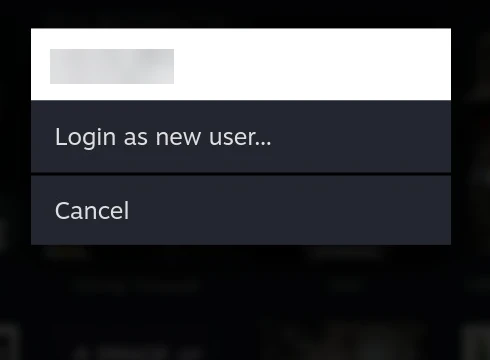
Some stores let you stay signed in to several accounts at once and switch between them. Where that’s supported, a Switch User button appears alongside the login controls, listing the accounts you’ve signed in to by name.
This needs the clients Junk Store Pro supplies. It doesn’t work with the older flatpak ones, which have no concept of more than one account, so if you’re on those the button won’t be there at all. That’s the usual reason for it being missing when you expected it.
Pick one and that account becomes the one Junk Store Pro acts as. Nothing is signed out in the process, so switching back is another press rather than another login.
It’s also who you play as. Games that check the store account when they start will see whichever one is currently active, so online play, friends lists and achievements all follow the switch. Launch something multiplayer as the wrong account and you’ll be the wrong person in it.
Worth a glance at which account is active before starting anything online, particularly if you switched for a download and forgot to switch back.
Saved games are the one to watch. Cloud saves don’t work yet with the clients Junk Store Pro supplies, so your progress lives on the Deck rather than being synced to the store. That’s fine day to day, but it means saves aren’t tied to whichever account is active, and two accounts playing the same game are sharing one set of saves on this device.
Nothing is lost by that today. It’s worth knowing now, though, because when cloud saves do arrive the account you were playing as will start to matter, and habits formed in the meantime may not survive the change.
What it doesn’t do is filter the games list. Switching accounts changes who installs and downloads, but the grid keeps showing everything Junk Store Pro knows about from that store, across all the accounts you’ve signed in to. Nothing separates them on screen.
That trips people up, so it’s worth being clear about. If you switch to your second account and still see the first one’s games, that’s expected, not a fault. It only becomes obvious when you try to install something the current account doesn’t own and the store refuses.
If you keep two accounts with real overlap, the safest habit is to know what’s on which before you switch, rather than trusting the grid to tell you.
To add another account, open the same Switch User list and choose Login as new user. That runs the ordinary sign-in, and when it finishes the new account joins the list alongside the others. Each one stays available until you log it out.
This is worth knowing if you have a family account alongside your own, or a regional account with different games, or you simply bought things on two accounts over the years. Not every store supports it, so the button only appears where it applies.
Related
- The settings behind the Settings entry: Settings
- The other SELECT chords: File Manager reference
- What extensions are, and why they can add menu entries: Extensions