Downloader protocol
On this page
The downloader is the script with the richest protocol, because it reports progress while it runs. What follows covers the keys it can emit, where each one appears on screen, and the junklib helper that produces them from an existing tool’s output.
The general output conventions are in Script output; the downloader’s arguments and place among the other hooks are in Custom scripts.
How it is called
downloader <game-id> <install-path> <mode>
The install path is created before your script runs, so you can write into it immediately.
The queue row mirrors those three arguments. Its game_id, path and mode columns are exactly what gets passed, which makes the row a useful diagnostic: if it looks right and the run still fails with exit code 127, the likely cause is that the extension has no downloader script at all rather than anything wrong with the arguments. See Troubleshooting.
The third argument is a mode
downloader is not only called to install. The same script is reused for checking and repairing an existing installation, and the third argument says which job it is being asked to do:
| Mode | What it means |
|---|---|
download | Fetch the game. The ordinary install case |
verify | Check the installed files against the store’s manifest. Report, do not change anything |
repair | Re-fetch whatever is missing or corrupt, leaving the rest alone |
repair_and_update | Repair, and also bring the game up to the current version |
This is why the actions list includes verify alongside install: those buttons run this same script with a different mode rather than calling a separate one.
Handle the modes you can, and treat the rest as a download. A getlisting and downloader pair that only knows how to fetch is a perfectly good extension; it just means verify and repair do a full re-download. If your source has no notion of integrity checking, that is the honest behaviour anyway.
Progress reporting does not change between modes. Verification emits the same Percent and Status keys as a download, so the interface shows the same bar with the same caption. The shipped Epic downloader does exactly this: it has separate parsers for the client’s verification output that map onto Percent, so a verify run drives the progress bar without any special handling further up.
Keys you can emit
Print these as they become known. Every one is optional; emit what you can work out.
This is the complete list. These nine are the only labels the parser understands, and anything else you print is discarded silently, as described in Key and value lines. Match the spelling and the capitalisation exactly.
| Key | Meaning |
|---|---|
Status | The current state, see the values below |
Percent | Completion as a whole number, 0 to 100 |
Size | Bytes transferred so far |
TotalSize | Total bytes expected |
Speed | Current transfer rate, the number only |
SpeedUnit | The unit that goes with Speed, for example MB/s |
ETA | Estimated time remaining |
Error | An error message. Setting this suppresses the normal progress message |
Debug | Diagnostic text, recorded but not shown as progress |
Percent is parsed as an integer and a non numeric value is ignored rather than failing, so partial or malformed output degrades gracefully.
Status values
| Value | Meaning |
|---|---|
downloading | Transfer in progress |
completed | Finished successfully |
cancelled | Stopped by the user |
queued | Waiting to start |
paused | Suspended. Set by Junk Store Pro when the user pauses, rather than by your script |
Emit Status:completed when you finish. Without it the operation may not be recognised as done.
Where your keys end up on screen
There are a few layers between your echo and the pixels, and knowing them tells you which key to reach for when the display is wrong.
your downloader prints        Percent:42
                              Size:52428800
   |
   v
parser                        stores each key on the download object
   |
   v
message formatter             builds ONE string from several keys:
                              "42% 50MB/100MB (5 MB/s) ETA: 00:02:13"
   |
   v
progress callback             (percentage, description, status, error, debug)
   |
   v
websocket "progress" event    {percentage, description, status, error, debug, ...}
   |
   v
the game's download panel     ProgressBar  <- percentage
                              caption text <- description
So only two of your nine keys reach the screen directly. The rest are ingredients.
| What you see | Comes from |
|---|---|
| The progress bar’s fill | Percent, and nothing else |
| The grey caption line above the bar | The formatted message, built from Percent, Size, TotalSize, Speed, SpeedUnit, and ETA |
| A faint line below the bar, developer mode only | Debug |
| Nothing directly | Status drives lifecycle, not display |
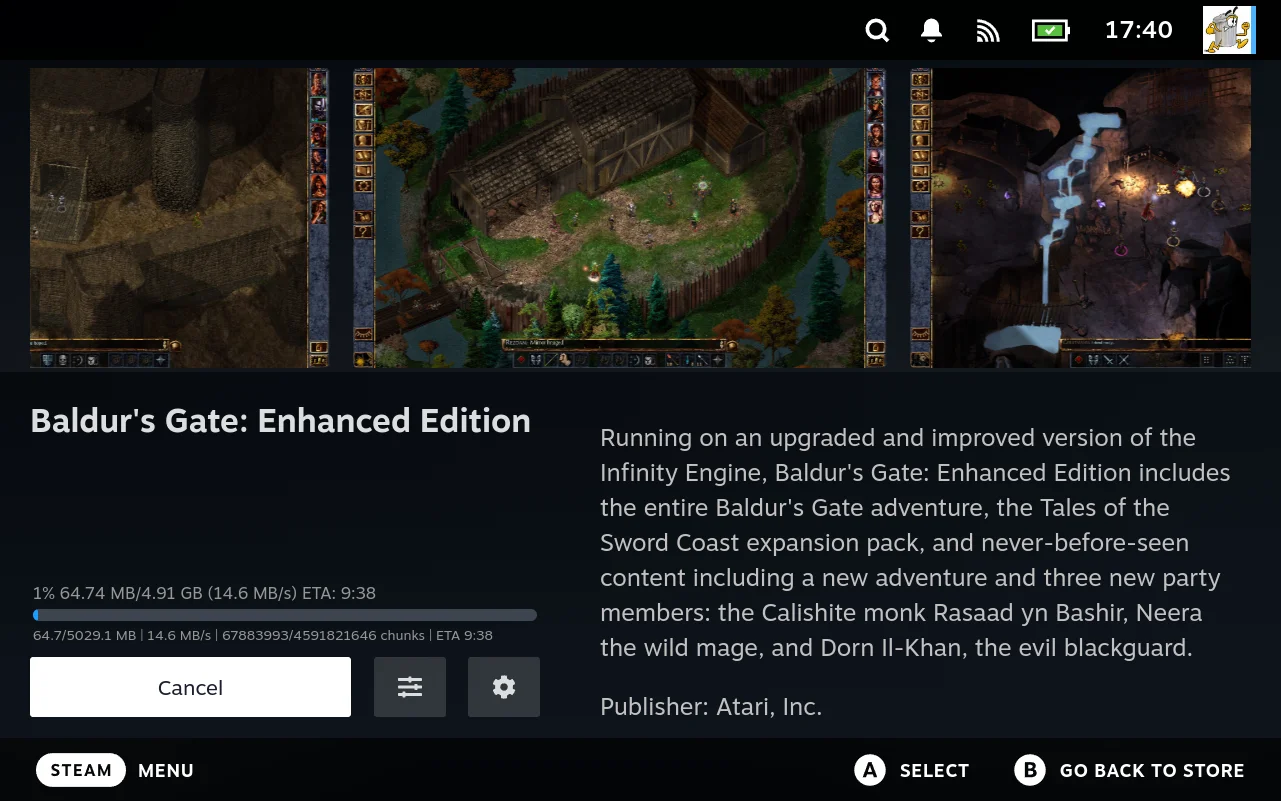
Both lines are visible here because this device is in developer mode. Reading the upper one against the table above shows where each part came from: Percent gave the 1%, Size and TotalSize the 64.74 MB/4.91 GB, Speed and SpeedUnit the (14.6 MB/s), and ETA the rest. The downloader printed six separate keys and never composed that sentence.
The lower line is Debug, passed through untouched. It shows the same download in raw units, which is the point of the key: it is the underlying tool’s own output rather than anything the formatter produced.
The caption is assembled, not passed through
This is the layer that surprises people. You never write the caption text. It is built for you in a fixed shape:
<percent>% <size>/<total> (<speed> <unit>) ETA: <eta>
Consequences worth knowing:
- Byte counts are humanised for you.
SizeandTotalSizeare converted to KB, MB, or GB before display, so emit raw bytes and let it format them. EmittingSize:50MBgives you a nonsense caption, because it is not a number. - The speed and ETA parts vanish when empty. If you never emit
Speed, that bracketed section is omitted rather than showing blanks. The same forETA. So a downloader that only knows percent still produces a tidy caption. SpeedUnitis only a label. No conversion happens, so if you emitSpeedin MB/s say so inSpeedUnit. Nothing checks that they agree.Errorreplaces the whole caption. Once set, the user sees your error text instead of any progress, which is why an error message should read as a sentence rather than a code.
The progress bar takes Percent, with one sharp edge
The bar reads Percent alone. It is clamped to 0 through 100, so an out of range value is pinned rather than breaking the layout.
The edge: the bar accepts either a 0 to 100 scale or a 0 to 1 scale, and guesses which you meant by whether the value is at least 1. Whole numbers behave as you expect, and Percent is parsed as an integer, so in practice you are safe. But it means Percent:0 and a fractional value below 1 are both treated as the 0 to 1 scale. Stick to whole numbers from 0 to 100.
A non numeric Percent is ignored rather than failing, so the bar simply holds its last value. A download that appears frozen at one number, while the caption keeps moving, usually means your Percent line stopped parsing.
Status is lifecycle, not decoration
Status does not render anywhere. It decides what happens to the download:
| Status | Effect |
|---|---|
completed | The download is finished. Junk Store Pro then moves on to the install phase, where the caption changes to “Configuring Steam shortcut and artwork” and the bar goes indeterminate. That phase is signalled separately by Junk Store Pro, not by you |
error | Treated as a failure, with your Error text shown |
cancelled, stopped | The download ends without being counted as finished |
downloading, queued | Ongoing, keeps the panel in its progress state |
paused | Set by Junk Store Pro when the user pauses, not something a downloader normally emits |
This is why omitting Status:completed matters. The bar can sit at 100% while the operation is never recognised as done, because the percentage and the lifecycle are separate signals.
The install phase is one way
Once you emit Status:completed the install phase runs, and an extension cannot opt out of it afterwards. It creates a Steam shortcut, which is what makes a game launchable.
For anything that is not launchable, that shortcut is a dead tile with an empty Exe.
Ending on Status:cancelled skips the install phase entirely. Everything else still works: the queue row, the progress bar, the speed and the ETA. Your files are already wherever your downloader put them. The only cost is that the queue row reads as cancelled rather than finished.
Status:cancelled
That is the way to opt out for items that should not become library entries.
Uninstall removes the shortcut it knows about, using the game’s steamclientid. An extension that manages its own install state has to keep that column current, or the shortcut is left behind and a reinstall adds a second one. See Items that are not games.
For something that should never have had a shortcut in the first place, ending on cancelled is simpler than maintaining one so it can be cleaned up later.
See Items that are not games for the rest of what follows from this.
Two rates, and why the database is not the display
Progress updates travel by websocket on every line you print, so the on screen bar is as smooth as your output. The database row is written only on state changes, which is to say completion, cancellation, stopping, and errors. A download in flight deliberately does not write a row per tick, since that would mean hundreds of writes.
Two practical consequences:
- Printing progress often is cheap. There is no per line database cost, so update as often as you have something to say.
- After a restart, or if the websocket connection drops, what is recovered is the last stored state, not the last percentage. A download interrupted at 60% does not come back showing 60%.
Seeing the Debug key
Debug is only rendered when the interface is in a developer mode, below the bar in small text. It is the right place for the underlying tool’s raw output, since it stays out of the way for ordinary users but is visible when you need it. Everything on stderr is logged instead and never displayed.
A minimal example
#!/usr/bin/env bash
GAME_ID="$1"
INSTALL_PATH="$2"

echo "Status:downloading"
echo "TotalSize:104857600"

# ... do the transfer, emitting progress as it goes ...
echo "Percent:50"
echo "Size:52428800"

echo "Percent:100"
echo "Status:completed"
Reporting errors
if ! fetch_the_thing; then
    echo "Error:Could not reach the server"
    exit 1
fi
Setting Error replaces the progress message, so the user sees your text rather than a percentage.
Using junklib for progress
Most downloaders wrap an existing tool: wget, rsync, or a store’s own command line client. That tool prints progress meant for a human, and your job is to turn it into the keys above. junklib does that for you from a table of regular expressions, so you rarely need to write parsing code.
The whole pattern is three lines:
import junklib

junklib.set_parser(my_parsers)
returncode = junklib.download("wget --progress=dot -O out.zip https://example.com/game.zip")
download() runs the command, reads both its output streams a character at a time, and calls your parsers on each complete line. Matched keys are printed for you in the protocol format. It returns the command’s exit code.
How a parser entry works
A parser table is a list of entries. Each entry pairs a list of regular expressions with a list of formatters:
my_parsers = [
    {
        "regex":     [r"Progress: ([\d\.]+)%"],
        "formatter": ["Percent:{0}\nStatus:downloading"]
    },
]
Every line of output is tested against every regex in every entry, in order. When one matches, {0} in the formatter is replaced by what the regex captured, and the result is parsed as Label:Value lines and printed.
Two things follow from that:
- A formatter can emit more than one key. Separate them with
\n, as in"Percent:{0}\nStatus:downloading"above. That is one match producing two keys. - Matching does not stop at the first hit. All entries are tried against every line, so two entries matching the same line both fire. Keep patterns specific enough not to overlap unintentionally.
Capture groups decide which formatter is used
This is the part worth getting right, because the two lists line up differently depending on how many groups your regex has.
One capture group, or none. Only formatter[0] is used, and {0} is the captured text. With no group at all, {0} becomes the whole matched line, which is handy for pure state markers:
{
    "regex":     [r"Finished installation"],
    "formatter": ["Percent:100\nStatus:completed"]
}
Several capture groups. Formatters are matched to groups by position: group 1 uses formatter[0], group 2 uses formatter[1], and so on. All of them are merged and emitted together:
{
    "regex":     [r"(\d+)% (\d+\.\d+)([kMG])B/s"],
    "formatter": ["Percent:{0}", "Speed:{0}", "SpeedUnit:{0}B/s"]
}
Matching 42% 5.2MB/s emits Percent:42, Speed:5.2, and SpeedUnit:MB/s. Note {0} still means “this formatter’s group”, not “the first group”.
You need at least as many formatters as capture groups. Fewer will fail on the line it matches, which usually reads as the download dying partway through for no visible reason. If you only want some groups, keep placeholder entries so the positions still line up:
"formatter": ["Percent:{0}", "", ""]
Several regexes in one entry is the other use of the parallel lists. Alternative patterns for the same idea, each with its own formatter by position:
{
    "regex":     [r"rsync: (.*)", r"rsync error: (.*)", r"ssh: (.*)"],
    "formatter": ["Error:{0}", "Error:{0}", "Error:{0}"]
}
Do not mix the two ideas in one entry. Use several entries instead; there is no cost to it.
Sizes and percentages are converted for you
junklib post-processes two kinds of key before printing:
SizeandTotalSizego through a unit converter, so you can capture the tool’s own human readable figure.2552.38 Mbecomes bytes. SuffixesK,M, andGare recognised, and commas in the number are stripped. Capture the number and its unit letter, since a bare number is treated as bytes.Percentis rounded to a whole number, so42.7is fine to capture.
A value that cannot be converted is emitted as a Debug line instead of crashing, so a misfiring pattern degrades rather than killing the download.
The converter is deliberately forgiving: it reads the leading number and the first unit letter and ignores whatever follows. So capturing 2552.38 MiB, Written: 2737.42 MiB still yields the right size, because everything after the M is discarded. That is worth knowing because it means a slightly sloppy size pattern usually still works, and equally that a size which looks wrong is more likely a units problem than a regex one. Only K, M, and G are recognised; MiB and MB are both treated as M.
That conversion is the main reason to use junklib rather than echoing the keys yourself.
Errors and completion
Use an entry to translate the tool’s own failures into Error, which replaces the progress message on screen. This is where you turn a cryptic message into something a user can act on:
{
    "regex":     [r"ERROR: The selected title has to be installed via a third-party store"],
    "formatter": ["Error:This game needs another launcher, which is not supported.\nStatus:error"]
}
Do the same for the tool’s success line, since many print a final message rather than a 100% tick:
{
    "regex":     [r"saved \[\d+/\d+\]"],
    "formatter": ["Status:completed\nPercent:100"]
}
Remember the download is only recognised as finished when Status:completed arrives, so make sure some entry produces it.
Ready made parsers
junklib ships tables for two common tools, which you can use directly or read as worked examples:
| Name | For |
|---|---|
wget_parser | wget. Handles percent and size from its progress output, plus its two “already finished” messages |
rsync_parser | rsync with --progress |
rsync_size_parser | Extracting just a total size, for a gamesize script |
junklib.set_parser(junklib.wget_parser)
junklib.download(f"wget -O '{dest}' '{url}'")
If your tool is one of those, you are finished. If not, rsync_parser is the one to copy, since it covers a multi group progress line, alternative error patterns, and a completion marker in three entries.
Working out your patterns
Run the tool by hand first and look at what it actually prints, which is rarely what the documentation suggests:
wget --progress=dot -O /tmp/test.zip https://example.com/file.zip 2>&1 | head -40
Then test a pattern against a captured line before wiring it in:
python3 -c "import re; print(re.compile(r'(\d+)% (\d+\.\d+)([kMG])B/s').findall('42% 5.2MB/s'))"
findall returning a list of tuples means several groups, so you need that many formatters. A list of plain strings means one group, and only formatter[0] applies.
When a download runs but the bar never moves, the usual cause is a pattern that does not match the real output. Every line the tool prints is also emitted as a Debug key, so turning on the developer view shows you the raw text you are trying to match.
Stopping a download
The stop-downloader script is called to cancel. It should terminate the transfer cleanly. The shipped downloaders trap the termination signal and kill their child processes, which is worth copying:
cleanup() {
    pkill -P $$
    exit 1
}
trap cleanup SIGTERM SIGINT EXIT