Quick start
On this page
Start with the wizard. The Generator includes an extension wizard that asks you a handful of questions and then generates a working skeleton. That skeleton is a real, functioning extension, and it is also the sensible base to hand craft from if you need to go further.
This is the recommended path for a new extension, and it needs no scripting and no development tools.
A. Create a new extension with the wizard
Open Junk Store Pro, go to the Generator tab, and start the extension wizard. It is aimed at simple launchers such as emulators.
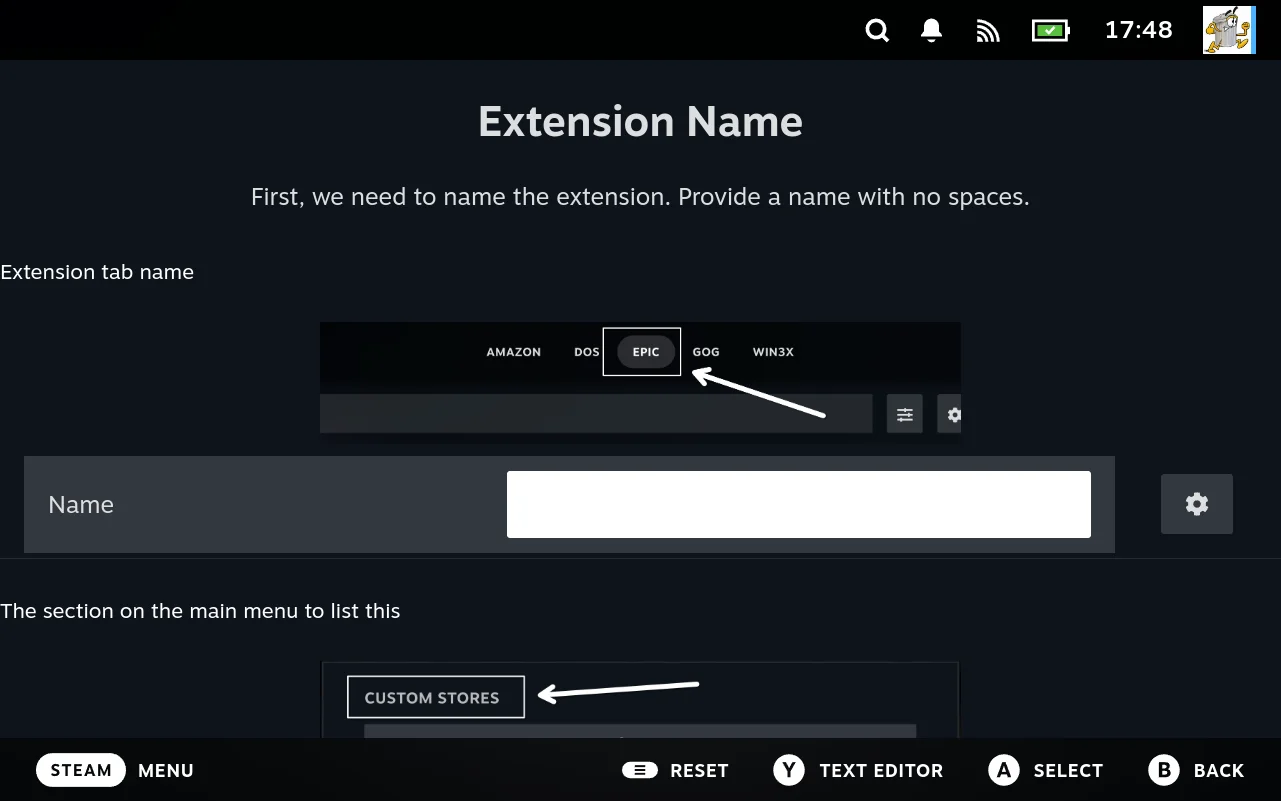
Each step explains where your answer ends up. The first one asks for a name and then points at the two places it will show: the tab across the top, and the group it is listed under on the main menu. You are not being asked to imagine the result.
The questions follow your answers, so you will not see all of them. Broadly it asks for:
- A name and where it appears. The name, with no spaces, becomes the extension and store name and the label on its tab. The same step asks which section of the main menu to list it under.
- The emulator or system, which sets the launcher and, for RetroArch, the core.
- Whether your ROMs are already on the device. Keeping them on the device is the simplest option and the right answer if you are unsure. This decides whether the extension has a downloader at all.
- Remote server details, only if your games are not on the device. Whether to use rsync over SSH, and the username and server address. The server needs public key authentication already working.
- Where the games live, as an absolute path. On the server if you are using SSH, otherwise on your machine, which can be a mounted external drive.
- Which file extension counts as a game, and whether downloads arrive zipped.
- Whether to generate now. Say yes unless you want to configure more first.
For a full walkthrough of the emulator case, including what each answer configures and how ROM discovery works, see Emulators and ROM discovery.
When it finishes you have an extension directory with a store.sh, a settings.sh, launcher scriptlets, and the supporting scripts, all registered in the Generator.
Then hand craft from there
The wizard gets you the bones. For anything it does not cover you edit the generated files and re register them, which is the normal workflow rather than an unusual one:
- Adjust behaviour through settings first. See Settings reference.
- Edit the generated scripts for anything settings cannot express, then save the scripts back to the database and regenerate. See Authoring by hand.
B. Download a published preset
The preset server carries the Junk Store Pro extensions only. This is how you get Epic, Amazon, GOG, Itch and the rest, or bring one back after removing it. It is not a general repository, so an extension somebody else wrote will not appear here no matter how widely it is shared. For those, see Importing a preset file someone sent you below.
- Generator tab.
- Choose Download preset from server for the one you want, or Download all presets from server.
- Confirm when prompted.
- Regenerate, which turns the downloaded data into the scripts Junk Store Pro runs.
If you are already maintaining extensions of your own, regenerate just the one you downloaded rather than rebuilding everything, so you do not disturb work in progress elsewhere.
The new store appears as a tab. If it does not, see Troubleshooting.
Importing a preset file someone sent you
This is the only route for an extension Junk Store Pro did not publish. Anything written by someone else reaches you as a .json file, however they chose to share it, and is imported with the command below. There is no in interface browse and install for third party extensions.
Importing is done from the command line rather than the interface, and that is deliberate. An extension is executable code, so importing one runs somebody else’s scripts on your machine. Requiring a terminal keeps the operation slow enough to think about, and makes it hard to do by accident from a link. See Only import extensions from people you trust.
Put the .json somewhere on your Deck, then in Desktop Mode or over SSH:
$HOME/.local/share/junkstore/junk-store Generator importpresetfile /path/to/dir MyStore
The file must be named after the extension, so MyStore.json in that directory. Then regenerate with Regenerate installed extensions.
Exporting works the same way. See Export, import, source control for the full workflow, including keeping the file in git.
C. Adjust an extension’s settings
Once an extension exists, most day to day changes are just settings. Open the cog menu on the store’s tab to find its configuration.
Config fields come in a small set of types, so the forms are predictable:
| Type | What you see | Example |
|---|---|---|
String | A text box | An install path prefix |
Boolean | A toggle | “Needs login” |
Number | A numeric box | A timeout in seconds |
Enum | A dropdown of fixed choices | Platform: Proton, Linux |
Path | A path picker | Where games get installed |
Some settings change what the extension can do, not just how it does it. Three worth knowing:
needs-loginturns on the login and logout actions for the store.platformset toProtonorLinuxmakes the Proton related actions available.has-bat-filesadds an editor for a game’s.batfiles. These are imported into the game’s record rather than read from disk each time, so the actions read them out of the database and write your changes back. Common for DOS and old Windows games, where the batch file is how the game is actually started.
Most settings are hidden until you raise the visibility level from Basic to Advanced, Expert, or All, using the dropdown at the top of the configuration screen. For what every individual setting does, see Settings reference.
You are not limited to the control a field shows. Press Y on any field to type its value directly, which is how you set something the dropdown does not offer. The cog on a field can also change its type. See Editing a field by hand.
Change a setting, then regenerate, as described below.
The one step people forget: regenerate
Junk Store Pro keeps your extension definition in a database and generates the actual scripts from it. Editing a setting or a script does not change what runs until you regenerate.
After any change, regenerate the extension you changed. Keep it to that one extension.
There are also operations that rebuild everything at once. Avoid them unless you genuinely want that: a global rebuild also regenerates extensions whose edits you have not imported yet, overwriting them from the database. Scoping to one extension keeps the blast radius small.
If your change seems to have done nothing, this is almost always why. See Troubleshooting.
Adding individual games
An extension made by the wizard normally picks games up from the location you gave it, so you should not need to add them one at a time.
There is no general purpose “fill in a form to add a game” screen. What exists is the file manager route: find the file you want to launch, choose Add to Steam, and give it a name. That creates the game entry and its Steam shortcut.
If the file ends in .exe, it is also set up for Proton. The launcher is set to Proton and the executable’s name, its directory and the install path are recorded against the game, so it is ready to run rather than needing those filled in afterwards. Anything else is added without that step, and you set the launcher yourself if it needs one.
If you find yourself wanting to add many entries by hand, that usually means the extension is not finding your games. Check the ROMs location and extension settings first, since fixing that is less work than adding entries individually. See Settings reference.
Where to go next
- The action behaves almost right, but not quite: Overriding actions
- You need behaviour the settings cannot express: Authoring by hand
- You want to send your extension to someone: Sharing an extension