The Generator: how extensions get built
On this page
The Generator is reached from the SELECT side menu, under Tools:
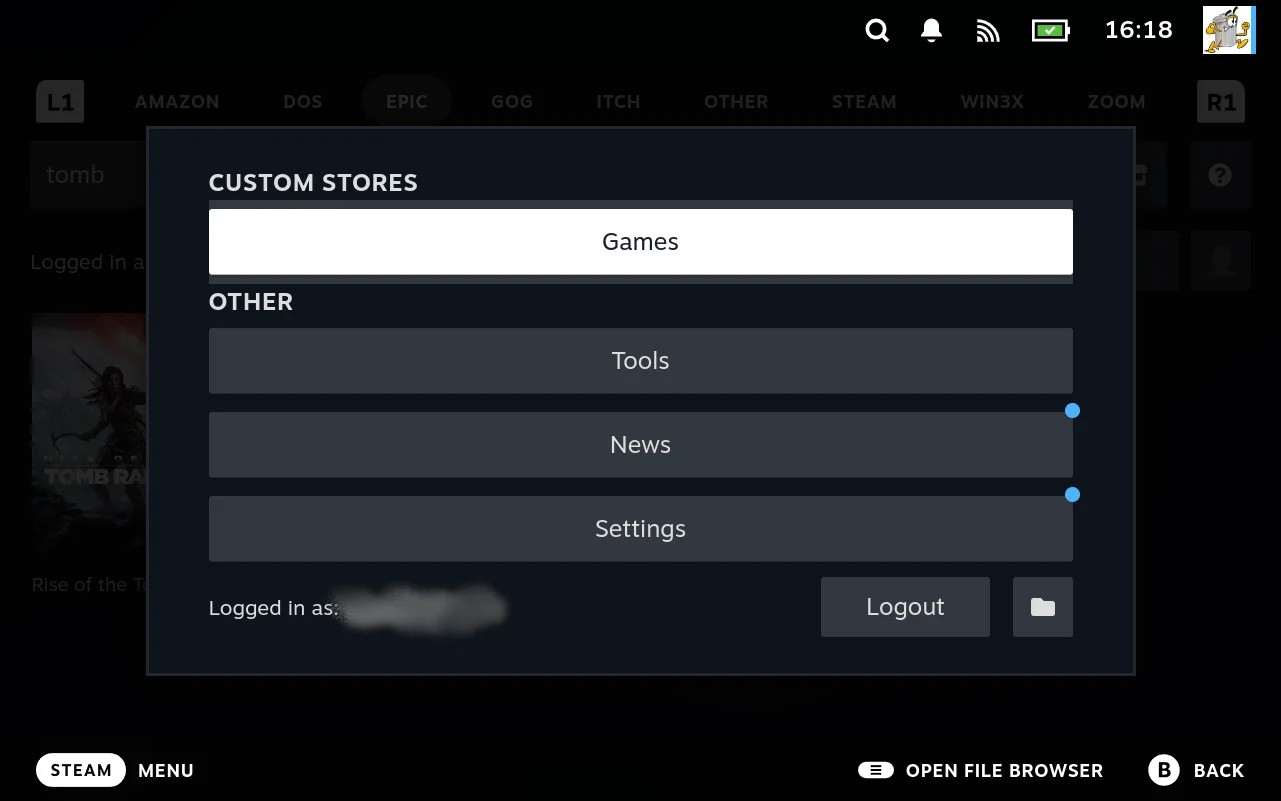
The Generator turns your extension’s definition into the shell scripts Junk Store Pro runs. What follows explains the entries that hold that definition, and what each field does when generation happens.
You do not need any of this to use the Generator for importing, exporting, and regenerating. You need it when you want to change what an extension’s actions are or how they are built.
Some of what it does is emergent
Worth setting expectations before the detail. A lot of Junk Store Pro’s behaviour is not individually designed; it falls out of how the Generator composes things. Definitions produce scripts, scripts are discovered by name, settings become environment variables, and what an extension can do is the product of those rules rather than a list somebody wrote.
That is what makes the system powerful, and it is also why it can surprise you. Capabilities appear that were never specifically built:
- The
platformdropdown offers whatever launchers exist, so adding a launcher adds a platform choice, without anything being told about it. - An extension’s actions come from its commandmap, so a setting that changes the commandmap changes which buttons exist.
- A config field’s type is inferred from a value in a script’s output, so a shell script can produce a slider.
- The interface picks a grid or a list from a field in the JSON an action prints, so an override that rewrites that field changes how a tab renders. Nobody added a tab type setting; it is a consequence of actions printing JSON and overrides being sourced last.
- The DOSBox importer matches INI syntax rather than DOSBox settings, so it appears to be a general INI importer that nobody set out to write. See This is an INI reader, not a DOSBox reader.
The same composition produces rough edges. A field can behave differently depending on which of two places it is read from, a name can appear in two menus meaning two different scopes, and an operation intended for one situation can reach further than expected.
Where this guide finds one of those, it says so plainly rather than presenting the system as tidier than it is. If something behaves in a way that seems inconsistent, it is usually a consequence of the rules meeting each other, not a special case you have missed.
What generation actually produces
For each extension, generation writes a store.sh into ~/.local/share/junkstore/scripts/Extensions/<Store>/. That file:
- Sources the extension’s
settings.sh. - Registers the store name into
PLATFORMSand exportsSTORE_NAME. - Defines one shell function per action, named
<Store>_<action>. - Fills the
ACTIONSarray, which is what the interface reads to decide which buttons exist. - Sources your override file, if you have one.
Everything in that file comes from the entries below. This is why hand editing store.sh does not last: the next generation overwrites it from the definition.
The configuration entries
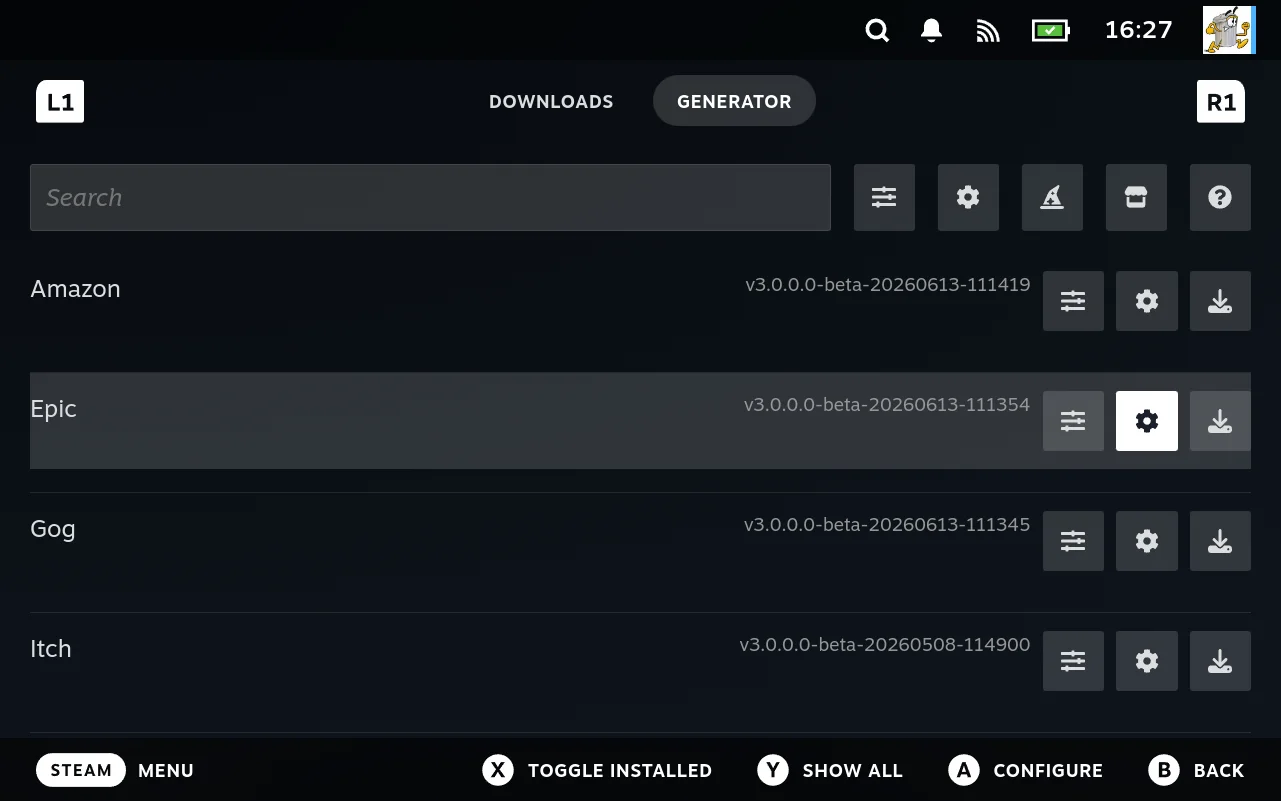
Select an extension and open its configuration menu. Each entry edits a different part of the definition:
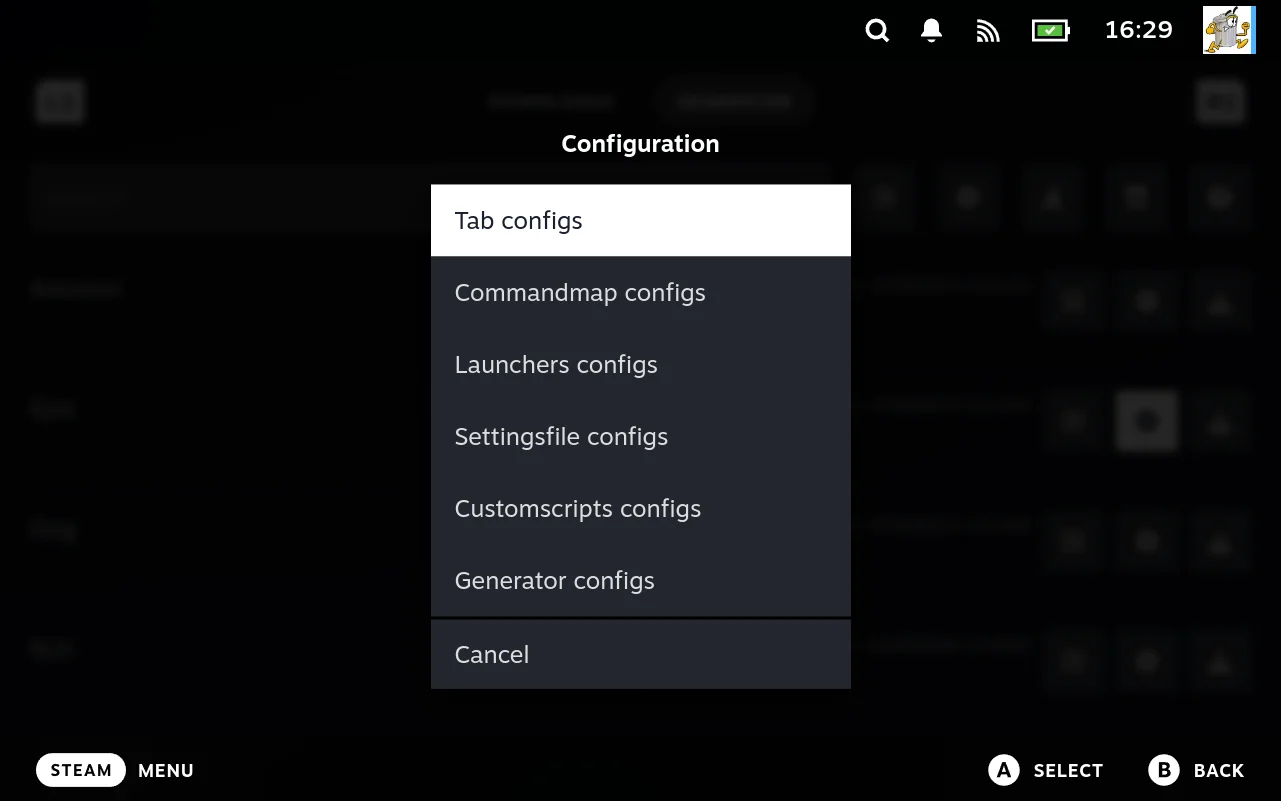
All six entries feed generation. Each supplies part of what regenerating writes out, and they differ in which file they end up in.
| Entry | Contributes | Ends up in |
|---|---|---|
| commandmap | Which actions exist, and how each one is built | store.sh |
| customscripts | Extra scripts shipped alongside the extension | The script files themselves |
| launchers | The per platform launch logic | launcher.sh and launchers/ |
| settingsfile | The contents of the settings file | settings.sh |
| Tab configs | The settings the extension starts with | <store>tabconfig.json |
| Generator configs | Where the extension appears in the interface | static.json |
The last two are worth a note each, because both are easy to mistake for something else.
Tab configs sets the settings a generated extension starts with. It looks identical to the store’s own configuration, because it is the same schema, but it is not the same thing: editing it here changes what generation writes, while editing the cog on the store’s tab changes that store now.
What it does not do is win outright. The tab config that gets written is a merge of built in defaults, this screen, the Generator’s game config, and whatever is already in the generated file, in that order, with later sources overriding earlier ones. So a value already present in the generated config survives a regenerate rather than being reset to what you set here. See The Generation step is itself a merge.
In practice: the generator feeds itself. The generated file lives at ~/.local/share/junkstore/conf_schemas/<Name>tabconfig.json, and because it wins the merge, answers you gave the wizard keep coming back on every regenerate. To change a value afterwards, either edit it on the store tab’s own cog menu, which updates that file directly, or delete the file and regenerate for a clean slate built from the defaults and this screen. Editing only the Tab configs entry here and regenerating will look like it did nothing, because the old generated value overrides it.
Generator configs is where an extension’s placement lives. Its Section decides which group the extension is listed under, defaulting to “Custom Stores”, and its Button names the entry. Those two values are read during generation and written into static.json, which is what actually puts the tab on screen. So this is not only the Generator’s own settings screen; it is the answer to “why is my extension in that group”.
That two of these six look the same as screens you meet elsewhere is the point rather than a confusion. One schema renders every configuration surface in the product; what differs is which layer the values are written to, and which file they come out in.
They are all levelled the same way as other settings, so raise the visibility dropdown to Expert or All to see every field.
commandmap: defining actions
This is the important one. Each entry in the commandmap becomes one action, which becomes one shell function and one entry in ACTIONS.
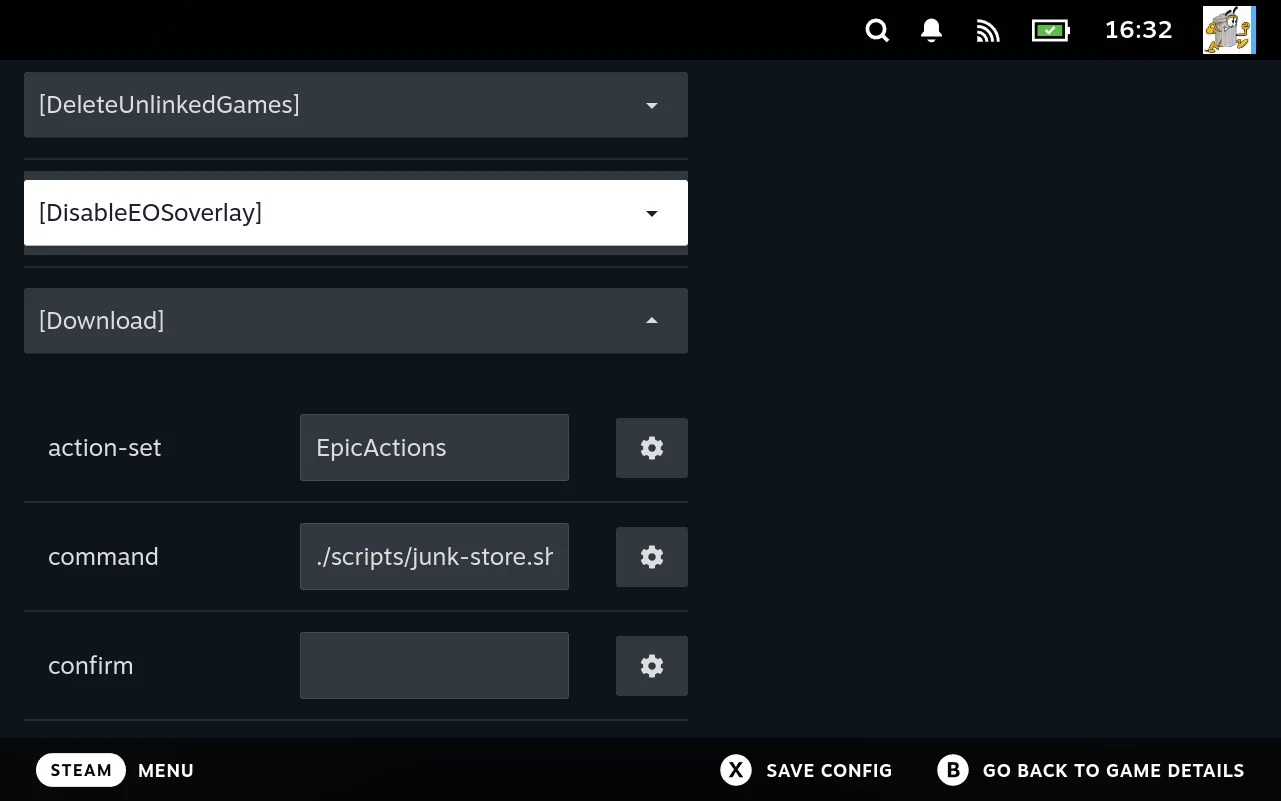
The screenshot shows the shape rather than any particular action. Every entry is one action, collapsed by default, and opening one reveals the fields below. Download is open here, and its command is the store dispatcher ./scripts/junk-store.sh rather than anything specific to downloading: the action name is what selects the behaviour, which is the indirection described in What type actually does.
| Field | Type | Level | What it does |
|---|---|---|---|
command | String | Basic | The command this action represents |
action-set | String | Basic | Groups the action. The interface uses these groups to decide where the action appears |
title | String | Basic | The label shown on the button |
installed-only | String | Basic | Restricts the action to games that are installed |
confirm | String | Basic | Ask the user to confirm before running |
script-set | String | Basic | Groups this action into a script action set, used for the menus of script driven actions |
script | String | Advanced | The body of the generated function. Leave empty to get the default body, described below |
script-pre | String | Advanced | Lines inserted before the body |
script-post | String | Advanced | Lines inserted after the body |
type | String | Advanced | How the action is presented, and which command form is generated. See below, its effect is not uniform |
wants-std-in | Boolean | Advanced | Pipe standard input into the command |
id | String | Expert | Identifier for the action |
function | String | Expert | The internal function the action maps to |
scriptfn | String | Expert | Overrides the generated function name |
sort-order | Number | Expert | Position of the action in lists. Lower numbers come first |
What type actually does
type is easy to misread as a single presentation setting. It has three separate effects, and one of them is that it gets ignored.
1. It selects which command is generated. If type is Init, ScriptActions, or TabPage, the action is generated to call the JSON helper:
./scripts/get-json.py <name>
Any other value generates a call through the store dispatcher instead:
./scripts/junk-store.sh <Store> <action>
So type is not cosmetic. Those three values change what actually runs, and setting one of them by accident will send the action somewhere you did not intend.
2. It is passed through for actions. For the action set, type is copied straight into the payload the interface reads, so values such as Shell, GameGrid, GameDetails, and IniEditor tell the interface what kind of content to expect.
3. It is ignored for script actions. An entry with script-set also appears in a script action set, and there the type is not taken from your type field. It is derived from confirm:
confirmset givesScriptActionConfirmconfirmunset givesScriptAction
Two things follow. Writing type: ScriptActionConfirm by hand is redundant, since confirm is what produces it. And an entry with a script-set appears in both places, so your type is honoured in the action set copy while the script action copy uses the confirm derived value regardless.
In short: use type to declare what content an action returns, avoid Init, ScriptActions, and TabPage unless you mean the JSON helper, and use confirm rather than type to get a confirmation prompt.
How the function name is chosen
Generation picks the first of these that is set, and lower cases it:
scriptfnaction-nameid
So the generated function for an action is <Store>_<that name>. If you need a specific function name, for example because you want to override it later, set scriptfn.
What the generated function body looks like
If you leave script empty, the action gets a default body that calls the junk-store binary with the store name, the action name, and the arguments:
function MyStore_install() {
    /home/deck/.local/share/junkstore/junk-store MyStore install "${1}"
}
With wants-std-in set, the call is prefixed so standard input is piped in:
function MyStore_install() {
    cat | /home/deck/.local/share/junkstore/junk-store MyStore install "${1}"
}
If you put something in script, that replaces the default body entirely. This is how you make an action run your own code instead of going through the binary.
How script-pre and script-post fit in
They wrap the body, in order:
function MyStore_install() {
    <script-pre>
    <script, or the default binary call>
    <script-post>
}
Use script-pre for setup such as exporting a variable, and script-post for cleanup or for emitting a result message. Any of the three can be left empty.
action-set and script-set
action-set decides which group of actions this one belongs to, and the interface uses the group to work out where to show it. script-set is separate: it collects actions into the script action menus, and it can be a plain value or a name such as game to scope the set.
sort-order then decides the order within a set. It is only used for sorting and is removed before the action list is sent to the interface.
customscripts: extra scripts
Scripts that ship with the extension and are written out during generation.
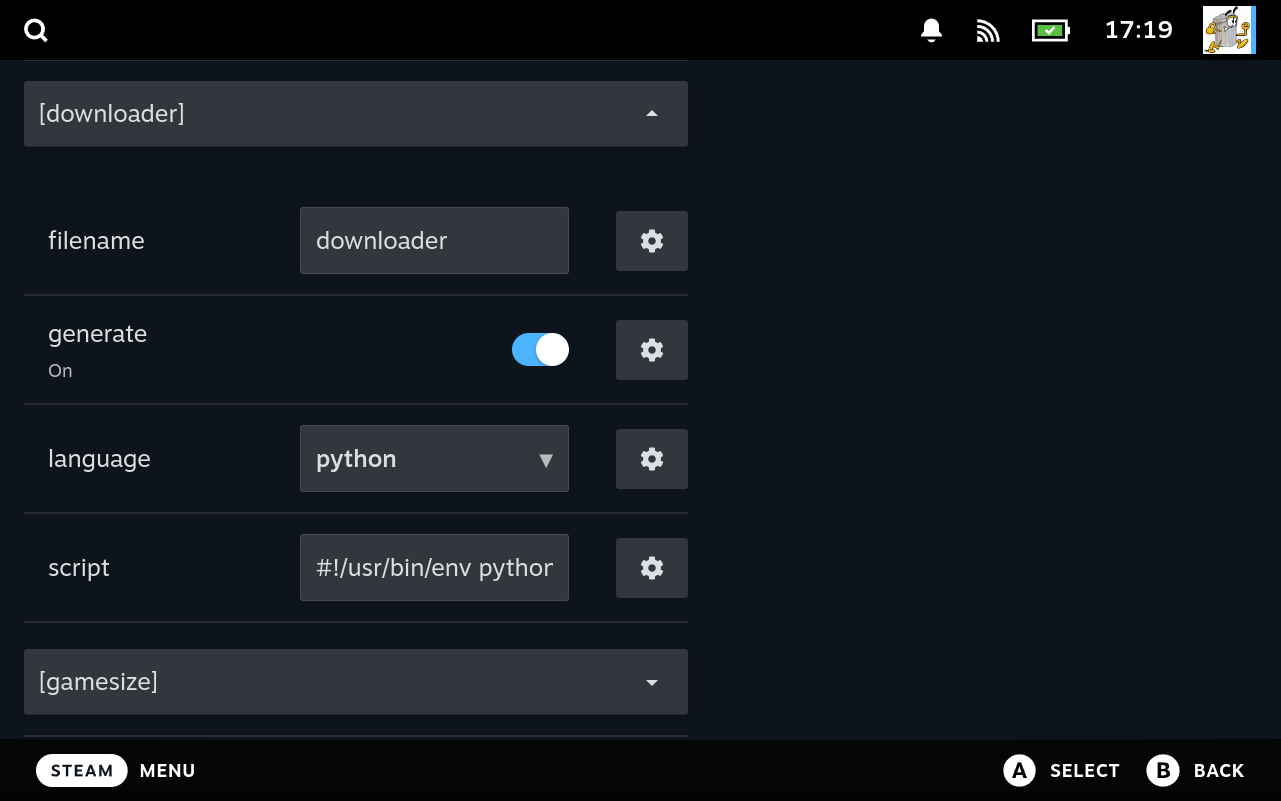
Each section is one script, named after it. The screenshot has downloader open with gamesize collapsed below, both of which are real scripts documented in Custom scripts.
| Field | Type | What it does |
|---|---|---|
script | String | The script contents |
filename | String | The file name to write it as, inside the extension directory |
language | Enum | bash, or python to run it with python |
generate | Boolean | Whether generation creates this file. See below |
The generate toggle is how you get the file
This is the practical one. Turning generate on and regenerating creates the script file for you, in the extension directory, under the name in filename, containing whatever is in script. It also makes the file executable, which matters because a script without the executable bit will not run.
So you do not create these files by hand. To add a script your extension does not have yet:
- In the customscripts editor, find the script by name.
- Put its contents in
script, or leave the default to start from. - Turn
generateon. - Regenerate.
The file appears, ready to run. That is also the recovery path if you delete a script by accident, since the definition still holds it.
Turning generate off leaves the file alone rather than removing it. Generation simply skips it, so whatever is already on disk stays. Use that when you are maintaining a file by hand and do not want it overwritten on the next regenerate, and remember that the file then persists even though nothing is producing it.
Because generation writes the file from the definition, an edit made directly to the file is lost on the next regenerate unless you save it back to the database first. That is the same trap described in Authoring by hand.
The set of custom scripts is fixed. You cannot invent a new one. The names Junk Store Pro knows about are built into the product, and each is called at a specific point by that name. A script with a name nothing looks for would simply never run.
So this editor is for changing what a known script does, not for adding scripts of your own. The full list, with when each is called, is in Custom scripts.
If you want extra code of your own, put it in userlib and call it from one of the known scripts. That is what userlib is for.
Your entries survive updates. Custom scripts recorded against your extension belong to it, so an update does not touch them. That is in contrast to the shared templates the product ships, which are replaced on update. If you need a change to survive, put it in your extension rather than in a shared template.
launchers: how games start
One entry per platform. The platform names here are literally where the platform setting’s choices come from: that dropdown is built from the list of launchers, so adding a launcher adds a platform a store or game can select.
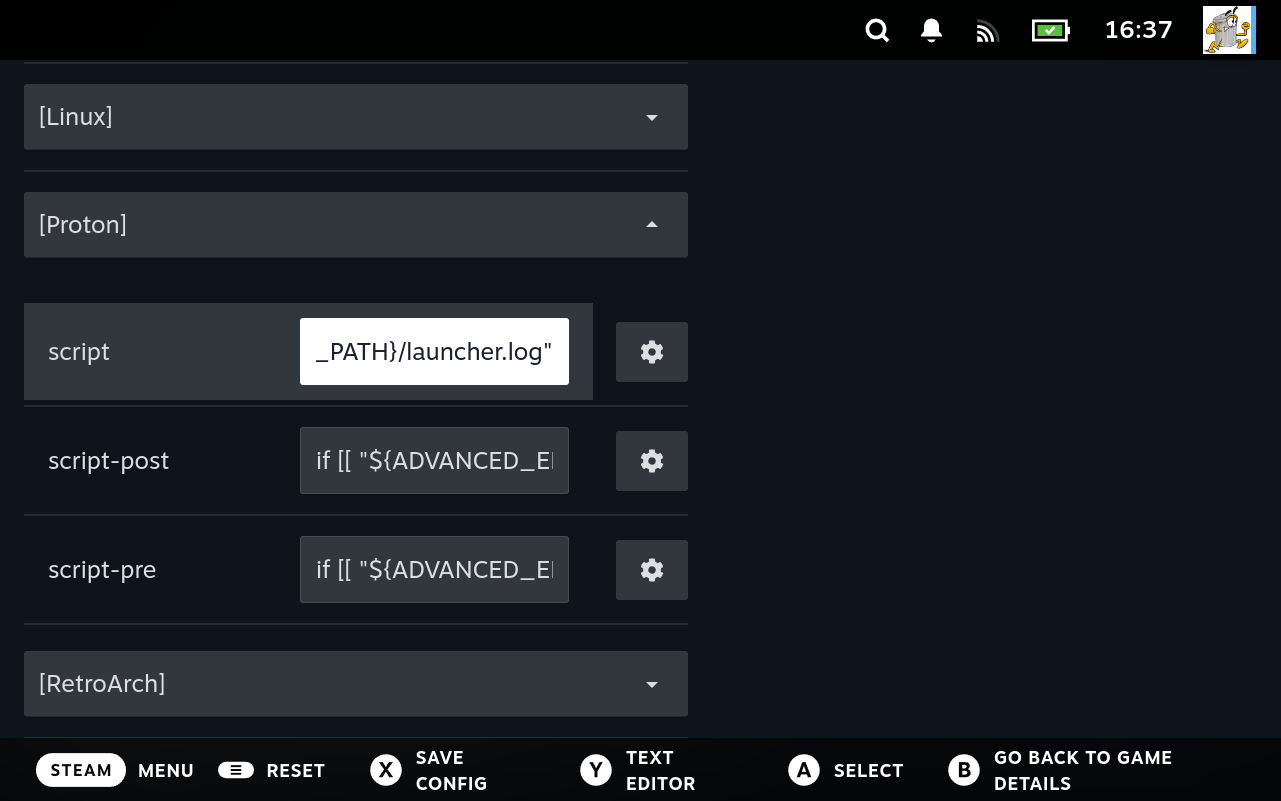
The section names in the screenshot are the platforms: Linux, Proton, RetroArch. That list is the platform dropdown, seen from the other side. Adding a section here is what makes a new platform selectable, which is the clearest example of the composition described in Some of what it does is emergent: nothing was written to add a platform to a dropdown, and the dropdown gained one anyway.
| Field | Type | Level | What it does |
|---|---|---|---|
script | String | Basic | The launch logic for this platform |
script-pre | String | Advanced | Lines placed before the launch |
script-post | String | Advanced | Lines placed after the launch |
All three hold shell script, so the single line input in the screenshot is not where you want to write them. Press Y on a field to open it in a multi-line editor, which is worth knowing before you try to edit a scriptlet through a control the width of a text box. See Editing a field by hand.
If you are adding support for a new emulator or runtime, this is where the launch command goes. A game then selects it by setting platform to the matching name. See Settings reference for the platform, platform-version, and platform-fork settings.
The three fields are not written to the same place
script and the two wrappers end up in different files, which is easy to miss and matters when you are working out where your code went.
Generation writes a case statement into the extension’s launcher.sh, one branch per platform. In each branch:
case "${ADVANCED_PLATFORM}" in
    "Proton")
        <script-pre, inlined here>
        source ".../launchers/Proton"
        <script-post, inlined here>
        ;;
esac
So script becomes a separate file under the extension’s launchers/ directory, named after the platform, and the branch sources it. script-pre and script-post are inlined into launcher.sh itself.
Two consequences:
- The scriptlet file you edit on disk is the
scriptfield, and nothing else. If you are looking for where ascript-prewent, it is inlauncher.sh, not inlaunchers/. - Because
script-preruns inlauncher.shbefore the source, it can set variables the scriptlet then uses. That is the usual reason to reach for it rather than putting the lines at the top ofscript.
Keep shared logic in the extension’s launcher.sh and put only the platform specific part here.
Scope: shared templates versus an extension’s own copy
Launcher scriptlets come from a shared set of templates, one directory per platform. An extension can either use the shared default or carry its own customised copy.
That determines how far an edit reaches:
- Editing the shared template affects every extension still using the default for that platform.
- Editing an extension’s own copy affects only that extension.
Both cases exist among the shipped extensions. Some use the shared Proton template as is, while Epic and GOG each carry a modified version. Check which situation you are in before editing, so you do not change more than you intend.
Shared templates are replaced when Junk Store Pro updates. They ship with the product, so an update overwrites them and any change you made to a shared template is lost. There is no merge and no warning.
That makes editing a shared template a poor place to keep a change you care about. Prefer either of these:
- Give the extension its own copy of the scriptlet and edit that. It belongs to the extension rather than to the product, so an update does not touch it.
- Drive the behaviour from settings where the scriptlet already reads them, which survives everything.
If you do edit a shared template, treat it as temporary and keep a copy of the change so you can reapply it after an update. The same applies to anything else shipped with the product rather than with your extension.
settingsfile: the settings.sh contents
| Field | Type | What it does |
|---|---|---|
script | String | The contents written to settings.sh |
settings.sh is sourced before anything else in store.sh, so use it to export variables the rest of your scripts rely on. Working out a path once here is better than repeating it in every action.
The generation operations
These live in two different menus, and which one you are in decides the blast radius. That is the thing to get straight before running any of them.
On the Generator tab itself
Reached from the Generator’s own actions. Everything here acts on every extension:
| Operation | Effect |
|---|---|
| Save all scripts back to DB | Read the scripts from every extension’s directory back into its definition |
| Generate all extensions | Rebuild every extension’s scripts from the definitions |
| Regenerate installed extensions | The same, but only for installed extensions, which is faster |
| Download all presets from server | Fetch every published extension |
On an individual extension
Reached by selecting an extension in the Generator, then opening its actions. These act on that extension alone:
| Operation | Effect |
|---|---|
| Save scripts back to DB | Read that extension’s scripts back into its definition |
| Download preset from server | Fetch that one extension from the Junk Store project |
| Delete Extension | Remove it |
Notice that Save scripts back to DB appears in both forms, once per extension and once as “Save all”. They are different operations with almost the same name, and the difference is which menu you found it in.
Prefer the per extension operations. Work on the extension in front of you and act on that one. The “all” variants are convenient but indiscriminate: they sweep up extensions whose edits you have not imported yet, overwriting those edits from the database.
There is no per extension “generate this one” in the menu. To rebuild a single extension after changing its definition, use Regenerate installed extensions, which is still global but at least skips anything not installed. That asymmetry is worth knowing, since it means regeneration is the one step you cannot narrow.
That skip catches people out during development. “Installed” means the extension has installed games. A new extension you are still building usually has none, so Regenerate installed extensions does nothing for it, and reports no problem while doing nothing.
Use Generate all extensions while developing. It is the one that works on an extension with nothing installed yet. Once yours has games installed, either will do.
The direction that matters
Generation goes definition to files. Saving scripts back goes files to definition.
If you edited a script file and want to keep that edit, save scripts back to the database first, then generate. Doing it the other way round overwrites your file with whatever the definition still contained.
Both halves of that should be scoped to the one extension you are working on.
Placement: where your extension shows up
Two settings control where the extension appears, and they live on the extension rather than in the Generator entries.
| Setting | Default | What it does |
|---|---|---|
| Group Name | Custom Stores | The section it is listed under: Custom Stores, Emulators, or Other |
| Section name | Games | The button it appears under, each of which holds a collection of tabs: Games, Nintendo, Sega, Nec, or Tools |
A worked change
Adding an action with logic of your own. Note you cannot invent a new custom script name, so the logic goes either inline in the action or into userlib:
- In commandmap, add an entry. Set
titleto the button label,action-setto the group it belongs in, and put your logic inscript. -
If the logic is more than a couple of lines, or you want it shared between actions, put it in customscripts under
userliband call it from the action. There is no variable for the extension directory, so use the full path the shipped extensions use:"${HOME}/.local/share/junkstore/scripts/Extensions/MyStore/userlib.py" "$1"If you use that path in several actions, export a variable for it from settingsfile instead and refer to that.
- Regenerate with Regenerate installed extensions.
-
Check the result:
grep -A5 'function MyStore_' ~/.local/share/junkstore/scripts/Extensions/MyStore/store.sh
If the action does not appear in the interface, the usual cause is action-set not matching a group the interface renders. Compare against a working action in a shipped extension.
If generation does not do what you expect
Read the generated store.sh first. It is the direct output of the definition, so any surprise in behaviour is visible there. Then see Troubleshooting.