The config schema format
On this page
Every configuration screen in Junk Store Pro, the tab config, the game config, the install options form, and the Generator’s own editors, is rendered from the same data structure. This section describes that structure.
You need this if you are declaring config fields from a script or reading a config document your extension produced. If you only want to know what an existing setting does, see Settings reference.
Where the shape came from
The format began as a way to edit DOSBox .conf files, and its vocabulary still shows that: a document is a list of [sections], each holding key=value options, with a special autoexec section at the end holding commands rather than settings.
It turned out that shape suited configuration generally, so it was generalised into the schema used everywhere. The DOSBox heritage explains three things that otherwise look odd:
- Sections and options, rather than arbitrary nesting. There is exactly one level.
- Every value is a string, because that is what an ini file holds. Types are a presentation layer on top.
- An
Autoexecfield on every config document, including ones that have nothing to do with DOS.
None of that is vestigial. DOSBox configs are still parsed and written with it, and the [autoexec] block is still where a DOS game’s mount and startup commands live. It is just switched off in the general purpose configs.
It also cuts the other way: because a dosbox.conf is an ordinary INI file, the importer built for it turns out not to be DOSBox specific at all. See This is an INI reader, not a DOSBox reader.
The document
The outermost object:
{
  "Name": "Default",
  "Sections": [],
  "Autoexec": "",
  "AutoexecEnabled": false
}
The Sections list is shown empty here; each entry is a section object as described next.
| Key | Meaning |
|---|---|
Name | The config’s name. Default in most places |
Sections | The list of sections, described below |
Autoexec | Free text, the DOSBox [autoexec] block |
AutoexecEnabled | Whether the interface shows an Autoexec editor |
AutoexecEnabled is off in every general purpose config. Set it only when the config really does represent a DOSBox .conf. When it is on, the interface adds an [Autoexec] panel where the text is edited directly, since those are commands rather than key and value pairs and cannot be presented as fields.
Sections
A section groups options and controls whether the group is shown at all.
{
  "Name": "General",
  "Description": "Settings that control how the store behaves",
  "ModeLevel": 0,
  "Visible": true,
  "Options": []
}
Each entry in Options is an option object, described next.
| Key | Meaning |
|---|---|
Name | The section heading. Also the environment variable prefix, see below |
Description | Help text for the section, shown in the panel beside the fields |
ModeLevel | Visibility level, see below |
Visible | Whether the section starts expanded. See below |
Options | The fields in this section |
Visible is the default open or closed state, not whether the section exists. Sections are collapsible, and they start collapsed. Setting Visible to true makes this one start expanded instead. Either way the user can toggle it, and a section with Visible set to false is still there with its heading showing.
Use it to open the section people usually want and leave the rest folded away. It is a presentation choice, unrelated to ModeLevel, which does control whether the section is reachable at all.
Two names are special. A section called ENVIRONMENT has its options exported without a prefix. A section that produces no options is dropped rather than rendered empty, which is why a script that prints nothing removes its section from the install form.
Options
One option is one field on screen.
{
  "Key": "InstallDir",
  "Label": "Install Directory",
  "Description": "Where inside the install location games go",
  "Type": "String",
  "Value": "Games/MyStore",
  "DefaultValue": "Games/MyStore",
  "Min": 0,
  "Max": 0,
  "ModeLevel": 0,
  "EnumValues": [],
  "Parents": []
}
| Key | Required | Meaning |
|---|---|---|
Key | yes | The identifier. Becomes part of the environment variable name |
Type | yes | Which control to render, see below |
Value | yes | The current value, always a string |
Label | no | The caption. Falls back to Key when absent |
DefaultValue | no | What Menu restores. Falls back to Value |
Description | no | Help text, shown in the panel beside the fields. See below |
Min, Max | no | Bounds for Range. Both 0 means unbounded |
ModeLevel | no | Visibility level, see below |
EnumValues | no | The choices, for Enum |
Parents | no | Written by the layering, not by you. Records the value this field inherited, see below |
NoPrefix | no | Export without the section prefix |
UnsetIfEmpty | no | Emit an unset before exporting |
Types
| Type | Control |
|---|---|
String | Text box |
Boolean | Toggle |
Number | Numeric input |
Range | Slider, using Min and Max |
Enum | Dropdown, using EnumValues |
File | File picker |
Directory | Directory picker |
Binary | Binary value |
Those eight are the complete set. There is no Path type; use File or Directory.
The type is presentation, not storage. Every value is stored and exported as a string, so a Boolean is the text "true", and a Number is the text "42". Scripts reading these from the environment get strings and should compare accordingly.
This is also why the cog menu can change a field’s type in place: nothing about the stored value changes, only the control drawn over it. See Editing a field by hand.
Descriptions and the help panel
A config editor has two columns. The fields are on the left, and a help panel on the right shows context for whatever is focused.
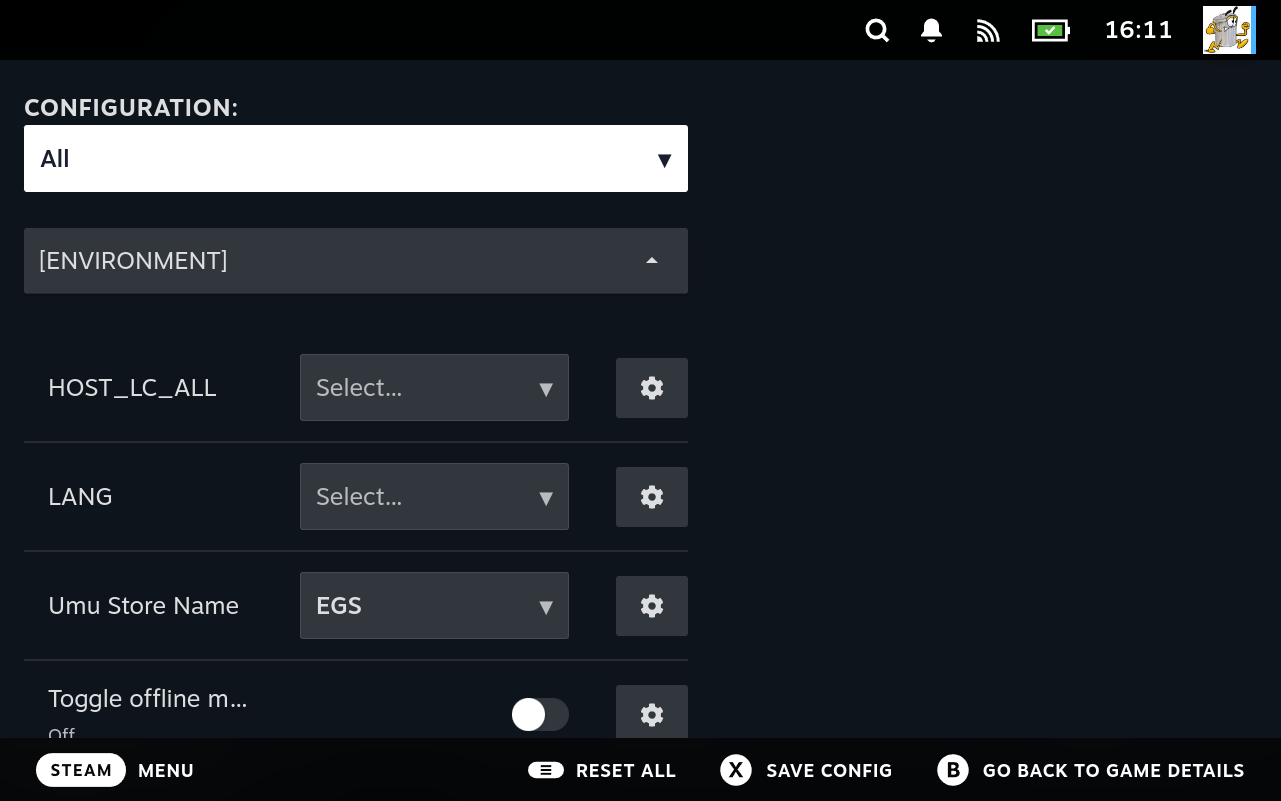 That panel is built entirely from
 Description values, which is what makes them worth writing.
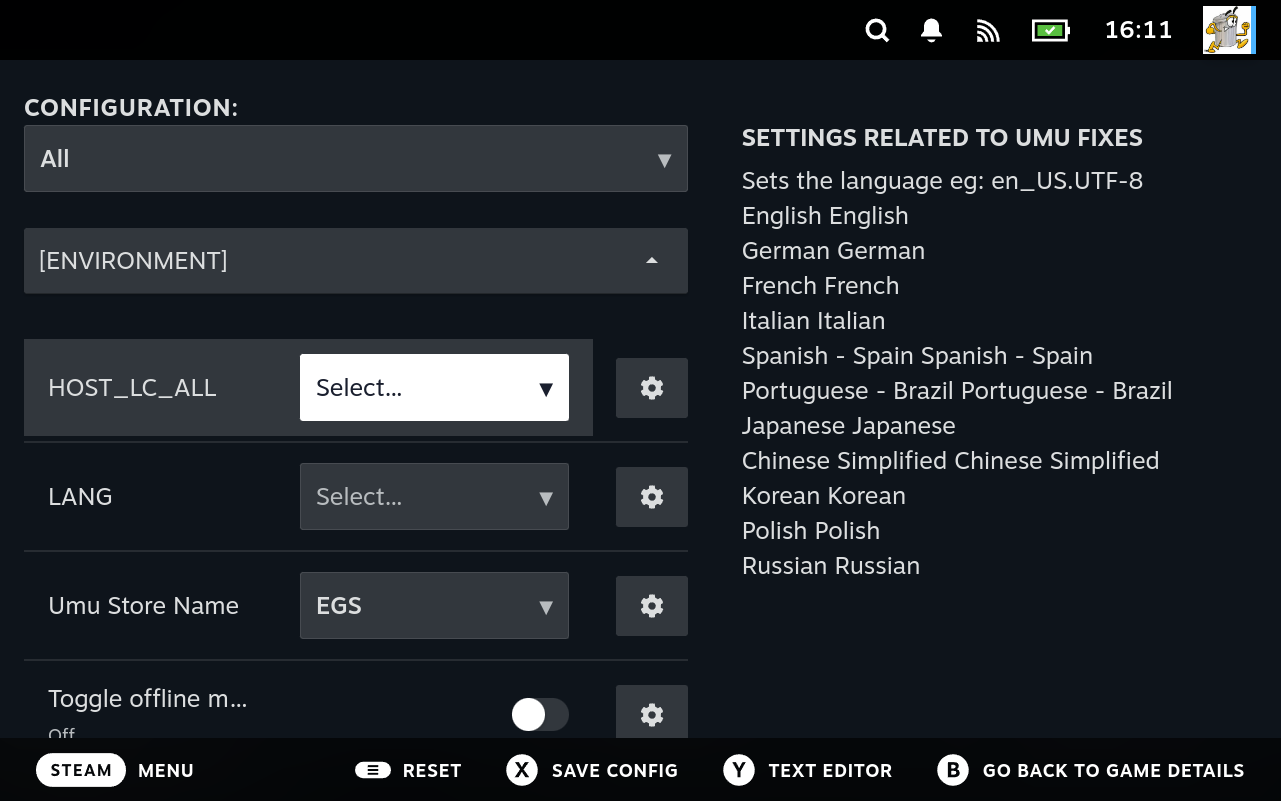
Note the repeated words in that panel, “English English” and “German German”. Those are enum choices whose Description was left to default to the label, which is the case described further down.
The panel shows three things, updating as focus moves:
| Part | Comes from |
|---|---|
| Heading, in capitals | The focused section’s Description |
| Body text | The focused option’s Description |
| A list below | Each enum choice’s Description, next to its label |
So descriptions are not decorative, and they are not tooltips hidden behind a gesture. They are the only in-product explanation a user gets, and a field with no Description shows an empty panel.
Some practical consequences:
- Write a description for every option. A blank one is a visibly empty panel, not a neutral absence.
- Write one for the section too. It becomes the heading above the field help, so it should read as a category name or a short summary, not a sentence continuing from elsewhere.
- Give enum choices their own descriptions when the labels are not self explanatory. Each choice gets its own line in the panel, which is the natural place to explain what picking it actually does. A choice whose
Descriptionwas left to default reads as its own label repeated,Windows Windows, so this is worth filling in. - Keep it to a couple of sentences. The panel is narrow and long text wraps hard. Word wrapping is on, so nothing is truncated, but a paragraph will dominate the screen.
- Descriptions are plain text. There is no markup or formatting.
An imported DOSBox conf is the exception, and shows where the descriptions really come from. A .conf carries only keys and values, so on its own it would give you a wall of settings with an empty panel beside each one. It does not, because Junk Store Pro ships a schema for each DOSBox fork, carrying DOSBox’s own documentation for every option across all of its sections.
The two meet by layering. The conf supplies the values; the schema supplies the descriptions, the types and the enum choices. That is why importing someone else’s dosbox.conf gives you a config screen that explains itself, rather than a list of bare keys.
Those schemas are named for the platform and fork they describe, in the same way config sets are, so dosbox, dosbox-x and staging each get their own. See Shipped schemas for runtimes.
The practical consequence for an author is not “fill in descriptions after importing”, but the reverse: if you are supporting a runtime that has documentation, putting it in a schema once means every extension and every game using that runtime gets it, and nobody has to type it again.
EnumValues
Each choice is its own small object:
"EnumValues": [
  {"Key": "en-US", "Label": "English", "Description": "English"},
  {"Key": "de-DE", "Label": "German",  "Description": "German"}
]
Key is stored, Label is displayed. Both Label and Description fall back to Key when absent, so a bare {"Key": "Windows"} is a valid choice that displays as Windows.
The important consequence is that what a user picks and what gets written are separate things. The label is for the person; the key is for the script. That separation is what makes the next two patterns possible.
A dropdown whose choices include “leave it unset”
Because the key is written verbatim, a choice can have an empty key. Combined with UnsetIfEmpty this gives you a field offering “do not set this at all” alongside real values:
{
  "Key": "PACING", "Type": "Enum", "Value": "", "UnsetIfEmpty": true,
  "EnumValues": [
    {"Key": "",         "Label": "Default"},
    {"Key": "none",     "Label": "None"},
    {"Key": "vsync",    "Label": "VSync"},
    {"Key": "adaptive", "Label": "Adaptive"}
  ]
}
Picking Default writes nothing, so the variable never reaches the scripts and whatever the underlying tool does by itself is what happens. Picking VSync writes vsync. The user sees four ordinary choices and never has to know that one of them means absence rather than a value.
This matters because many tools distinguish “unset” from any particular setting, and without it you would need a separate toggle to express it.
A toggle that writes something other than true and false
A Boolean can carry EnumValues too, and when it does the meaning of the fields changes:
| Field | Means, on a Boolean |
|---|---|
Value | Which of the two entries is the on state and which is the off state. Use the strings true and false |
Key | What is actually written when that state is selected |
Label | What the user sees described under the toggle |
So this renders as an ordinary on and off switch, while writing "" or "1":
{
  "Key": "DISABLE_LSFG", "Type": "Boolean", "Value": "1",
  "NoPrefix": true, "UnsetIfEmpty": true,
  "EnumValues": [
    {"Value": "true",  "Key": "",  "Label": "Enable",  "Description": "Enable LSFG-VK"},
    {"Value": "false", "Key": "1", "Label": "Disable", "Description": "Disable LSFG-VK"}
  ]
}
Both entries must be present, one with Value of true and one with false. If either is missing the field falls back to a plain toggle writing the literal strings true and false.
Two things this buys you:
- The variable a tool expects, from a control a user understands. Here the tool wants
DISABLE_LSFG=1to turn the feature off and the variable absent to leave it on. That is backwards from how a person thinks, so the toggle reads “Enable” while writing the inverted value. The awkwardness is absorbed by the schema instead of by the user or by a script. - Translation without code. Nothing in a launcher scriptlet has to map a friendly setting onto a tool’s flag, because the mapping is declared in the field.
Why this matters
Taken together, these turn the config schema into a place where a fair amount of translation logic can live. A field can present a sensible choice, write the exact string an external tool expects, invert a confusing polarity, and omit itself entirely when the answer is “leave it alone”, all without a line of shell.
Where you find a launcher scriptlet doing that mapping instead, it usually predates the schema gaining the ability, rather than being the better way to do it. If you are adding a setting that needs to become an oddly shaped environment variable, try to express it in the field before writing code around it.
ModeLevel
Both sections and options carry one. It is tied to the dropdown at the top of the config screen, which is how a user chooses how much they want to see. An item appears once the dropdown is at or above the item’s level.
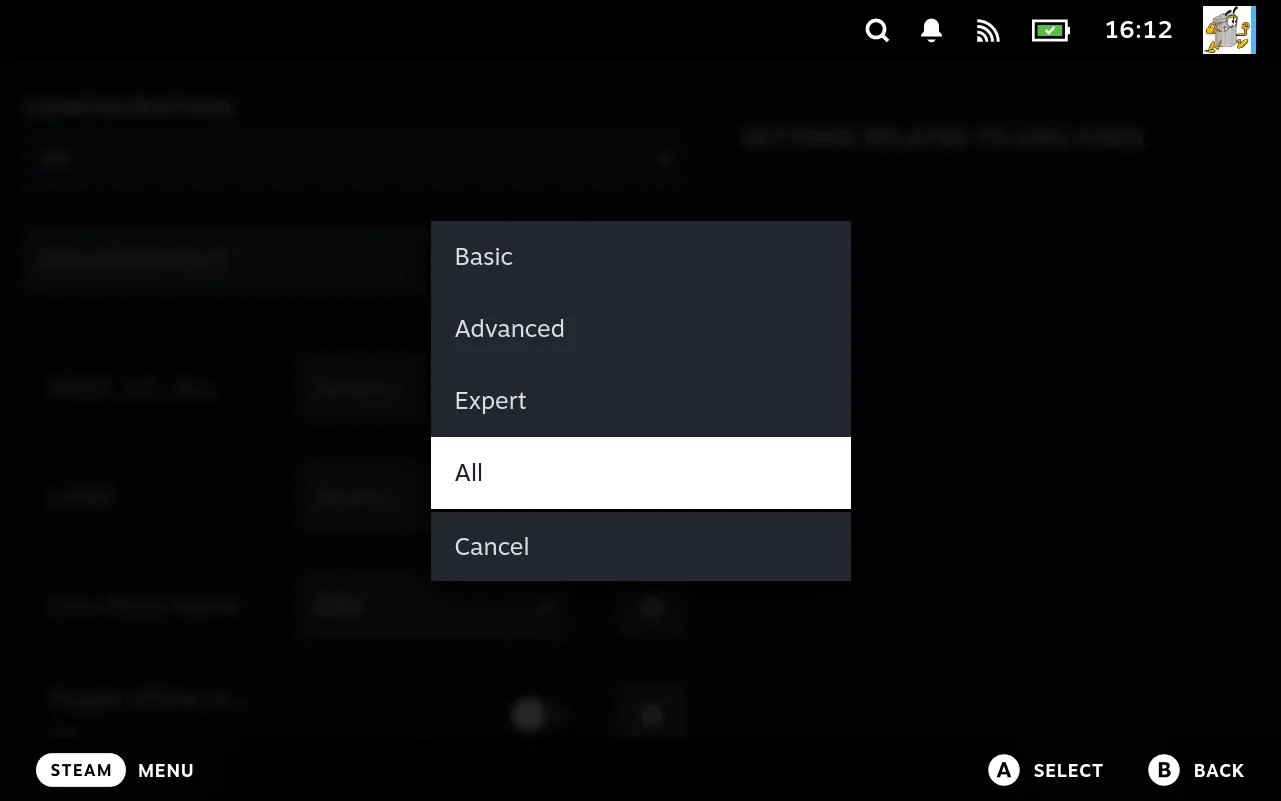
| Value | Level |
|---|---|
0 | Basic |
1 | Advanced |
2 | Expert |
3 | All |
So ModeLevel is the real hiding mechanism, and the one to reach for when a setting should be kept away from ordinary users. It is not the same as Visible, which only decides whether a section starts folded open or closed:
| Field | Controls | User changes it with |
|---|---|---|
ModeLevel | Whether the item is shown at all | The dropdown at the top of the screen |
Visible | Whether a section starts expanded | Selecting the section heading |
A section and its options are levelled independently, so an Advanced section can hold an Expert field. The stricter of the two wins in practice, because the field cannot show if its section does not.
This is the first thing to check when a setting you declared does not appear: the dropdown is on Basic by default, and anything above level 0 stays out of sight until it is raised.
Fields declared from a script are always created at level 0. See The pre install form.
Parents
Parents is not something you set. It is written by the layering, and it records where a value came from before it was overridden.
When two configs are merged, each option that gets overwritten first has the value it is losing pushed onto its Parents, tagged with the name of the layer it came from:
"Parents": [{"Name": "Default", "Value": "Proton"}]
Read that as “the layer called Default had this at Proton, and something more specific has since replaced it”. The list grows as more layers are applied, so it is a trail of inherited values rather than a single relationship.
What it is for. When a config is saved, an option whose value still equals its inherited one is not written. That is what keeps a game level config holding only the values that actually differ from the store level, rather than a full copy of everything. The same check also skips values equal to the field’s DefaultValue.
Two consequences worth knowing:
- Setting a field back to what it inherited removes it from storage, rather than storing it as an explicit choice. The value does not change; the record of it being yours does. Next time the layer above changes, that field will follow the new value.
- Storing only the differences is why layering stays predictable. If every layer held a complete copy, an edit at the store level would never reach a game that had been configured once.
It is stripped before a config reaches the interface. The paths that send a config to a config editor empty the list first, so Parents exists during resolution and saving but is not part of what the editor receives. The interface has code to display a parent annotation on a field, but it reads a differently named key than the backend writes, so in practice it never shows. Treat that as vestigial rather than as a feature to use.
None of this needs anything from you. You do not produce Parents, and there is nothing useful to do with it in a script. It is documented because it appears in stored configs and in exports, where it would otherwise look like something you were supposed to fill in.
NoPrefix and UnsetIfEmpty
Both affect how the option becomes an environment variable, covered fully in Config layering.
NoPrefixexports asKEYrather thanSECTION_KEY. TheENVIRONMENTsection gets this behaviour automatically. Use it when an external tool expects a variable by an exact name, since a section prefix would break it.UnsetIfEmptyemits anunset KEYbefore the export, so the variable is cleared rather than inherited from whatever the surrounding environment happened to hold.
These two are what make the empty-key pattern above work in practice. A field whose value is empty is skipped when the environment is built, so the variable simply never appears, and UnsetIfEmpty ensures a stale value from elsewhere is not left standing in its place. That is the difference between “the user chose the tool’s default” and “the user chose the default but an old value is still set”.
Reach for both together on any field that feeds an external tool by an exact variable name and has a meaningful “not set” state.
Shipped schemas for runtimes
Junk Store Pro ships a schema for each runtime it knows, describing that runtime’s own settings rather than any extension’s. They live in conf_schemas, named for the platform, fork and version they apply to, which is the same triple config sets are keyed on:
| File | Describes | Sections |
|---|---|---|
Dosbox_dosbox_.json | DOSBox | 23 |
Dosbox_dosboxx_.json | DOSBox-X | 40 |
Dosbox_staging_.json | DOSBox Staging | 23 |
Proton__.json | Proton | 4 |
Linux__.json | Linux | 1 |
The DOSBox ones carry DOSBox’s own documentation, option by option. That is where the help panel text comes from when you open a DOS game’s configuration, and it is why an imported .conf produces a screen that explains itself despite the file itself containing nothing but keys and values.
Two things worth taking from this. The description lives with the runtime, not the extension, so every extension and every game using that runtime gets the same help without anybody retyping it. And a fork is a separate schema, which is how DOSBox-X can offer nearly twice as many sections as DOSBox without either being wrong.
If you are adding support for a runtime that has documentation of its own, this is where it goes.
How a document becomes a DOSBox conf
For a genuine DOSBox config the structure round trips. Sections and options are written back as ini, with the autoexec text appended verbatim:
[sdl]
fullscreen=false

[cpu]
cycles=auto

[autoexec]
mount c ~/Games
c:
cd mygame
mygame.exe
Parsing does the reverse: [section] headings become sections, key=value lines become options, and everything after [autoexec] is captured as the Autoexec string. Note the autoexec block is written last regardless of where it appeared in the input, which is what DOSBox expects.
Values may contain =, so only the first one separates key from value.
Internally the autoexec text is stored as a section named autoexec holding a single key called text, and that section is filtered out when the ordinary options are read. So it travels with the rest of the config but never appears as a field. Worth knowing if you are looking at the stored data directly and wondering where it went.
Declaring fields from a script
You rarely build this JSON by hand. The usual route is the key:::label:::value format, where the type is inferred from the value and Junk Store Pro builds the option objects for you. That covers Boolean, Enum, Range, Number, and String, which is most of what you need.
See The pre install form for that format.
Build the full structure yourself only when you need something the triple format cannot express, such as Min and Max that are not derived from a midpoint, or a Description on each enum choice.