Custom scripts, and where each one is called from
On this page
Custom scripts are the hooks an extension provides. Junk Store Pro looks for a script by name at the point it needs that job done, runs it if present, and skips it if not.
What follows lists the scripts, what each is for, and when it gets called.
What these look like in practice
Before the list, it helps to see how small most of them are. In the shipped extensions the majority are thin shims that hand the work to the store’s own command line tool:
#!/usr/bin/env bash
./itch list
That is a complete getlisting. Likewise a complete gamesize:
#!/usr/bin/env bash
./itch getsize $1
Some have a specific output format the caller parses. supports-import is the clearest example, and it is a whole script:
#!/bin/bash
echo "SupportsImport:true"
Others do real work. getdeps in the shipped extensions is python, importing the shared junklib helper. So the range is wide, but the starting point is usually one line.
The shipped Epic, GOG, Amazon, and Itch extensions are the best reference for what a given script should output. Itch is the smallest of the four and the easiest to read.
How the hooks work
Three things are worth knowing before the list.
They are found by name. Junk Store Pro builds the path from the extension directory and the script name, then checks whether the file exists. Nothing registers a hook; the file’s presence is the registration. That is why the names matter and why a typo means silence rather than an error.
Your config arrives as environment variables. Before running a script, Junk Store Pro turns the tab configuration into environment variables and passes them in. So a script reads settings from the environment rather than taking them as arguments. This is the same mechanism the launcher uses.
A failing script does not stop the operation. The exit status is ignored. That is deliberate, since a missing optional feature should not break a store, but it means a broken script fails quietly. If a hook seems to do nothing, run it by hand and look at its output.
They are optional, but the set is fixed. A simple extension needs very few of these, so supply only the ones whose behaviour you need. What you cannot do is invent a new one: the names below are the names Junk Store Pro looks for, each at its own specific point. A script named anything else would never be called.
If you need extra code of your own, put it in userlib and call it from one of the scripts listed here.
The scripts, with inputs and outputs
A script’s interface is three things: the command line arguments it is given, what it reads on stdin, and what it writes to stdout. The tables below give all three for every script.
Two conventions hold throughout:
- No custom script is given anything on stdin. They are invoked with arguments only. Stdin is used elsewhere in the system, by the editor save actions, but not here. If you write a script that waits for stdin it will hang.
-
Stdout is the output channel, and it is parsed. Write only what the caller expects. Diagnostics belong on stderr, where they are logged and ignored:
echo "about to fetch" >&2
Separately from all of this, a script can read the resolved configuration from its environment. That is context available to it, not part of the calling contract. See Settings and environment variables.
Listing and metadata
| Script | Arguments | Stdin | Stdout |
|---|---|---|---|
getlisting | none | none | One game identifier per line |
getgameinfo | <shortname> | none | A single JSON object for that game, see below |
gamesize | <game-id> <path> | none | The size as a number |
Called when: getlisting builds the games list when Download method is script; getgameinfo runs for each game in that listing; gamesize runs for a game that is not yet installed, since an installed game is measured with du instead.
getlisting and getgameinfo are the pair that makes a custom source work: the first says what exists, the second describes each item.
getlisting output is captured to a file. Stdout is written to listing.txt in the extension directory, which is then read back and split into one identifier per line. Two things follow. That file is a useful place to look when the grid is empty or wrong, since it shows exactly what your script produced. And the file is replaced on every refresh, so do not keep anything of your own in it.
Each line becomes the <shortname> argument to getgameinfo, so whatever identifier you print here is what the rest of your scripts receive. Keep it stable between runs: it is the key the game is stored against, so changing the scheme orphans the existing entries.
gamesize prints a size as a bare number, and is only called for a game that is not installed, since an installed game is measured with du instead. It is used to set the total against which download progress is reported.
getgameinfo stdout. One JSON object. The shipped extensions emit these keys:
{
  "title": "Game Name",
  "notes": "Short description",
  "database_id": "12345",
  "release_date": "2019-04-11",
  "developer": "Studio",
  "publisher": "Publisher",
  "genre": "",
  "sorting_title": "Game Name",
  "store_url": "https://...",
  "images": [
    {"type": "vertical_cover", "image_path": "https://...", "file_name": "", "sort_order": 0}
  ]
}
Every key is read individually, and a missing one becomes an empty string rather than an error, so emit only what you know:
| Key | Type | Notes |
|---|---|---|
title | string | The name shown in the grid. The one key worth always setting |
notes | string | Short description on the detail page |
developer | string | Free text |
publisher | string | Free text |
genre | string | Free text. A single string, not a list |
release_date | string | Free text, so any format your source gives you is accepted |
sorting_title | string | Used for alphabetical ordering. Falls back to title when absent, so only set it when they differ, such as dropping a leading “The” |
Sorting is ascending and textual. Newest-first needs an inverted, zero-padded key: without padding, 10-9 sorts after 10-10 | ||
database_id | string | Your source’s own identifier for the game |
store_url | string | A web address for the game |
images | array | Artwork, see below |
getgameinfo only runs when Data source is script. Any other value means artwork and metadata are looked up externally instead and your script is never called. That is the setting to check first when a getgameinfo you wrote appears to be ignored.
It runs once per listed item, as its own process. At a few dozen games that is invisible. At a few hundred it is the dominant cost of a refresh, and anything expensive inside it is multiplied by the list size. Walking an install directory to report a size cost roughly 30,000 extra stat() calls per refresh in one extension before it was cached. See Items that are not games.
The images array. Each entry is an object with four keys, all optional:
| Key | Default | Meaning |
|---|---|---|
type | vertical_cover | Which slot the image fills, see below |
image_path | "" | The URL or path to the image |
sort_order | 0 | Position when several images share a type |
file_name | "" | A local file name, when the image is not fetched from a URL |
Recognised type values are vertical_cover, horizontal_artwork, background, cover, logo, square_icon, artworks, and screenshots.
Images are matched on image_path when deciding what is already stored, so re-running getgameinfo with the same paths does not duplicate artwork, but changing a path adds a new entry rather than replacing the old one.
Return {"error": "..."} instead if the lookup failed.
Downloading and installing
| Script | Arguments | Stdin | Stdout |
|---|---|---|---|
downloader | <game-id> <install-path> <mode> | none | Progress keys, see the protocol below |
stop-downloader | none | none | nothing |
geninstalldeps | <game-id> <game-dir> | none | nothing. Writes install_deps.bat into the game directory |
install_deps.sh | uninstall when removing, otherwise none | none | free text, shown to the user |
Called when: downloader on install, and also on verify and repair; stop-downloader on cancel; geninstalldeps before first launch, when install.done is absent from the game directory; install_deps.sh when the user installs or removes extension dependencies.
The <mode> argument is what distinguishes those: download, verify, repair, or repair_and_update. One script serves all four, which is why there is no separate verify script in this list. See The third argument is a mode.
The pre install form: getdeps, getdlc, getlanguages, userconfigs
These four scripts share one output format, and together they build the installation options form. Each script contributes one section of that form.
The form is not usually shown. Presenting it before every install means running these scripts and waiting on whatever they query, and the defaults are right nearly all of the time, so the interface installs without asking. Two settings control this, both in the tab config: Show installation options, and Has pre installation settings for whether the store has anything to present at all. See Settings reference.
That does not make these scripts pointless when the form is off. Their values still resolve and still reach your install step; what changes is whether the user is asked to confirm them first. Write them so the defaults are the answer you would want, and treat the form as the override path rather than the normal one.
The same sections are also reachable afterwards from a game’s own configuration, which is where the screenshot below was taken.
| Script | Arguments | Stdin | Stdout | Section |
|---|---|---|---|---|
getdeps | <game-id> | none | key:::label:::value lines | Dependencies |
getdlc | <game-id> | none | key:::label:::value lines | DLC |
getlanguages | <game-id> | none | key:::label:::value lines | Languages |
userconfigs | <game-id> | none | key:::label:::value lines | User_Configs |
Note this is a ::: separated format, not the Label:Value protocol used by the downloader. Do not mix the two up.
Each line becomes a form field, and the type is inferred
This is the part that surprises people. A line is not a checkbox entry. It declares a form field, and the shape of the third value decides which control appears. You are not limited to toggles: this format can produce dropdowns, sliders, and number and text inputs.
key:::label:::value
| Field | Purpose |
|---|---|
key | The identifier your install step reads the answer back under |
label | What the user sees next to the control |
value | Supplies both the type and the default. This is the interesting one |
The type is chosen by pattern matching the value, in this order:
| Value | Type | Control |
|---|---|---|
true | Boolean | Toggle, on |
false | Boolean | Toggle, off |
| empty, or field absent | Boolean | Toggle, off |
[...] | Enum | Dropdown |
(...) | Number or Range | Number input or slider |
| anything else | String | Text box |
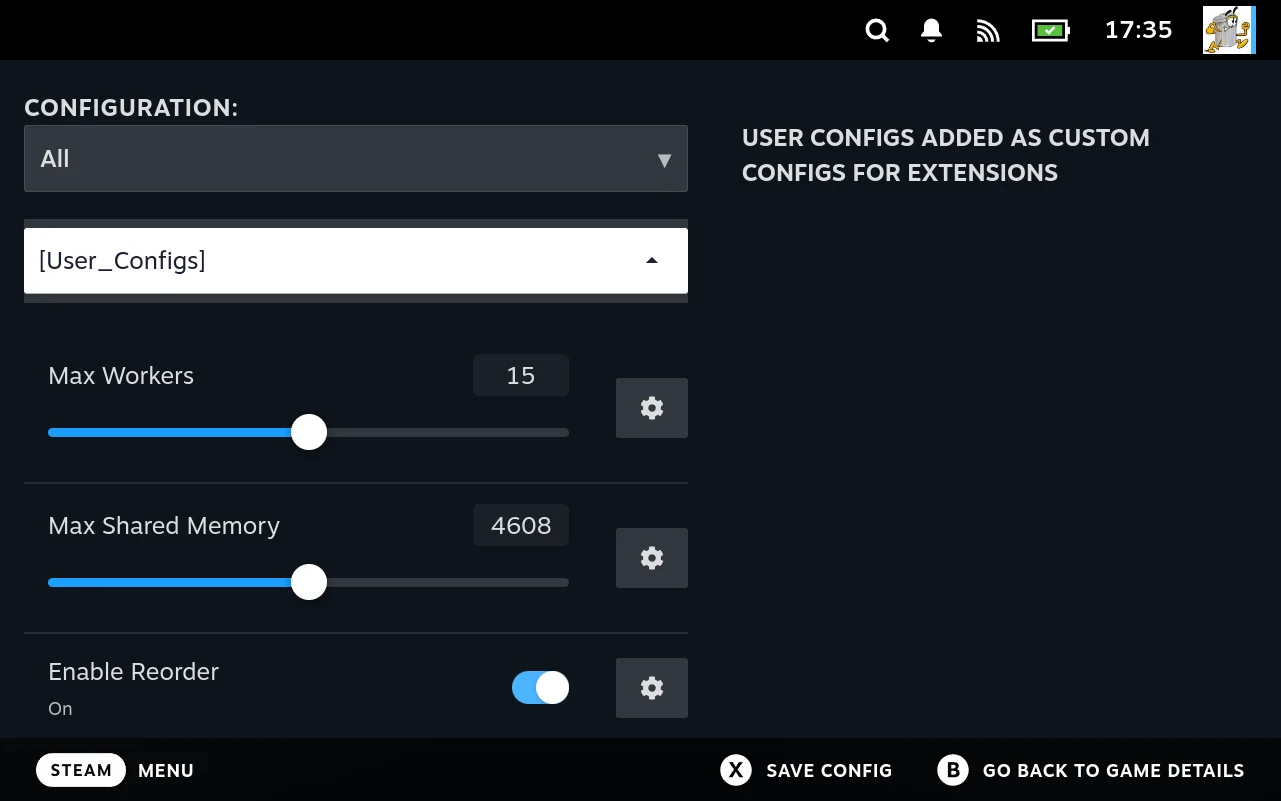
That is the inference at work. Max Workers and Max Shared Memory came from lines whose value was parenthesised, so they render as sliders with a numeric field; Enable Reorder came from a true or false line, so it renders as a toggle. The script emitted text and got controls, without declaring a type anywhere.
The section is named for the script that produced it, which is why the heading reads [User_Configs].
The bracket and parenthesis tests are substring matches, not anchored. A value that merely contains a bracket takes that branch, so see [docs] becomes a dropdown rather than the text box you wanted. Keep text values free of brackets and parentheses.
Each type in turn.
Boolean: a toggle
enable_reorder:::Enable Reorder:::true
DXSETUP:::DirectX Runtime:::false
The default is false, and it is what you get from an empty value, a missing third field, or anything the other branches do not claim. So key:::Label::: and key:::Label are both an off toggle. Only the exact lower case words true and false are recognised here; True or yes fall through to the String branch and give you a text box.
This is the form to use for a list of things to tick, which is why DLC and dependencies use it.
Enum: a dropdown
Wrap the choices in square brackets, separated by commas. The first choice is the default.
platform:::Platform:::[Windows,Linux]
Each choice can carry a separate display label using a :: sub separator, with the stored value first and the label second:
language:::Language:::[en-US::English,de-DE::German]
That stores en-US but shows “English”. A choice with no :: uses its value as its own label, so [Windows,Linux] displays exactly those words.
This is one line producing one dropdown, not one line per choice. It is what the shipped GOG getlanguages does, and it is the most common mistake to get wrong: emitting one line per language gives you a column of separate fields instead of a single chooser.
Commas separate choices and cannot appear inside one. A single choice, [Windows], is valid and gives a dropdown with nothing to switch to, which is a reasonable way to show a fixed value.
Range: a slider
Two numbers in parentheses, low then high:
max-workers:::Max Workers:::(4,26)
max-shared-memory:::Max Shared Memory:::(1024,8192)
The two numbers become the minimum and maximum, and the default is the midpoint, rounded. So (4,26) starts at 15 and (1024,8192) starts at 4608. You cannot set a default independently of the bounds; if you need one that is not the middle, choose bounds whose midpoint lands where you want, or use a Number instead.
Rounding is to the nearest even number on an exact half, so (1,10) has a midpoint of 5.5 and starts at 6, not 5. Worth checking if a starting value looks one off.
Only the first two numbers are read. A third is ignored rather than rejected, so (1,2,3) silently becomes the range 1 to 2.
Number: a plain numeric input
One number in parentheses:
retries:::Retries:::(3)
The number is both the type signal and the default. No minimum or maximum is applied, unlike a Range. Decimals work, so (2.5) is accepted.
The parentheses are what make it a number. A bare retries:::Retries:::3 is a String and gives you a text box, since nothing in the String branch inspects whether the text happens to be numeric. This is an easy one to trip over.
String: a text box
Anything not matched above:
region:::Region:::europe
The value becomes the default text. An empty string does not reach this branch, since that is claimed by Boolean, so there is no way to declare an empty text box through this format. Give it a placeholder default instead.
Notes that apply to all of them
- Empty lines are skipped, so trailing newlines are harmless.
- Every field is created at visibility level 0, so none of them are hidden behind the Advanced or Expert levels regardless of type. The section may still be levelled, which is a separate thing covered below.
- A line with no label still parses, and the field ends up with no caption. Always give a label.
- The separator is exactly three colons. Two or four will not split where you expect, and since the value is whatever lands in the third position, a mistyped separator usually shows up as a stray toggle.
All five types in one script
The shipped Epic userconfigs is the best reference, since it uses four of the five. A complete script covering all of them:
#!/usr/bin/env bash
echo "install_extras:::Install Extras:::true"                    # toggle, on
echo "platform:::Platform:::[Windows,Linux]"                     # dropdown
echo "language:::Language:::[en-US::English,de-DE::German]"       # dropdown with labels
echo "max-workers:::Max Workers:::(4,26)"                        # slider, starts at 15
echo "retries:::Retries:::(3)"                                   # number
echo "region:::Region:::europe"                                  # text box
Run it by hand to check what you are producing before wiring it up. The output is plain text, so the mistakes are visible:
~/.local/share/junkstore/scripts/Extensions/MyStore/userconfigs somegame
What each is for
getdepsreports redistributables and prerequisites. The chosen keys are read back bygeninstalldeps, which writes aninstall_deps.batthat the launcher runs on first launch.getdlcreports extra downloadable content, for stores that have it.getlanguagesreports which language variant of the same game to download. This is a different concern from DLC: it selects a variant, not an addition.-
userconfigsis the open ended one, for any other install time choice your extension needs. This is where the non boolean types earn their keep. The shipped Epic script declares a platform dropdown and two range sliders:platform:::Platform:::[Windows] enable_reorder:::Enable Reorder:::true max-shared-memory:::Max Shared Memory:::(1024,8192) max-workers:::Max Workers:::(4,26)
A script that prints nothing removes its section from the form, rather than leaving an empty one behind. That is the normal way to opt out of a section you do not need.
The four sections are presented differently, in two independent ways:
| Section | Starts expanded | Shown at |
|---|---|---|
| DLC | yes | Basic |
| Languages | yes | Basic |
| User_Configs | no, starts collapsed | Advanced and above |
| Dependencies | no, starts collapsed | Advanced and above |
So getdeps and userconfigs are both folded away by default and need the visibility dropdown raised past Basic before they appear at all. If a field you emitted from one of those is nowhere to be seen, raise the level first, then expand the section.
Dependencies: two different jobs, similar names
geninstalldeps and install_deps.sh sound like the same thing and are not. They differ in what they install, when they run, and for whom.
geninstalldeps | install_deps.sh | |
|---|---|---|
| Installs | A game’s own redistributables | The tools your extension needs to work |
| Scope | One game | The whole extension |
| Runs | Before a game’s first launch | When the user installs or removes dependencies |
| Produces | A Windows .bat the launcher runs | Nothing; it does the work itself |
geninstalldeps: a game’s redistributables
Old Windows games ship installers for the runtimes they need, and they have to run inside the Proton prefix rather than on the host. geninstalldeps does not run them. It writes a batch file that will, and the launcher runs that on first launch.
The shipped Epic script shows the shape:
- Ask for the game’s installation config, which is the form
getdepspopulated. - Collect the dependency keys the user left switched on.
- Download those, then write
install_deps.batlisting each one’s installer and arguments. - End the batch file by writing
install.done.
That last line is the whole state machine. install.done in the game directory is what stops it happening twice, so the hook is called before first launch only while that file is absent. Delete it and dependencies are reinstalled on the next launch, which is a reasonable thing to try when a game complains about a missing runtime.
Two consequences worth knowing:
- This is a Windows shaped hook. It produces a
.batfor a Proton prefix. An extension for Linux games or ROMs has nothing to do here and can leave the script absent. - The user’s choices reach it through the config, not as arguments.
getdepsoffers the list, the answers are stored, andgeninstalldepsreads them back. If a dependency is not installing, check whether it was switched on before suspecting the script.
install_deps.sh: what the extension itself needs
This one is about your extension’s own tooling on the host. Epic’s installs the legendary flatpak and protontricks; GOG’s and Amazon’s do the same for theirs.
It is not called per game or per install. A master script finds every extension’s install_deps.sh and runs them all, which is the same glob-and-run pattern diagnostics uses. Removing dependencies runs the same sweep again with uninstall as the argument, so one script handles both directions:
if [ "$1" == "uninstall" ]; then
    uninstall
else
    install
fi
Output is shown to the user, so print what you are doing and why a step takes a while. This is one of the few hooks whose stdout is prose rather than a protocol.
Make it safe to run twice. Users can trigger it whenever they like, so check before installing and remove before reinstalling rather than assuming a clean machine.
Epic’s also demonstrates the conditional case. Its install function reads USE_LEGACY_CLIENTS and returns immediately when the native client is in use, because the flatpaks are only needed by the legacy path:
function install() {
    if [ "${USE_LEGACY}" != "true" ]; then
        echo "Using native clients, no flatpak dependencies needed"
        return 0
    fi
    download_and_install
}
Settings reach this script as environment variables like any other, so it can decide what it needs rather than installing everything unconditionally.
Login and accounts
Only relevant when Needs Login is enabled on the extension.
| Script | Arguments | Stdin | Stdout |
|---|---|---|---|
login | none | none | nothing parsed |
loginargs | none | none | Arguments to pass to the login call |
loginstatus | none | none | One JSON object, see below |
logout | none | none | nothing parsed |
listusers | none | none | A JSON array, see below |
switchuser | <user-id> | none | nothing parsed |
deactivate | none | none | nothing parsed |
loginstatus stdout. One JSON object with two keys:
{"Username": "[email protected]", "LoggedIn": true}
When not logged in, return the same shape with an empty username and false:
{"Username": "", "LoggedIn": false}
The result is cached, which is why login and logout must flush it. See step 5 of the login pattern below.
listusers stdout. A JSON array of account objects, for stores that support more than one signed in account:
[
  {"user_id": "abc123", "display_name": "[email protected]", "active": true},
  {"user_id": "def456", "display_name": "[email protected]", "active": false}
]
| Key | Meaning |
|---|---|
user_id | The identifier passed back to switchuser |
display_name | What the user sees. The shipped scripts fall back to the user_id when no friendlier name is known |
active | Whether this is the account currently in use. Exactly one should be true |
If the output does not parse as JSON the list is treated as empty rather than raising an error, so a broken listusers shows no accounts rather than an error message. That makes a silent empty account list the symptom to look for.
Print [] when there are no accounts. If your store only ever has one signed in account, you do not need listusers, switchuser, or deactivate at all.
“nothing parsed” above means the caller does not read stdout for that script, so you are free to print whatever is useful for debugging. The action’s success is judged by it completing, not by its output.
The login script has to set up its own environment
This is the one script where you cannot assume a working environment. A login usually opens a browser or a GUI prompt, and it does not run in the plugin’s context, so nothing has been set up for it. The shipped login scripts all follow the same shape, and it is worth copying rather than rediscovering.
#!/usr/bin/env bash

# 1. Runtime directories. Prefer the shared env file if it exists.
if [ -f "${HOME}/.config/junkstore/env.sh" ]; then
    source "${HOME}/.config/junkstore/env.sh"
else
    export DECKY_PLUGIN_RUNTIME_DIR="${HOME}/.local/share/junkstore"
    export DECKY_PLUGIN_DIR="${HOME}/.local/share/junkstore"
    export DECKY_PLUGIN_LOG_DIR="${HOME}/.config/junkstore/logs"
fi
export WORKING_DIR=$DECKY_PLUGIN_DIR
export Extensions="Extensions"

# 2. A D-Bus session, needed by anything opening a GUI. Only if there is not one.
if [ -z "${DBUS_SESSION_BUS_ADDRESS}" ]; then
    eval $(dbus-launch --sh-syntax)
    export DBUS_SESSION_BUS_ADDRESS
fi

# 3. On SteamOS, point at the bundled WebKit so a browser prompt can render.
if [ -f /etc/steamos-release ]; then
    export LD_LIBRARY_PATH="${HOME}/.local/share/junkstore/lib/:/lib/"
    export WEBKIT_EXEC_PATH="${HOME}/.local/share/junkstore/lib/webkit2gtk-4.1/"
    export WEBKIT_INJECTED_BUNDLE_PATH="${HOME}/.local/share/junkstore/lib/"
fi

# 4. Run the client from the junkstore directory.
cd "${HOME}/.local/share/junkstore"
./mystore login

# 5. Flush the cached status so the interface notices.
"${HOME}/.local/share/junkstore/junk-store" MyStore flushloginstatuscache
Taking those in turn:
1. Runtime directories. Source ~/.config/junkstore/env.sh when it exists, and fall back to exporting the three paths yourself. The fallback matters, since the file is not guaranteed to be there.
The DECKY_ prefix on those variable names is legacy. Junk Store Pro is not a Decky plugin and has no Decky runtime dependency; the names date from an early plan to stay backwards compatible with Decky, which was dropped. They are technical debt kept only because scripts already reference them, and their values point at Junk Store Pro’s own directories:
| Variable | Actually points at |
|---|---|
DECKY_PLUGIN_DIR | ~/.local/share/junkstore |
DECKY_PLUGIN_RUNTIME_DIR | ~/.local/share/junkstore |
DECKY_PLUGIN_LOG_DIR | ~/.config/junkstore/logs |
Do not read anything into the names, and do not expect Decky to be installed or involved. If you are writing a new script, using these is still the correct thing to do, since that is what the surrounding scripts and the loader agree on.
Take care around them, because they are likely to be renamed. Debt gets paid off eventually, and a future release may drop the DECKY_ prefix. Any script referring to the old names directly would break at that point. Two habits keep the damage to a minimum:
-
Read them once, into a name of your own. Assign the value at the top of your script and use your own variable everywhere else. A rename is then one line to fix rather than every place you used it:
JS_DIR="${DECKY_PLUGIN_DIR}" JS_LOG_DIR="${DECKY_PLUGIN_LOG_DIR}" -
Prefer the shared env file over exporting them yourself. Sourcing
~/.config/junkstore/env.shwhen it exists means the definitions come from Junk Store Pro, so a rename arrives with the update. Keep your fallback branch, but understand that it is the part most likely to go stale, since it hard codes both the names and the paths.
If a script of yours suddenly cannot find its directories after a Junk Store Pro update, an unprefixed rename is the first thing to check. Compare against a shipped extension’s script, which will have been updated alongside the change.
2. D-Bus. A GUI prompt needs a session bus. Guard on DBUS_SESSION_BUS_ADDRESS so you do not start a second one when a session already exists.
3. WebKit, on SteamOS only. A login that opens a web view needs the bundled WebKit libraries, which is why the paths are exported. The /etc/steamos-release check keeps this from breaking other distributions.
4. Working directory. Change into the junkstore directory before invoking the client, since the shipped scripts call it by relative path.
5. Flush the login status cache. Junk Store Pro caches whether you are logged in, so without this the interface keeps showing the old state. Do the same in your logout script.
If your store’s login is non interactive, a token or a device code with no GUI, you can skip steps 2 and 3. Keep 1, 4, and 5.
Launching
| Script | Arguments | Stdin | Stdout |
|---|---|---|---|
get-launch-options | <game-id> [install-dir] | none | One JSON object, see below |
get-args | <game-id> | none | Extra launch arguments as a single line |
get-launch-options stdout. One JSON object telling the launcher what to run and where:
{
  "exe": "/path/to/game/dir/Game.exe",
  "workingdir": "/path/to/game/dir",
  "gamedir": "/path/to/game/dir"
}
| Key | Meaning | Used for |
|---|---|---|
exe | The full path of the executable to launch | What actually gets run |
workingdir | The directory to run it from | Recorded as the game’s working directory, and created if it does not exist |
gamedir | The game’s install directory | Recorded as the game’s install path |
All three are read by name, so all three need to be present. workingdir and gamedir are written back as the game’s stored paths, which means a wrong value here does not just affect this launch, it updates the record.
Its mere existence changes the launch path. Junk Store Pro checks whether the get-launch-options file is present, and if it is, your script becomes the authority on all three paths. If it is absent, the paths are worked out from the game’s stored record instead. So adding this script takes over path resolution entirely, and removing it hands that back.
The second argument is optional: the shipped scripts accept an install directory and pass it to the store client when present. Write your script to work when it is absent.
get-args prints additional arguments to append to the launch command. The launcher scriptlets check whether the file exists and fold its output in, so it is a tidy way to add per game arguments without editing a scriptlet. Print nothing if there are none.
Saves
| Script | Arguments | Stdin | Stdout |
|---|---|---|---|
getsavepath | <shortname> | none | The save directory path, or an empty line |
Intended for locating a game’s saves: print the path on a single line, or an empty line when there is no known save location.
No current code path calls it. The template exists and generation will write the file out, and GOG carries a definition for it, but nothing invokes it, so writing one appears to have no effect today. Cloud saves in the shipped extensions are handled inside the store binaries rather than through this hook. Treat it as reserved rather than as a hook you can rely on, and check against a current build before depending on it.
Import
| Script | Arguments | Stdin | Stdout |
|---|---|---|---|
supports-import | none | none | SupportsImport:true or SupportsImport:false |
import | <game-id> <path> | none | Progress keys, as for the downloader |
supports-import is asked first, and decides whether import is offered for the store at all. import then receives the game and the path to import from.
supports-import stdout is matched strictly. The output is trimmed of surrounding whitespace and then compared against the whole string SupportsImport:true. Anything else means false, including true, SupportsImport:yes, or that line with extra output around it. Print exactly one line and nothing else:
echo "SupportsImport:true"
The comparison ignores case, so supportsimport:TRUE also works, but match the shipped spelling rather than relying on that. If the script is missing or it fails, import is treated as unsupported.
Diagnostics
| Script | Arguments | Stdin | Stdout |
|---|---|---|---|
diagnostics | none | none | One JSON object of test results, see below |
This one is wired into a real feature. Junk Store Pro has a diagnostics framework with its own tab in the diagnostics modal, and your script’s results appear there alongside the core and system checks. Use it to report your extension’s health: whether the client binary is present, whether tokens exist, what paths resolved.
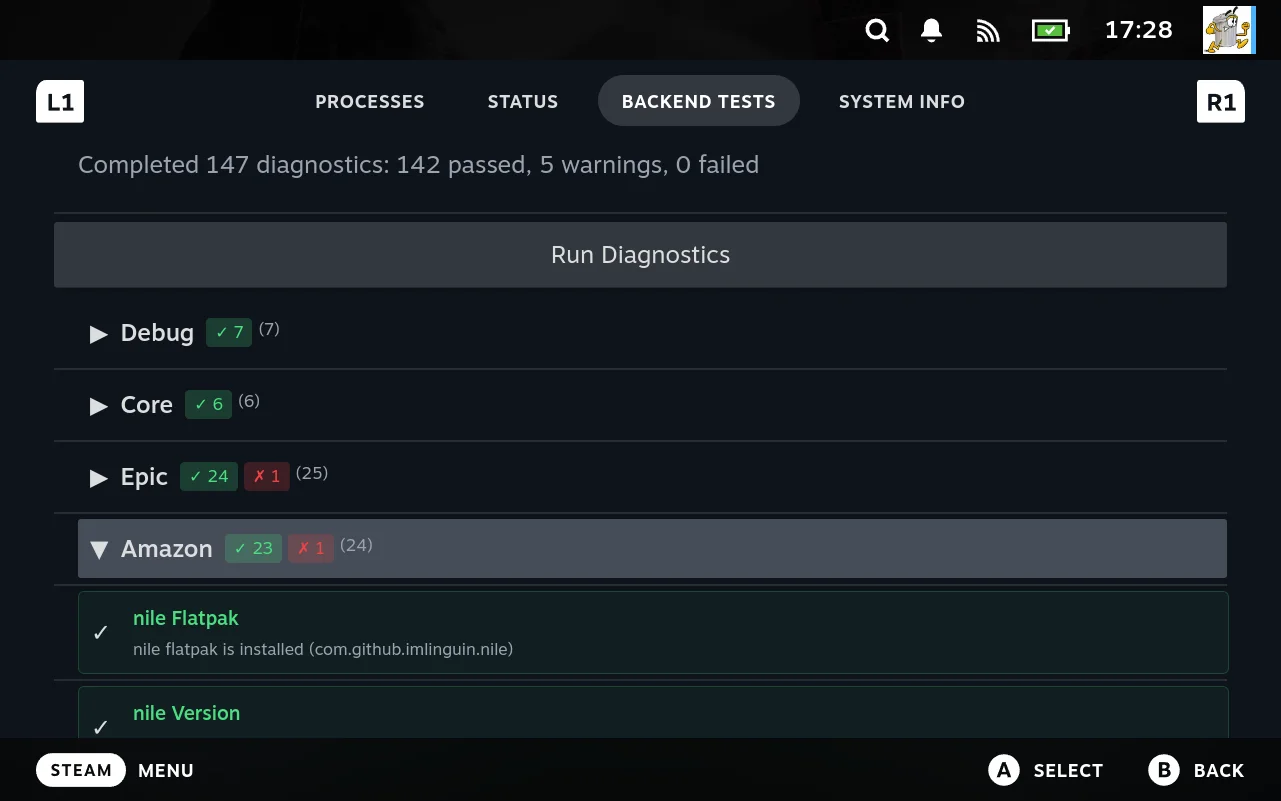
This is where your script’s output ends up. Each extension gets one collapsible row carrying its own pass and fail counts, and expanding it lists the individual checks. The expanded rows in the screenshot are entries from Amazon’s diagnostics script, and the detail line under each name is the message field described below, which is why it is worth writing something a person can act on rather than just “ok”.
Debug and Core are the framework’s own checks rather than extensions, so a fresh extension with no diagnostics script simply does not appear in this list.
How it is called. A master diagnostics script finds every extension’s script by globbing Extensions/*/diagnostics, runs each one with no arguments, and merges the output into the combined report. Results are streamed to the modal as they arrive, so a slow check does not block the others from appearing.
Two requirements before it runs at all:
- The file must be executable. A script without the executable bit is reported as a failure, not skipped, so a broken permission shows up as a red entry rather than silence. Generation sets this for you, so a script written by turning
generateon is already executable. It is only a concern for a file you created by hand. - It must finish within 30 seconds. Past that it is killed and reported as timed out. Keep network calls short or skip them.
Stdout. One JSON object with a summary and a results array:
{
  "summary": {"total": 2, "passed": 1, "warnings": 1, "failed": 0},
  "results": [
    {
      "name": "Client Binary",
      "status": "pass",
      "message": "Found mystore at ~/.local/share/junkstore/mystore",
      "duration": 12
    },
    {
      "name": "Login Token",
      "status": "warning",
      "message": "No token found, you are not signed in",
      "duration": 3,
      "suggestions": ["Sign in from the store's tab"]
    }
  ]
}
Only the results array is read. The summary is recomputed by the framework, so include it to match the shipped scripts but do not rely on your counts being used.
| Key | Required | Meaning |
|---|---|---|
name | yes | The check’s name, shown as the row label. Defaults to your extension name if absent |
status | yes | pass, warning, or fail. An unrecognised value becomes unknown |
message | yes | The detail line shown under the name |
duration | no | How long the check took. The framework substitutes its own measurement if absent |
suggestions | no | An array of strings offering the user next steps. Omit rather than passing an empty array |
Use warning and not warn. Results are grouped under a category named after your extension directory, lower cased, so MyStore appears as ext-mystore.
Non JSON output still works. If the output does not parse as JSON, the framework falls back to the exit code: zero is reported as a pass with your stdout as the message, non zero as a failure with your stderr. That makes a plain script a legitimate minimal implementation:
#!/usr/bin/env bash
if [ -x "${HOME}/.local/share/junkstore/mystore" ]; then
    echo "Client binary present"
    exit 0
fi
echo "Client binary missing" >&2
exit 1
Emit the JSON form when you want several named checks with their own statuses, which is what the shipped extensions do. Copy one of their diagnostics scripts as a starting point.
Return {"error": "..."} only if the check itself could not run; a failed check is a results entry with status of fail, not an error.
Shared code, not called directly
| File | Purpose |
|---|---|
junklib | The helper Junk Store Pro ships. Imported by your scripts |
userlib | The slot for your own shared code |
settings | Becomes settings.sh, which is sourced before anything else |
These three are never invoked as hooks, so they have no argument or output contract. junklib is the one to reach for when writing a downloader, since it handles progress parsing and byte conversion for you.
Which shipped extension to copy from
Not every extension ships every script, which itself tells you what is optional. Rough guide to where to look:
| If you want an example of | Look at |
|---|---|
| The smallest workable set of scripts | Itch |
| DLC and language selection | Epic, GOG, Amazon |
| Save path handling | GOG |
| Extra shared python helpers of your own | GOG, which adds a userlib.py |
| Per game metadata from a listing | Epic, Amazon, Itch, which all ship getgameinfo |
Itch is the leanest: it ships no getdlc, no getlanguages, and no userconfigs, which shows those are genuinely optional rather than required plumbing.
Adding or editing a custom script
Custom scripts are managed through the Generator’s customscripts editor, which controls the contents, the filename it is written as, and whether it is bash or python. See customscripts: extra scripts.
That choice of two is the editor’s, not the contract’s. Junk Store Pro runs the file and reads what it prints, so a hook you write and place yourself can be anything executable, including a compiled binary. Bash and python are what the editor will generate for you.
You do not create the file yourself. Each entry has a generate toggle, and turning it on then regenerating writes the script into the extension directory and makes it executable. So adding a hook your extension does not have yet means filling in its contents, turning generate on, and regenerating. See The generate toggle is how you get the file.
For a script that already exists, the workflow is the same as any script change:
- Edit the script.
- Save scripts back to DB for that extension.
- Regenerate with Regenerate installed extensions.
Import before you regenerate, or your edit is overwritten. See Authoring by hand.
Two reasons no file appears
Known issue: both of these fail silently. The entry is stored, the editor shows it, generation reports success, and nothing is written. No error, no log line.
filename must be set, or nothing is written. That field decides what the file is called, and it is not defaulted from the entry’s name. generate reads like the switch controlling whether a file appears, and filename reads like an optional override of an obvious default, but an entry without it produces nothing however complete the rest is. Shipped extensions all carry it, which is exactly why the requirement is easy to miss.
Check filename first when a file does not appear.
A name Junk Store does not recognise is never written, with or without filename. Generation only writes files for the fixed set of hook names listed on this page. An entry called installtool or removetool is stored in generator.db, shows in the editor, and never reaches disk.
The two failures are indistinguishable from the interface, which is what makes them expensive to diagnose. If filename is set and the file still does not appear, the name is the cause.
userlib is the one slot for your own code, and the answer to “where do I put a helper script”. It is a single row in the table above and easy to overlook.
Interpreters and PATH
Known issue: actions run with a PATH that does not include /usr/bin. A commandmap body calling python3 exits 127, while the same #!/usr/bin/env python3 shebang works in a script Junk Store invokes directly, such as getlisting or getgameinfo.
The inconsistency between the two contexts is the surprising part. Do not rely on PATH in a commandmap body; use an absolute interpreter path with a lookup as a fallback:
PY="$(command -v python3 || echo /usr/bin/python3)"
"$PY" "$SCRIPT"
Testing a hook
Because the scripts are ordinary executables that read the environment and print to standard output, you can run one directly:
cd ~/.local/share/junkstore/scripts/Extensions/MyStore
./getlisting
./getgameinfo some-game-shortname
Run by hand they will not have the config environment Junk Store Pro provides, so set any variable the script depends on first. Checking the output shape this way is much faster than triggering the action through the interface each time.
If a hook works by hand but not in Junk Store Pro, the usual causes are a missing environment variable it silently depended on, or output that is not the shape the caller expects. See Action results and Troubleshooting.