When a game will not run
On this page
Junk Store Pro automates what can be anticipated. A game that is not on Steam is, by definition, one nobody planned for, so sooner or later you will hit one that does not start and no amount of configuration fixes it by guessing.
At that point the job stops being “configure the launcher” and becomes “find out what actually happened”. That is most of the work in getting non-Steam games running, and Junk Store Pro gives you the tools to do it without leaving game mode. You do not need a terminal, a desktop session, or another machine.
What follows is the loop. Work through it in order; each step narrows what can be wrong.
The short version
- Open the file manager from the game’s actions menu, and read
launcher.login the game directory. - Find the command it actually ran, and what it resolved for the paths.
- Check the thing that command depends on: the executable, the prefix, the core, the config.
- Change one setting, relaunch, read the log again.
The loop is short on purpose. Most failures are visible in the first two steps, and every place you need to look is in the file manager’s sidebar once you open it from the game.
Step 1: read launcher.log
Every launcher scriptlet writes a log next to the game, at <game directory>/launcher.log. Not a central log, not a system journal: it is in the folder with the game, so you can find it from where you already are.
Open the file manager from the game itself, rather than browsing to it. On the game’s detail page, open the actions menu and choose File Manager. It opens already knowing which game you came from.
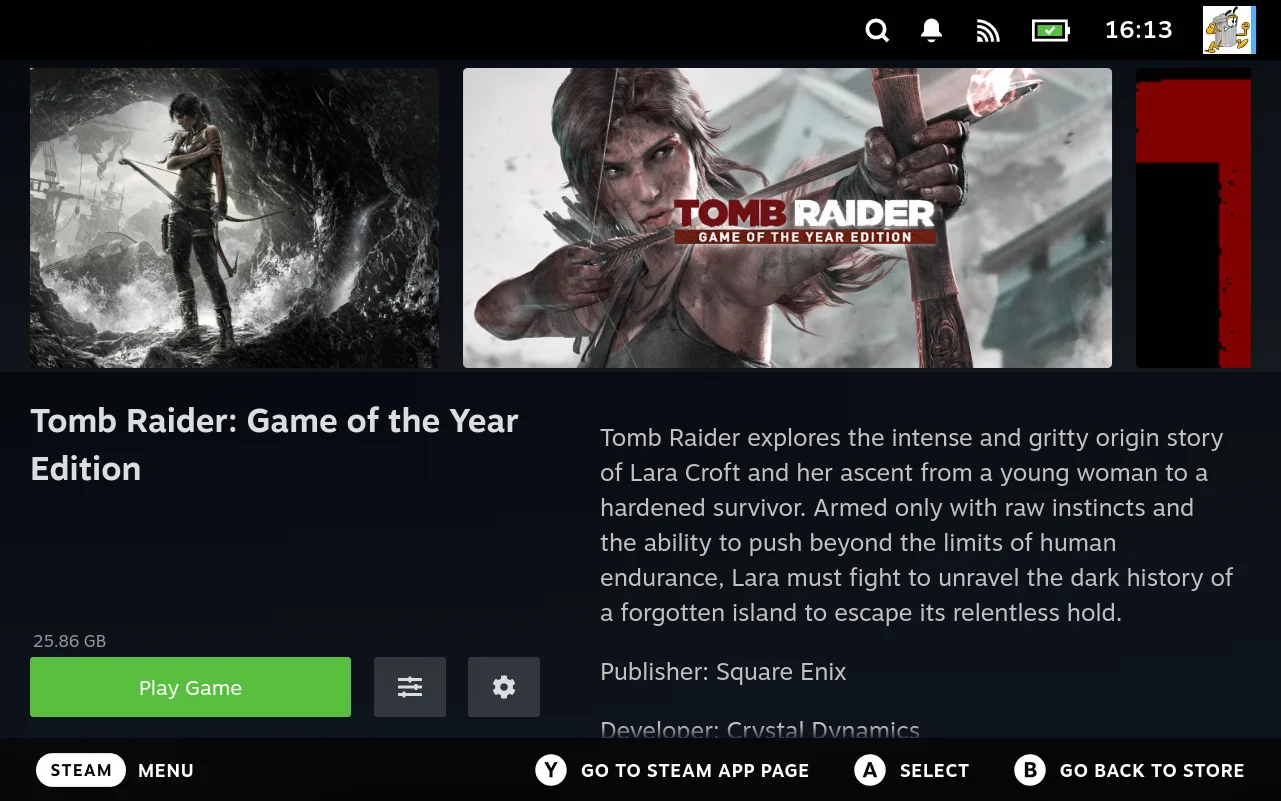
Opening the actions menu on that page gives you File Manager:
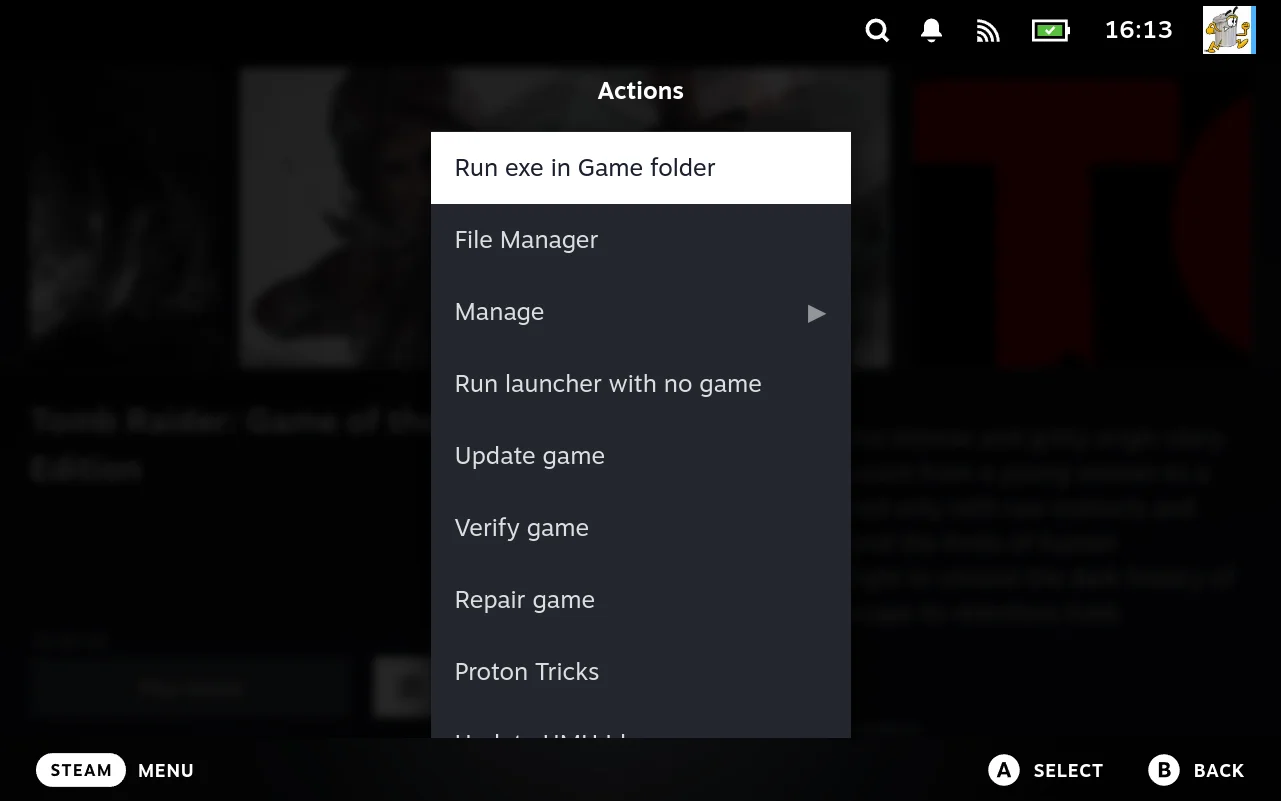
- Go to the game in Junk Store Pro and open its detail page.
- Open the actions menu and choose File Manager.
- In the sidebar, select Game Install Directory.
- Focus
launcher.logand press X.
The file manager opens in the text viewer. No file type configuration is needed; anything that is not an image, PDF, markdown, media file, or known binary opens as text, which includes logs.
The sidebar is mapped for the game you came from. Junk Store Pro asks the extension where that game is actually installed, rather than guessing from a naming convention, and adds three shortcuts:
| Shortcut | Goes to |
|---|---|
| Game Install Directory | Where the game is installed, including launcher.log |
| Steam Proton Prefix | The Wine prefix for this game, if it is a Proton title |
| Steam Shader Cache | The shader cache for this game |
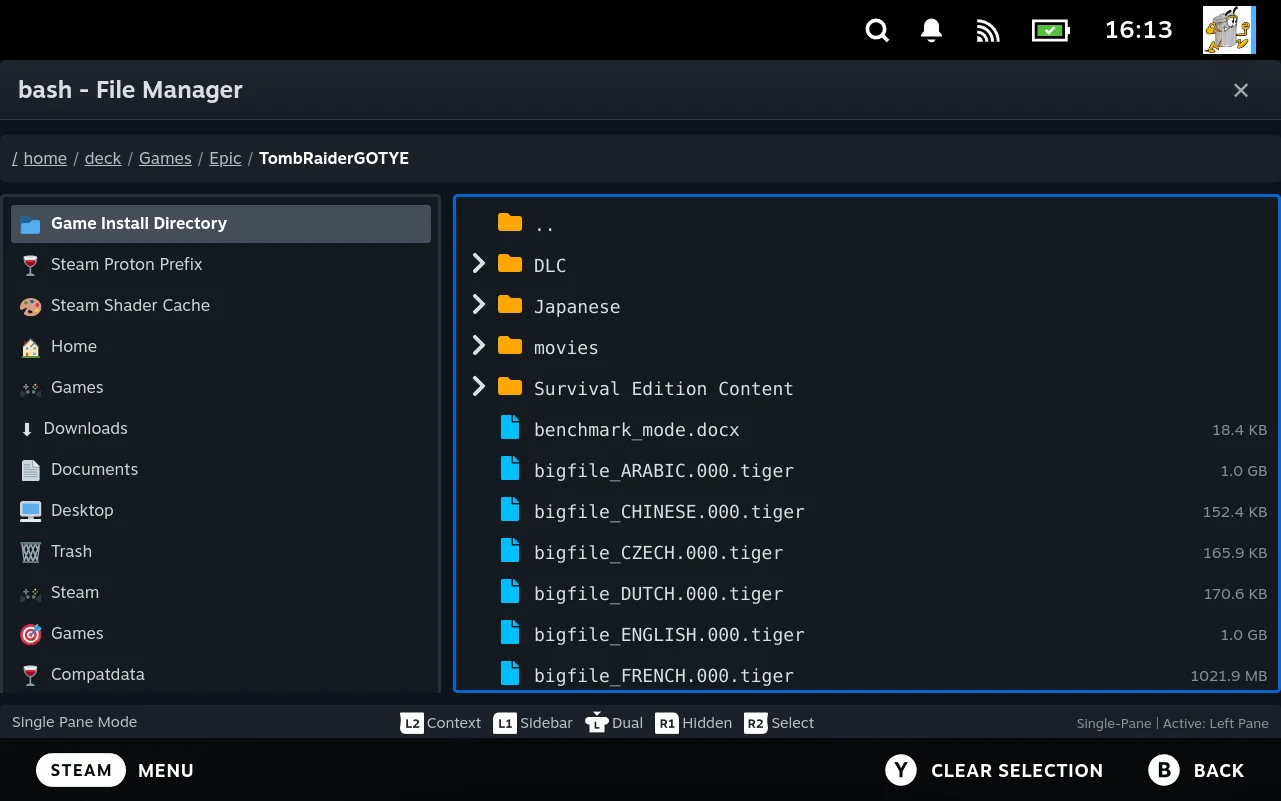
Those are the first three places worth looking, so the whole of the loop below is reachable from that one menu without typing a path.
The File Manager entry appears only for installed games. For a game that has not been installed there is no game directory yet, and a failure at that stage is a download or install problem rather than a launch one.
The file manager is also available from the main menu when you want it for something else. Opening it from the game is what gets you the mapped sidebar.
The log is rewritten on every launch. The scriptlets truncate it at the start of a run, so what you are reading is the most recent attempt and nothing older. Launch once, then read.
It captures both output streams. The game’s own errors land in the same file as the launcher’s notes, which is usually where the real message is.
What to look for
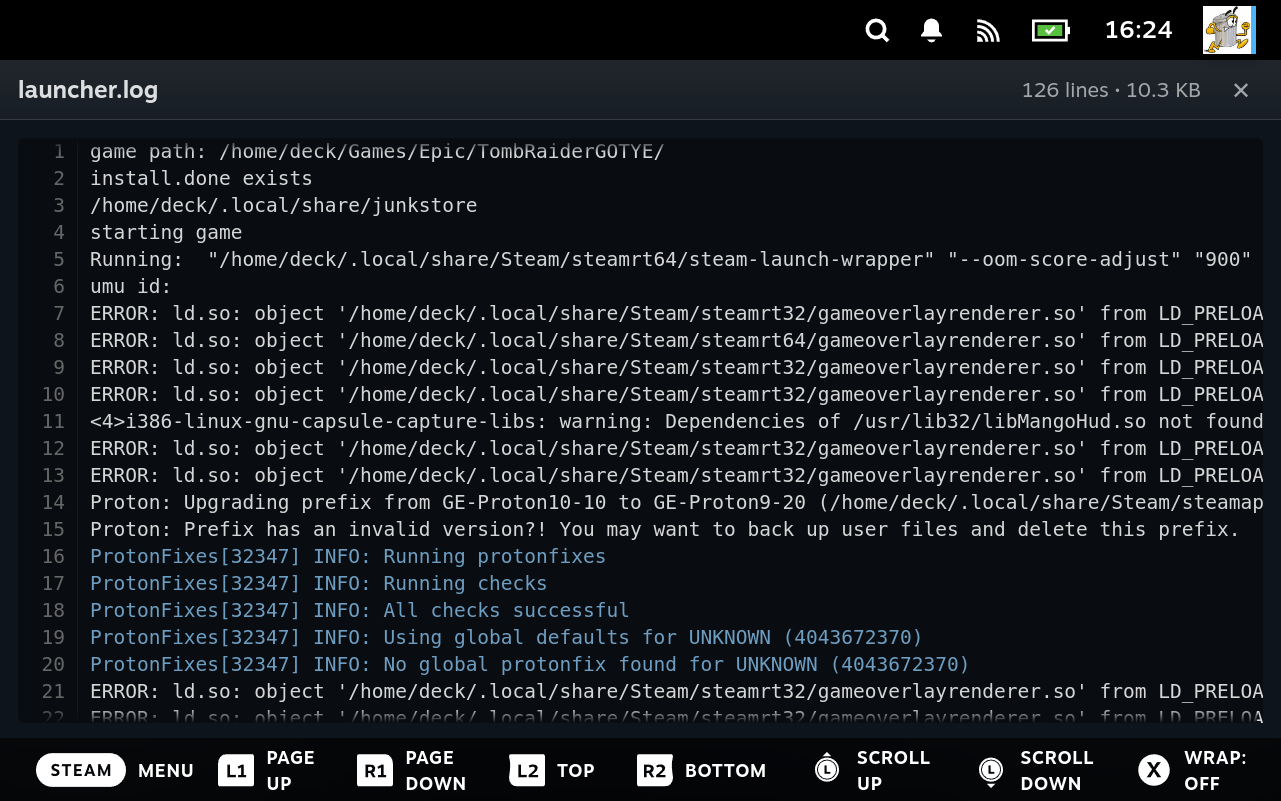
Read from the bottom. The last thing logged before it stopped is the thing that failed.
Every platform’s scriptlet logs its progress, so you will see lines recording the game path, whether dependencies were installed, and then the command being run. The Proton scriptlet logs a Running: line, and the DOSBox scriptlet logs a CMD: line, giving the full command line including every argument. That line is the single most useful thing in the file.
Three things it tells you at once:
- Whether the launcher got as far as running anything. If there is no command line, the failure is before launch: a path did not resolve, or a dependency step failed.
- Which executable was chosen. Frequently the wrong one, in a game that ships several.
- What the settings resolved to. Every value in the command came from the config, so a wrong path or a missing flag here points at a specific field to change.
Step 2: check what the launcher resolved
If the log shows a command that looks wrong, the next question is where those values came from. Two places to look.
The game’s config, from the cog on the game. This is what fed the command. Compare what you see against the command in the log. See Settings reference for what each field does.
Diagnostics, which reports what the system currently believes: whether the client binary is present, whether you are logged in, what paths resolved. It runs the core checks plus a check from each installed extension, and reports each as passed, warning, or failed with suggestions. Run it when the log suggests something is missing rather than misconfigured.
Step 3: look at the thing that failed
By now the log has named something. Open it and look, rather than assuming.
The executable. Select Game Install Directory in the sidebar. Is the file the log named actually there? Games that ship a launcher alongside the real binary often need the other one. A Windows executable that is truly a DOS program, or an installer rather than the game, is visible the moment you look at the folder.
The Proton prefix. Select Steam Proton Prefix in the sidebar. Whether Proton ever created it distinguishes “Proton failed immediately” from “the game started and then died”. An empty or missing prefix means the first launch never got far enough to build one.
Config files the game itself reads. Many games keep their own settings next to the executable or in the prefix. Open them in the text viewer. A game pointing at a resolution your device does not have, or a path from the machine it was packaged on, is a common cause, and seeing it is usually enough to know what to do.
Junk Store Pro has no general text editor. The viewers read files; they do not write them. Config editing in the interface covers Junk Store Pro’s own settings, through the config screens and the Y gesture on a field, and a DOSBox conf can be imported into those. A game’s own config file is not one of those, so if you need to change one, edit it in Desktop Mode or over SSH. This is a gap rather than a decision, and worth knowing before you go looking for an edit button.
Binary files and databases. If a game or client keeps state in a .db, the file manager opens SQLite files in a table viewer, and anything else binary in a hex viewer. That is rarely the first thing to check, but it is there when a client insists it is not logged in and you want to see what it actually stored.
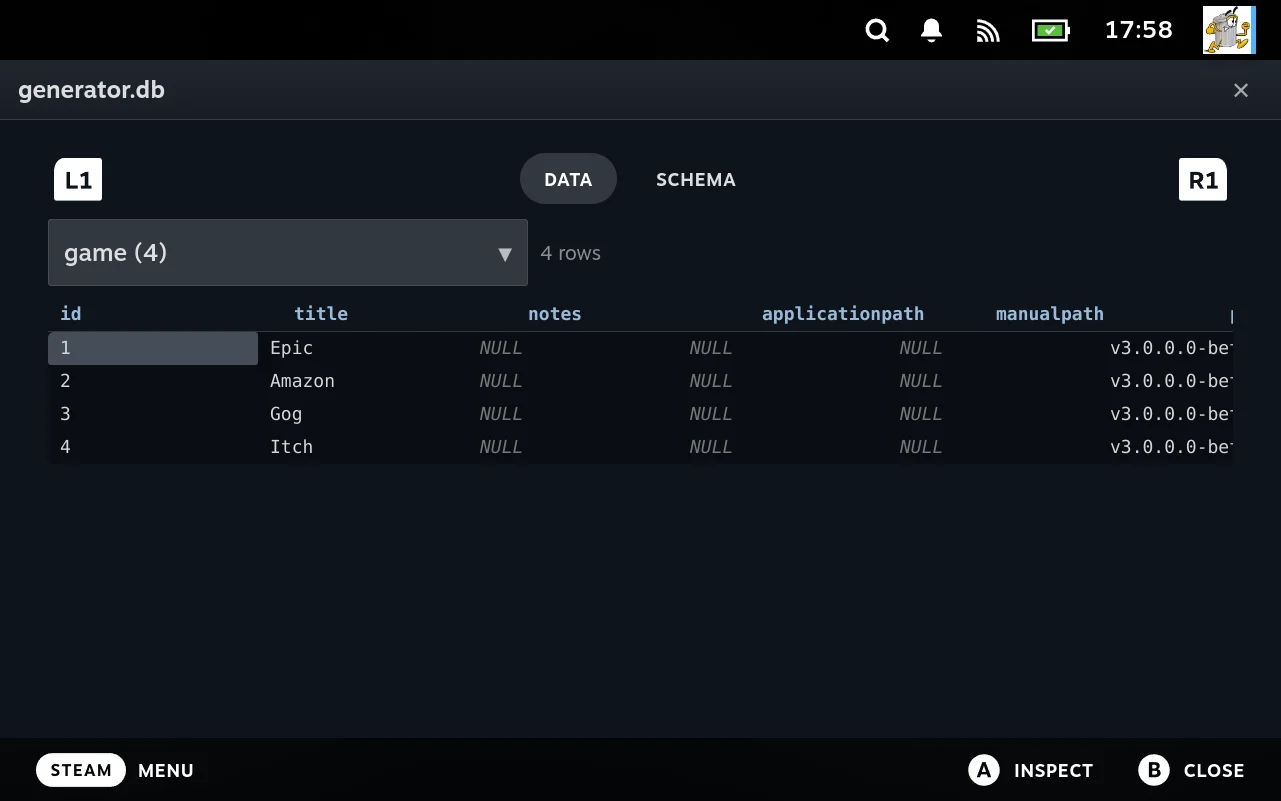
Pick a table from the dropdown, which shows each table’s row count, and the rows appear. The Schema tab shows the column definitions when you need to know what a value is supposed to be, and A inspects a single cell, which matters when a value is longer than its column. NULL is drawn differently from an empty string, a distinction that is usually the thing you are trying to establish.
The viewer cannot write. Every read opens its own connection with SQLite’s query_only pragma set, so looking at a client’s database cannot corrupt it, even one belonging to a program that is running. Changing a value is a desktop mode job.
Files inside an archive. You can view a file inside a zip without extracting the whole thing; the member is extracted to a temporary location and opened. Useful when checking whether a download contains what you expect before installing it.
Check whether it is actually running
When a launch appears to do nothing at all, the useful question is whether a process started and died, or never started. The diagnostics view answers that: its Processes tab is a live process list.
Press SELECT and Y together to open it, from anywhere in the interface. The view has four tabs, moved between with L1 and R1.
That chord is one of a set. Hold SELECT for a couple of seconds and Junk Store Pro shows the list rather than making you remember it:
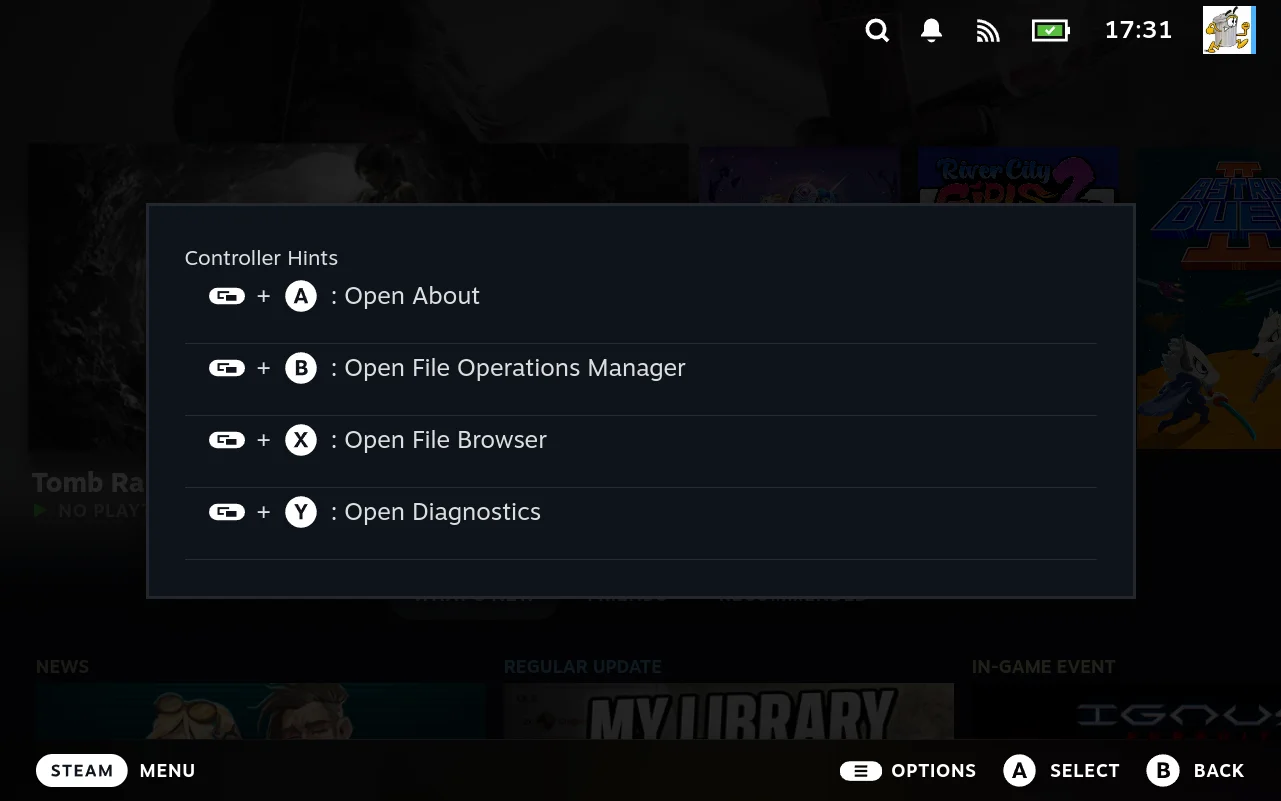
| Chord | Opens |
|---|---|
| SELECT + A | About |
| SELECT + B | File Operations Manager |
| SELECT + X | The file manager, labelled “File Browser” on the sheet |
| SELECT + Y | Diagnostics |
The rest of this guide calls that one the file manager, which is its name everywhere else in the interface. The hint sheet is the odd one out.
These only work in the Steam interface. They do not work in game. While a game has focus, the game owns the input and SELECT is left alone deliberately, so nothing happens. The same applies when a Steam menu is open over a running game. Return to the Steam interface and the chords work again.
Within the Steam interface they work anywhere, not just inside a store’s tab, because the loader handles them rather than any one extension. A game running in the background does not stop them, which is what makes the process list useful straight after a launch that failed and dropped you back out.
Between them these four are most of the troubleshooting surface this guide describes: the file browser for reading logs and checking what installed, and diagnostics for processes and extension health.
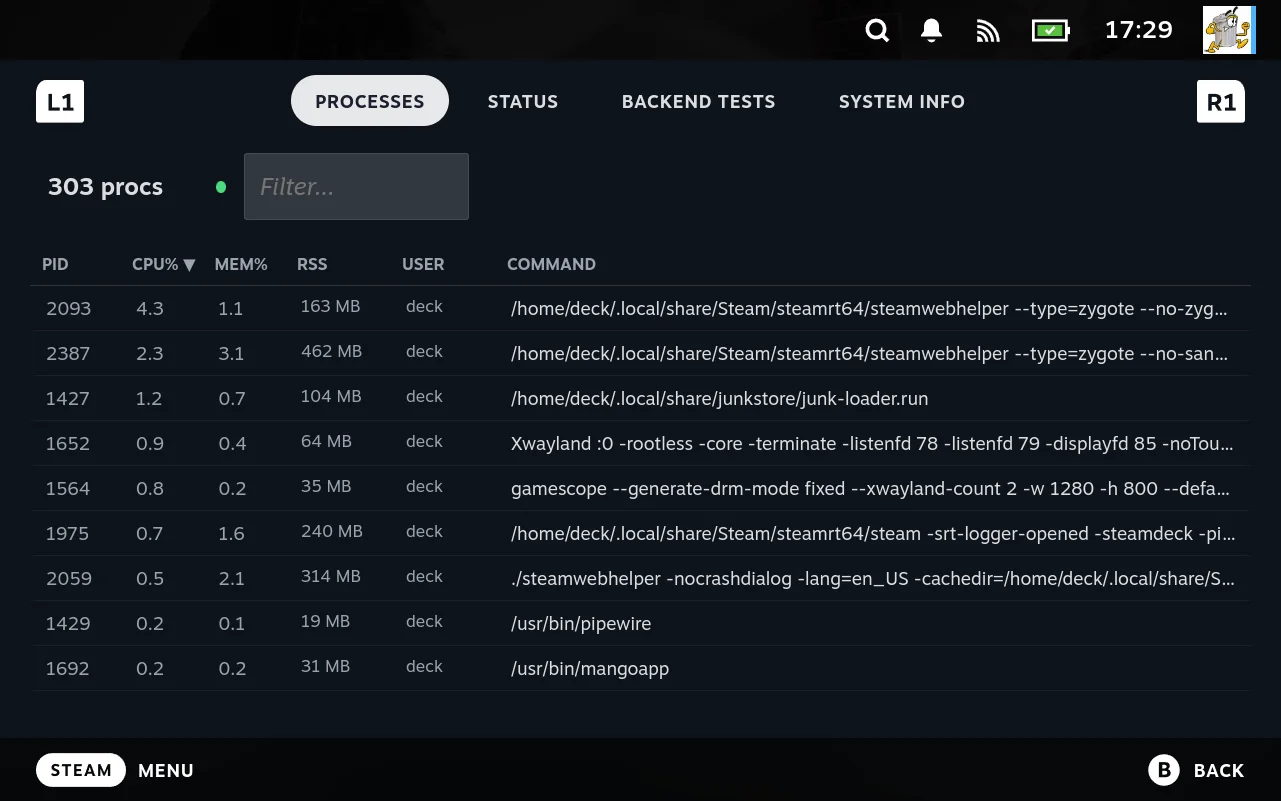
Filter by the game’s name or executable and watch while you launch. What you see tells you which problem you have:
- Nothing appears at all. The launch never got as far as running the binary. The answer is in
launcher.log, not here. - It appears and vanishes. The game started and exited. That is the case where the log’s last lines and the Proton prefix matter most.
- It is still there but nothing is on screen. The process is alive, so this is a display or gamescope problem rather than a launch failure. It also explains the case where a second launch attempt does nothing, because the first one is still holding on.
The full command line is shown, which is the quickest way to confirm the game was invoked with the arguments and Proton version you expected. That is the same information Step 2 gets from the log, seen from the other end.
The other tabs are worth knowing about while you are here. Backend Tests runs each extension’s own health checks, described in Custom scripts, and is where a missing client binary or an expired login shows up as a red entry. Status and System Info cover the backend and the device.
Step 4: change one thing, then relaunch
Make a single change, launch, read the log again. Changing several things at once means a success tells you nothing about which one mattered.
The changes available here are Junk Store Pro’s own settings, which is most of what matters: they decide the platform, the fork, the executable, and everything that reaches the launcher as an environment variable. Editing the game’s own files is a Desktop Mode job, as above.
Type a value the control will not offer. Press Y on any config field to enter free text, whatever control it normally shows. This is the escape hatch when the dropdown does not list what your game needs. It skips validation, so a malformed value reaches the scripts exactly as typed. Press Menu on the field to restore its default if something breaks.
Try a different platform or fork. If a game does not work under one runtime, the platform and platform-fork fields select another. Settings are stored per fork, so experimenting with DOSBox-X does not disturb the configuration you already built for plain DOSBox. See Config layering.
When the download is the problem
If the failure is during download rather than launch, the progress caption and the developer view carry the detail.
Junk Store Pro shows a faint line beneath the progress bar containing the downloader’s raw output, but only when the interface is in a developer mode. That is where an underlying tool’s real error message appears when the friendly message is not enough.
See Downloader protocol.
What to include when asking for help
If you get stuck, the useful things to report are:
- The last twenty lines of
launcher.log, especially the command line. - The platform, fork, and version the game is set to.
- Whether the same game works under a different platform.
- What diagnostics reported, if anything failed there.
That is usually enough for someone else to see the problem without having your machine.
Related
- Troubleshooting for when a change you made to an extension did not take effect, which is a different problem from a game not starting
- How launching works for the path from the Steam shortcut to the scriptlet, worth reading once so the log makes sense
- Settings reference for what each config field does