How to Change Game Language in Junk Store Pro
Pick a language per game in its Installation settings, and what to do when a game offers none
For Epic and GOG, language is an install choice: you pick which language version to fetch, per game, from Game Mode.
On the Decky plugin? It has no language menu, so it's done with environment variables. See changing game language in the Decky plugin.
The normal way: per game, in Installation settings
- Open the game's Installation settings
On the game's page, open the cog, then choose Installation.
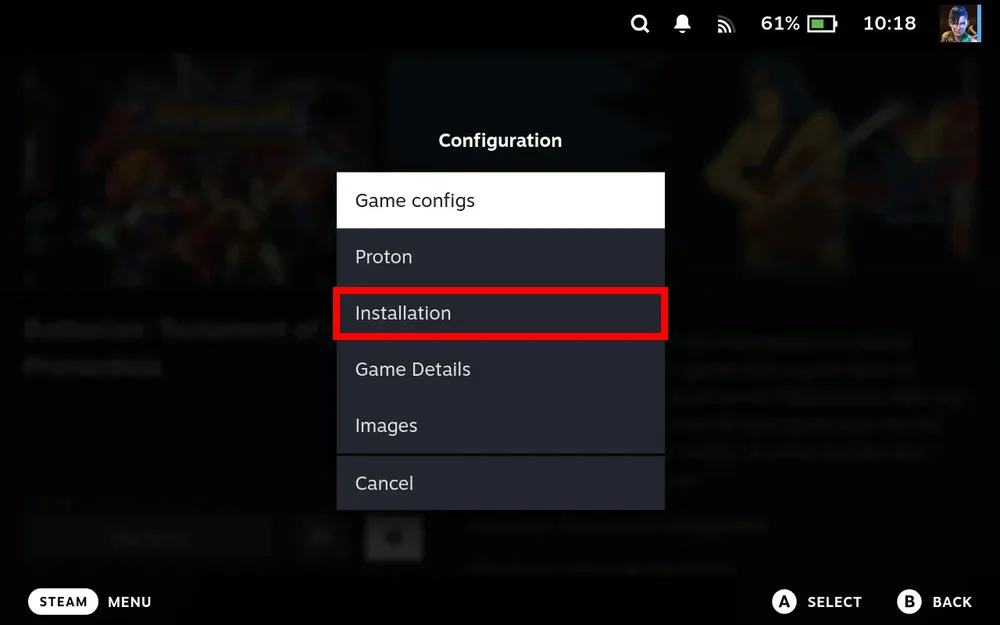
- Open the Languages section
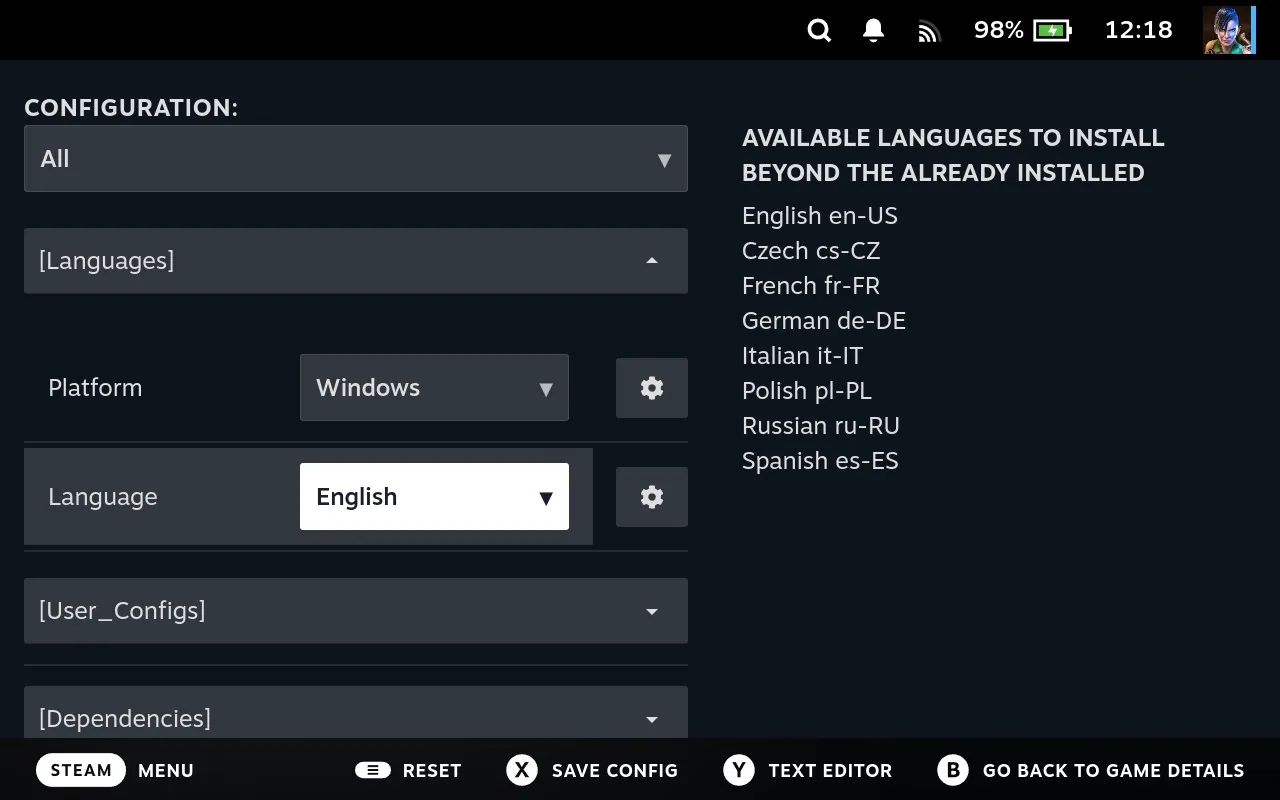
The panel is built for that game by asking the store what it offers, so you'll see only the sections that apply. Languages lists the versions available beyond what's already installed.
- Pick your language, then save
The two stores hand you a different control, so it's worth knowing which one you're looking for.
GOG gives you a dropdown and you pick one language. English is the default, and the help pane on the right lists what this particular game offers.
Epic gives you tickboxes, none of them ticked, and you can choose more than one. Epic calls these install tags, and on some games they cover more than language.
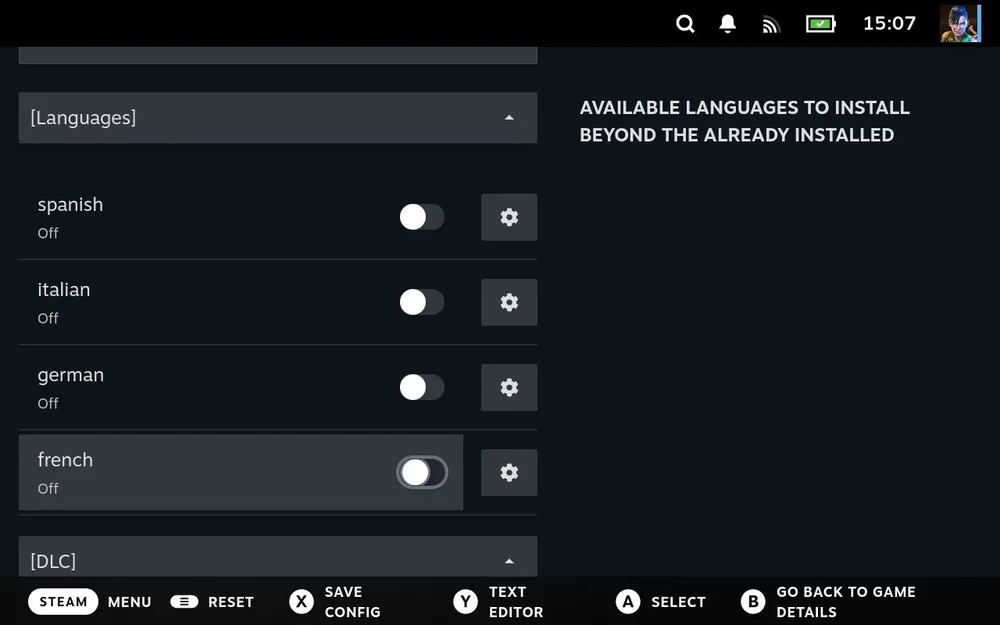
Press X to save the config.
- If the game is already installed, verify or repair it The panel doesn't move any files on its own. Choosing a language records that you want it, it doesn't fetch it. Run Verify game or Repair game from the game's own menu to pull the language files down. Skip this and nothing appears to happen, which is the usual reason people report that changing a language did nothing.
Expect it to take a while on a large game, since it checks what's on disk before working out what's missing. On a game you haven't installed yet there's nothing else to do, as the download picks up your choice.
That's the reason to open this before installing something large. Nothing asks you about any of it by default, so you get English and every DLC you own, which can be a good deal more than you wanted. Setting it beforehand costs nothing. Setting it afterwards costs you a verify or repair.
If the game offers no language option
Some older games have no language setting of their own and simply run in whatever the system reports. LANG and HOST_LC_ALL change what the system reports, which is the only lever those games respond to. They sit on games launched through Proton, so if you're looking at something running under Linux, DOSBox or RetroArch, they won't be there.
- Open the game's configs
On the game's page, open the cog, then Game configs, and set the dropdown to All to reveal everything.
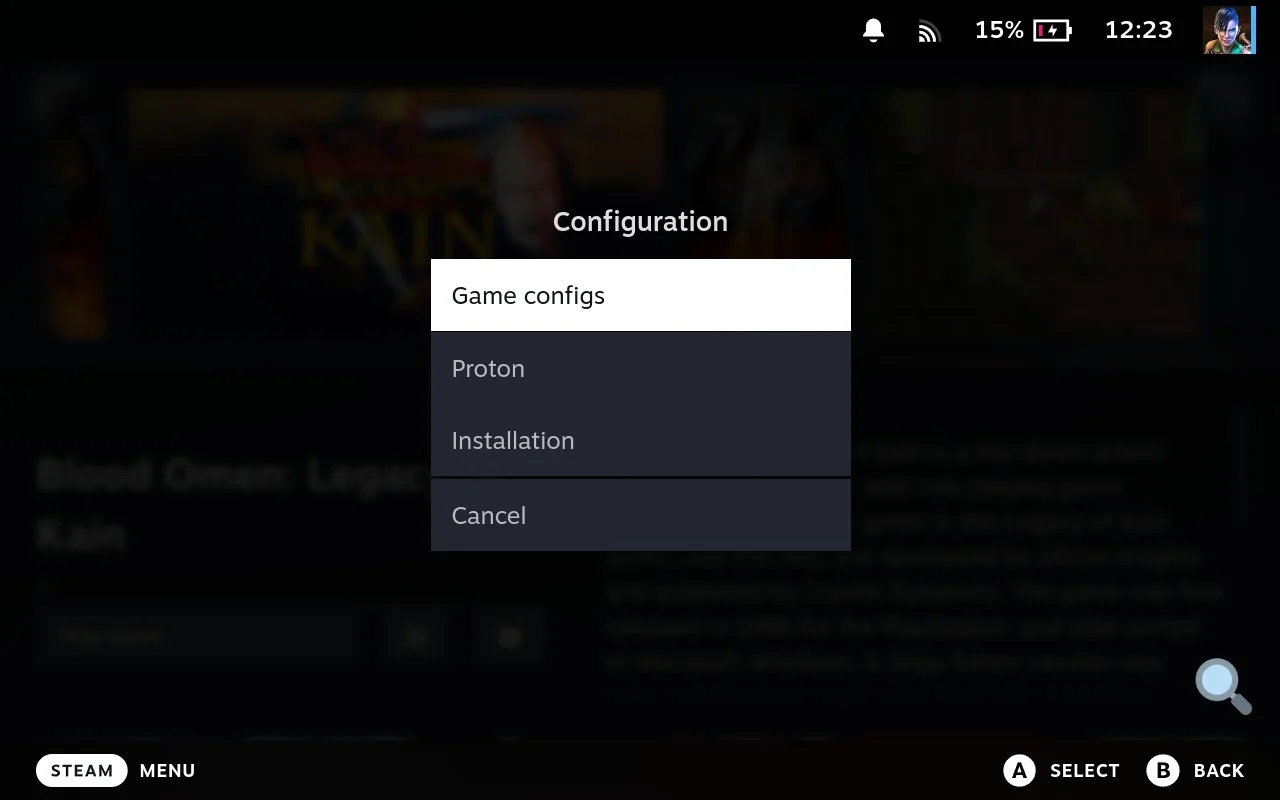
- Set LANG under Environment
Open the ENVIRONMENT section, select LANG, and choose your language. HOST_LC_ALL sits just above it and does the same job more forcefully: LANG offers the game a default, HOST_LC_ALL overrides the individual locale settings outright. Try LANG first and only reach for the other one if the game ignores it.
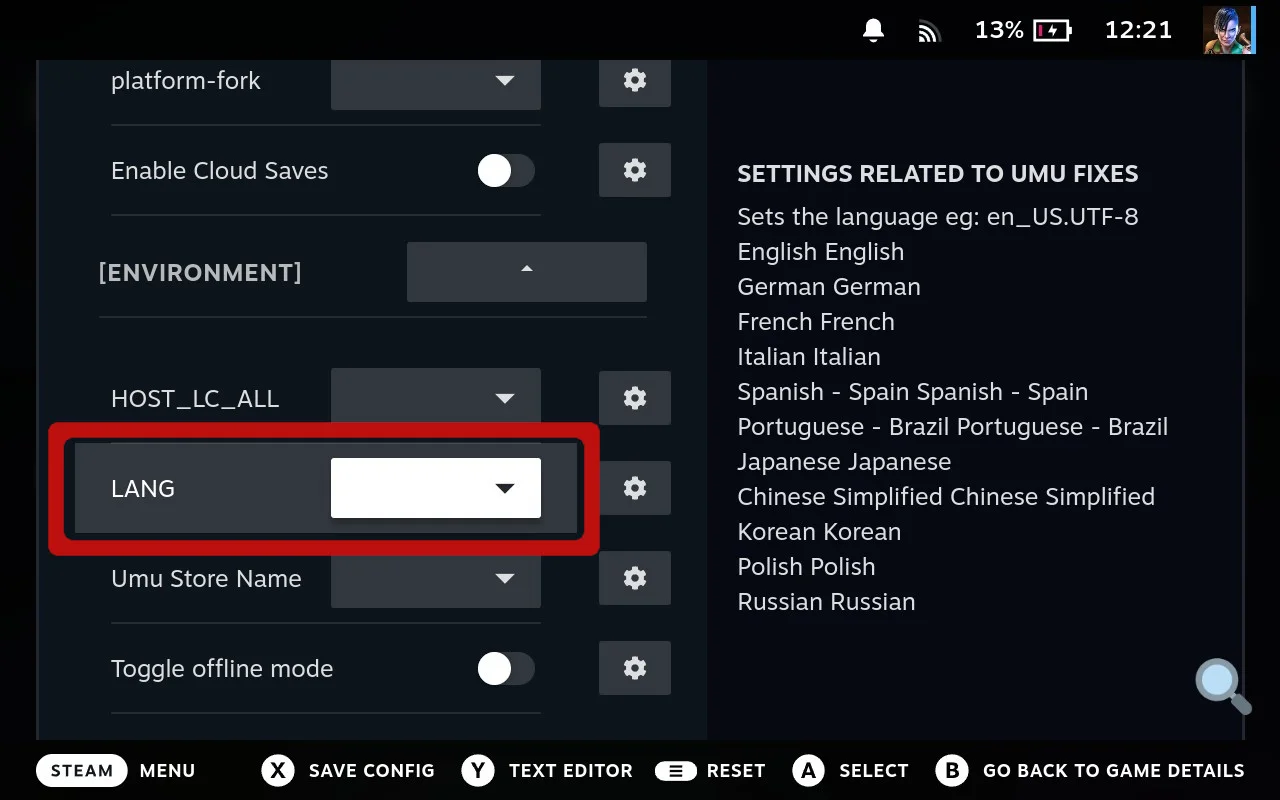
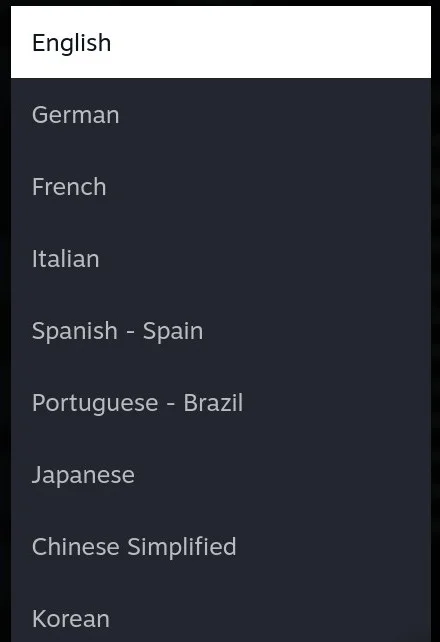
- Save
Press X to save. Because you set it here rather than on the store, it affects this one game and is easy to undo.
If the game misbehaves afterwards, empty the field first. That's the most likely cause, and empty means "don't interfere", not "English".
The store-wide setting, and why to leave it alone
The same two settings exist on the store's own cog, where they apply to every game in that store.
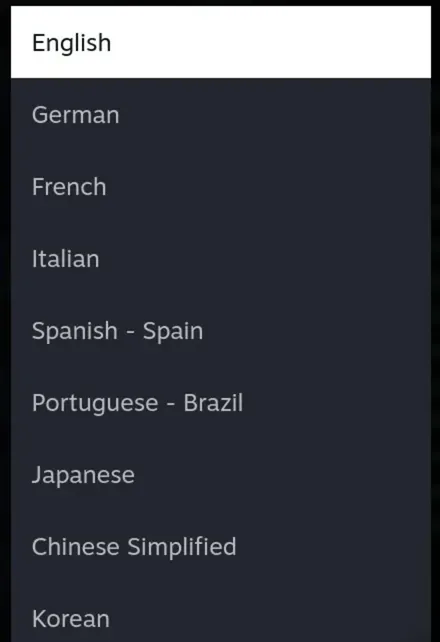
The exception is a library that's entirely in one language, which is unusual. Otherwise, work per game.
More in the manual
The Junk Store Pro user manual covers the why behind these screens, if you want the detail rather than the steps.
- Per-game installation settings - What each section of the Installation panel is for
- Setting a language - Why the store-wide setting is the risky one
- LANG and HOST_LC_ALL - What the two locale variables actually do
Stuck or need help?
Most issues are quick to sort out. Here's where to start.
- My game won't launch - If a game stops working after a language change
- Troubleshooting - All Pro version issues
Want the full detail? The user manual covers every screen and setting in Junk Store Pro, and is worth a look if you'd rather read up than hunt through fixes.
Still stuck? Open a support ticket right in the Support Portal
For game-specific issues, feedback, or just a chat, you'll find us on:
On Discord, head to the #js-pro-support channel.