Steam Deck Storage Full? Don't Reformat, Clear Out Your Non-Steam Files Instead
This week’s Pro tip: we keep reading about people reformatting their Steam Deck to get their storage back, and others suggesting it as the fix. That’s quite a drastic step, and you almost certainly don’t need to go that far.
When your storage fills up you go looking, and Steam tells you a big chunk of it is NON-STEAM. Mine said 797 GB. Wiping the lot starts to look like the easy option.
I remember the pain of writing down every Steam ID from the game page in Junk Store, then hunting for it in the compatdata folder and the shader cache to delete it. It could take hours that way. Thankfully Eben had the foresight to build the File Manager, so a job I used to dread is now a quick one I do every couple of weeks.
That NON-STEAM Number Isn't All Junk
Steam’s storage page splits your drive into GAMES, DLC, SHADERS and MEDIA, which are the things Steam put there itself. Everything else on the drive gets swept into one bucket labelled NON-STEAM.
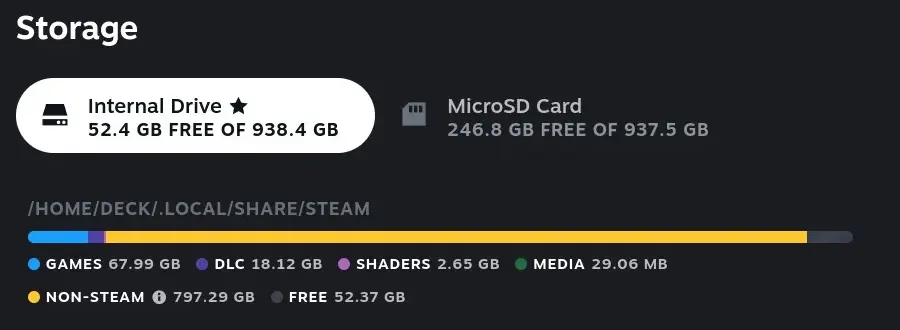
What's Actually In There
Whenever this comes up online it’s the same question: what’s actually in there, and what’s taking up all the space? Most people don’t realise NON-STEAM is all the stuff they’ve put on the Deck themselves. You’ll typically find:
- Your non-Steam games. Everything installed through Junk Store from Epic, GOG, Amazon and itch. Usually the biggest slice by a mile, and obviously you want to keep it.
- Proton prefixes. Every game that runs through Proton gets one, Steam games included, and each is effectively a small Windows install holding saves, configs and registry entries. They add up quickly.
- Extra launchers. Some games won’t start without their publisher’s launcher, so it gets installed inside that game’s prefix and quietly takes its share.
- Apps you’ve installed. Junk Store itself, Decky, emulators and their ROMs, media apps, anything else you’ve added.
- Flatpaks. Anything from the software store, plus the shared runtimes underneath them, which are chunkier than most people expect.
- Old downloads. Installers and redistributables that did their job months ago and then sat there. Visual C++ and DirectX installers are the usual suspects.
- Your Trash. Things you deleted and never emptied, still taking up every byte they did before.
Most of that is stuff you put there yourself and still use, so the number is never going to be small.
What Gets Left Behind
Uninstalling a game doesn’t remove its prefix or its shader cache. Those folders belong to Steam rather than to Junk Store, so they get left behind. Test a lot of games over a year or two and you end up with prefixes for games you no longer have installed, plus shader cache for games you can’t even remember playing.
That’s the part you can clear out, along with old downloads and an unemptied Trash.
The problem has always been telling which is which, because the folders are named after ID numbers rather than games. The File Manager names each one after the game it belongs to, and puts a No Game badge on anything nothing on your Deck claims any more.
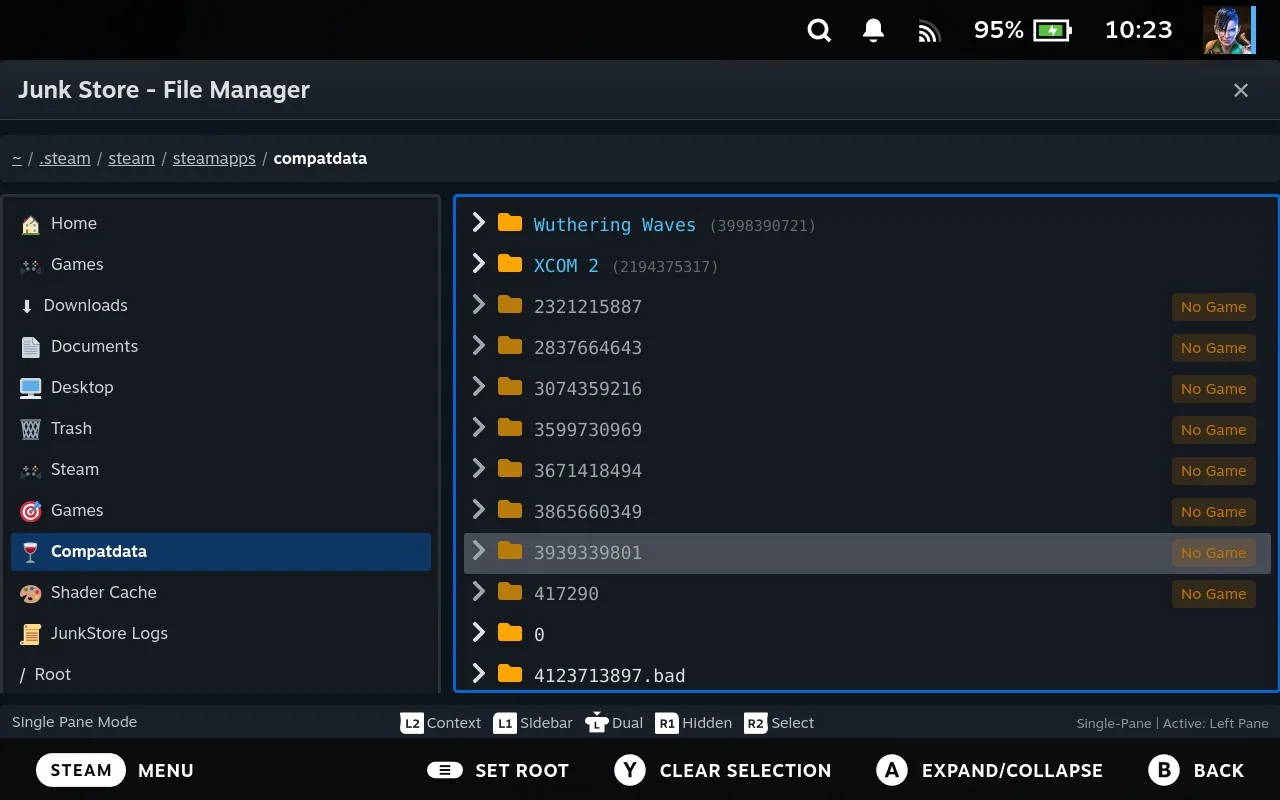
So there’s no writing down ID numbers and no trip into Desktop Mode. Hold SELECT and press X from anywhere in Steam to open it, which is one of the Pro quick access shortcuts.
Finding the Rest of It
Leftover non-Steam game prefixes are usually a fair chunk of that NON-STEAM number, but they won’t be all of it. Apps and whatever else you’ve downloaded over the years add up too. Use the File Manager to look through your other folders, and the disk analyser to work out where the big stuff actually is.
Highlight any folder, press LT and choose Disk Usage.
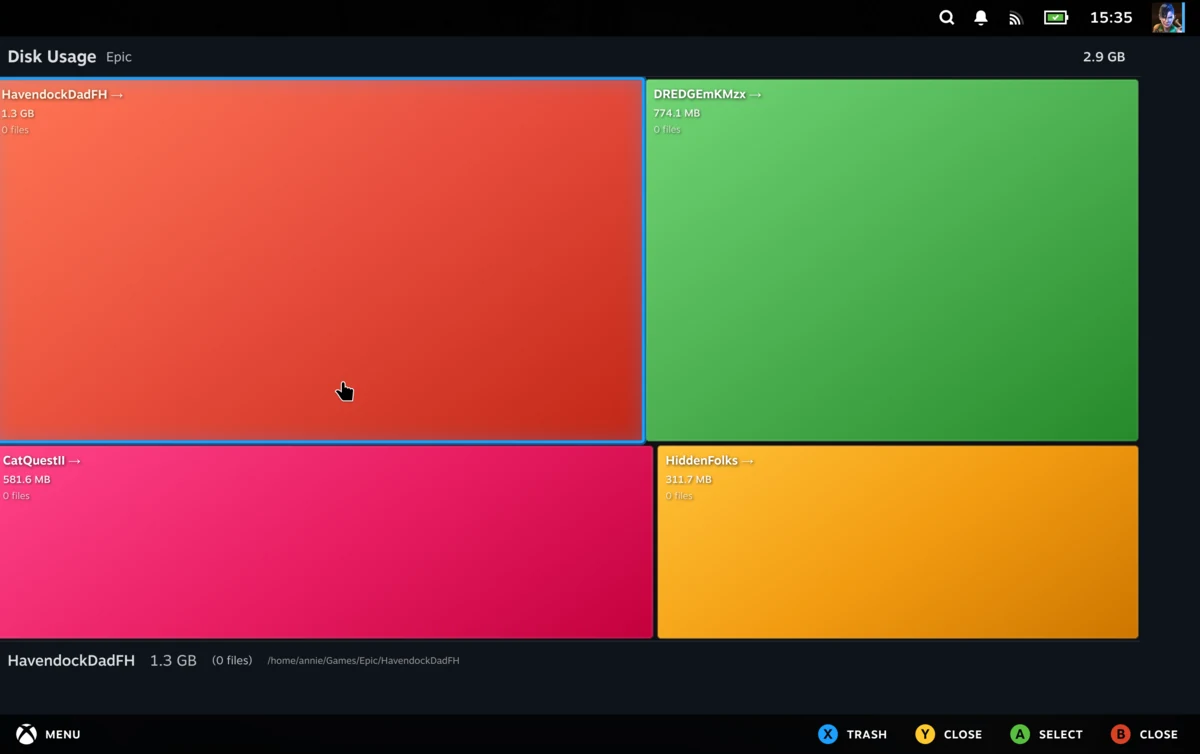
Every folder becomes a rectangle sized by how much space it uses, so the biggest thing on screen is the biggest thing on disk. Select one to drill into it, keep going until you find what’s responsible, and bin it without leaving the view. It’s usually something you forgot you installed.
If you’ve got two Decks, you can do the same job on the other one over your network, as long as both have Junk Store Pro. See How to Import Games Over Your Local Network for getting them paired up.
Starting Over
Wiping the Deck does clear the junk. It also clears everything else:
- Every game redownloaded, which is the entire evening gone
- Every save lost unless you backed it up first
- Every app and flatpak reinstalled
- Junk Store set up again, logins and all
- Any artwork, sorting and tweaking you’d done, back to square one
And you’ll be back here in a year anyway, because the leftovers build up regardless. Reformatting doesn’t stop that happening.
Or Just Clearing Up
On the Deck in these screenshots, clearing the dead prefixes, the orphaned shader cache and a Downloads folder full of old installers took free space from 52.4 GB to 202.1 GB. About 150 GB back, and nothing had to be reinstalled.
The full walkthrough is here: How to Clear Out Orphaned Non-Steam Game Files. It covers finding the leftovers, checking what’s safe to remove, getting your saves out first if you might reinstall, and the step people forget that stops the space coming back.
It’s worth keeping on top of this. Downloads slow down as your storage fills up, and you can run into problems when Steam goes to update itself and there’s not enough room left.
Have questions about this tip? Join our community on Discord, Reddit or Lemmy!
Cheers,
Annie & Eben | The Junk Store Team