How to Import Games Over Your Local Network in Junk Store Pro
Copy a game’s files from another device over your local network instead of downloading it again
Already have a game installed on one Steam Deck? Junk Store Pro can copy those files straight across your local network to another device, so you don't have to download the whole thing again. Handy when your connection is slow or capped, or when you're setting up the same game on more than one device.
Before You Start
You'll need:
- Junk Store Pro on both devices: the one that already has the game, and the one you're importing to.
- Both devices on the same local network.
- An SSH key set up on your devices. How you create and set up SSH keys is up to you to research, since it depends on your setup, so we don't cover that here. Once it's sorted, you can pair your devices in Junk Store with the steps below.
- To own the game on the account you're installing it under.
Pair Your Devices (First Time Only)
Before you can import anything, the two devices need to know and trust each other. You only have to do this once per pair.
- Open the File Manager
On the device you want to import to, open the Junk Store File Manager. Your network devices appear in the sidebar on the left.
- Start the Key Exchange
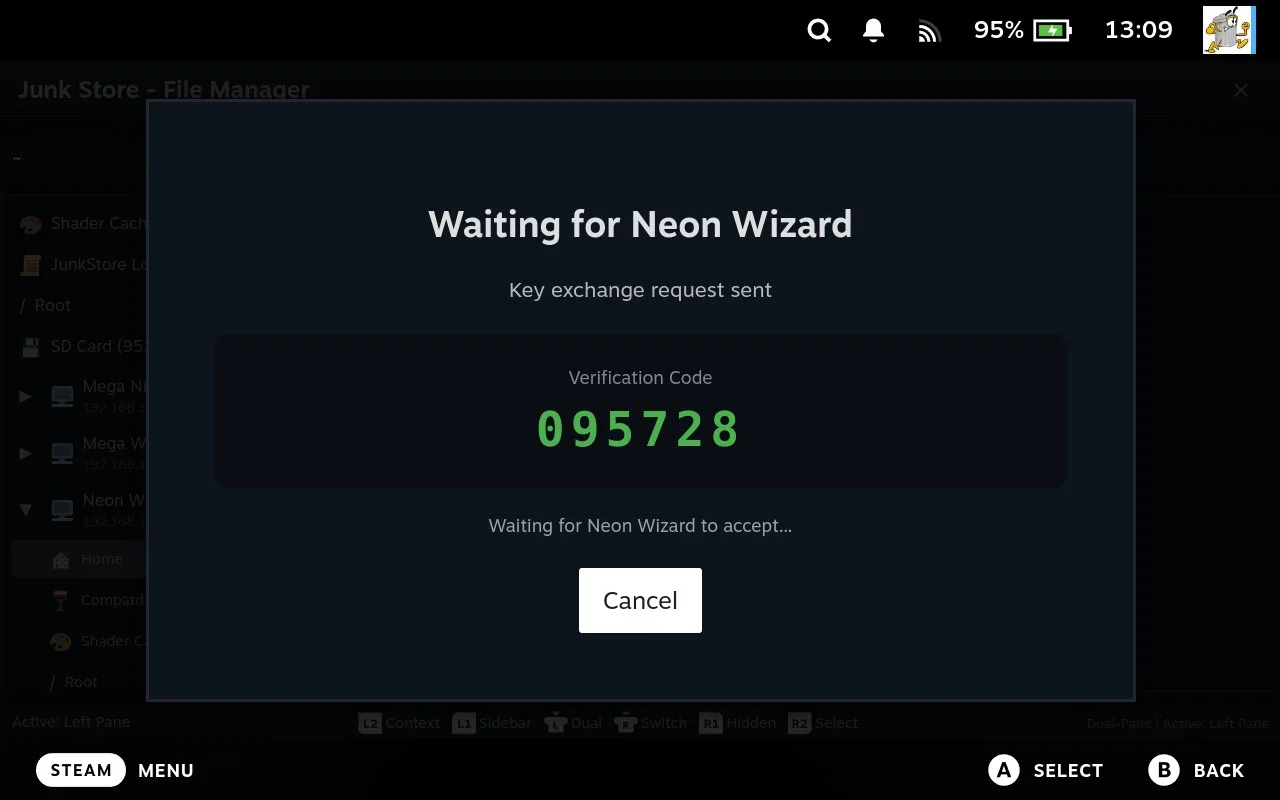
Find the device you want to pair with in the sidebar and press A on any of it's shortcuts. Junk Store sends a key exchange request and shows a verification code while it waits for the other device to accept.
- Accept on the Other Device
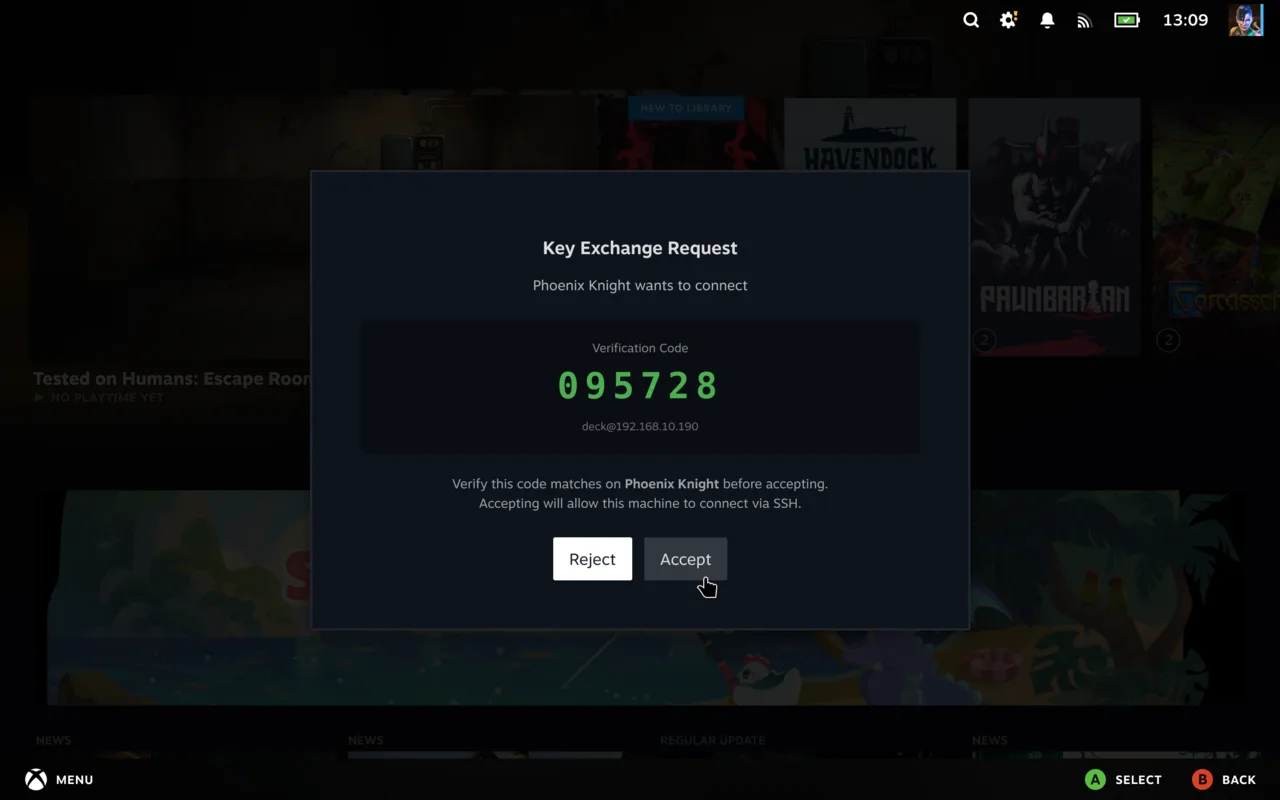
On the other device, a Key Exchange Request pops up. Check the verification code matches the one on your first device, then choose Accept.
Import a Game Over the Network
- Press X to Import
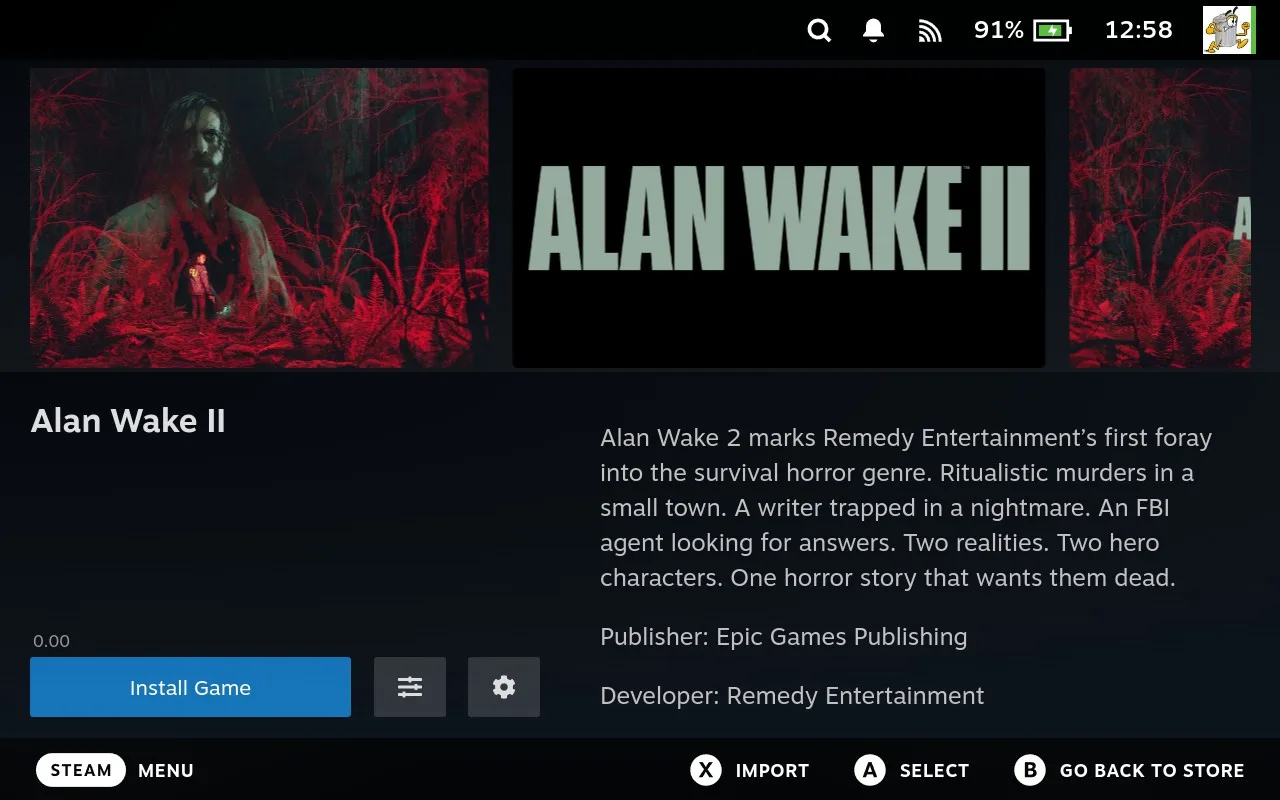
Open the game's page. Look at the button bar along the bottom: instead of pressing A to install, press X to Import.
- Pick a Source
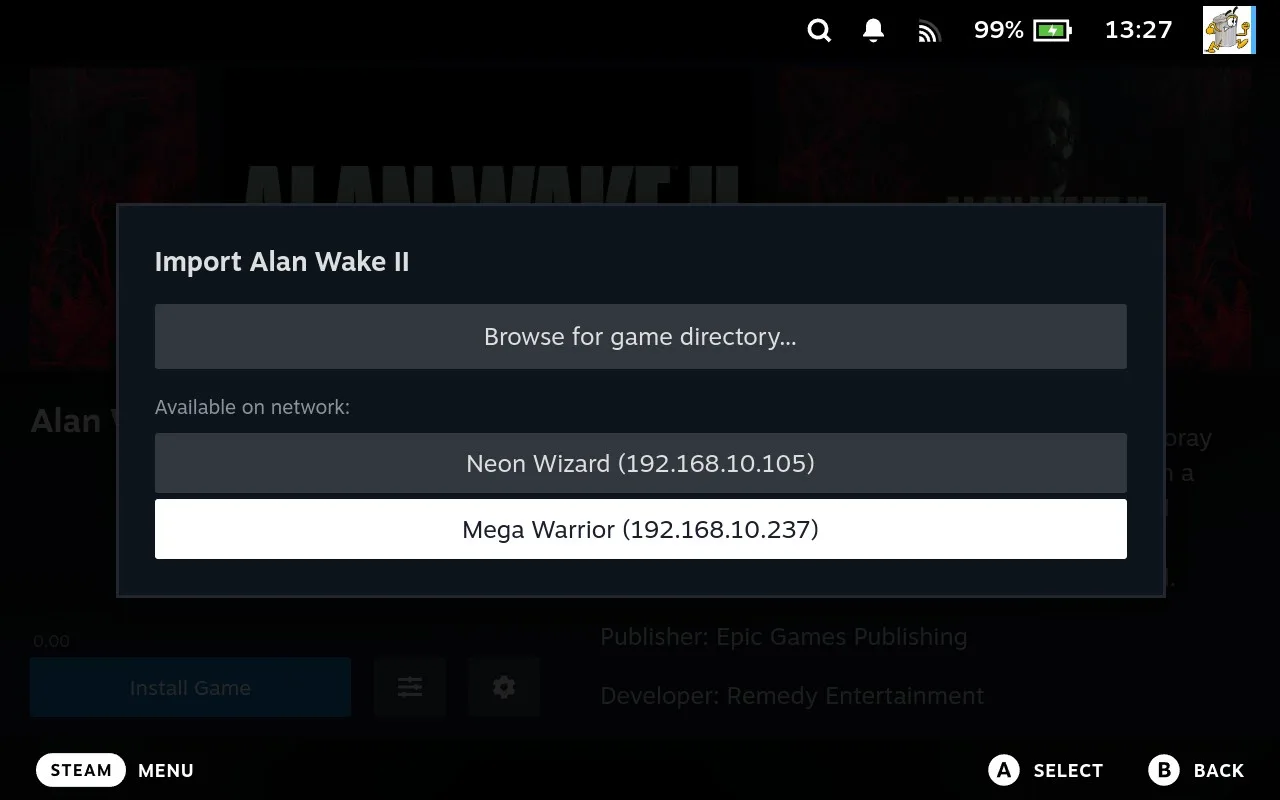
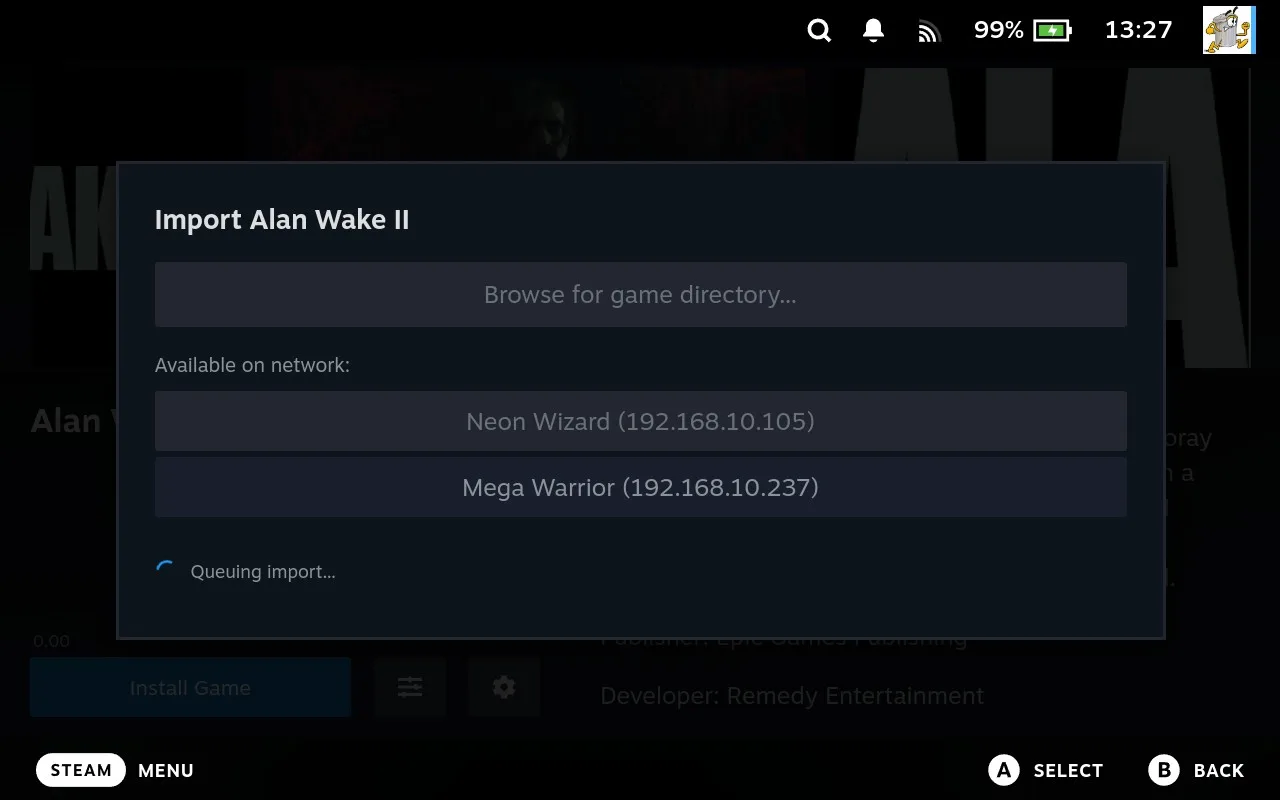
The Import window opens. Under Available on network you'll see any paired devices that have the game installed and available to import. Select the one you want to pull from. If you pick a device you haven't paired with yet, Junk Store will prompt you to do the key exchange first (the same pairing steps as above), then carry on with the import.
- Junk Store Queues the Import
Junk Store lines up the transfer and gets it started.
- Wait for the Copy to Finish
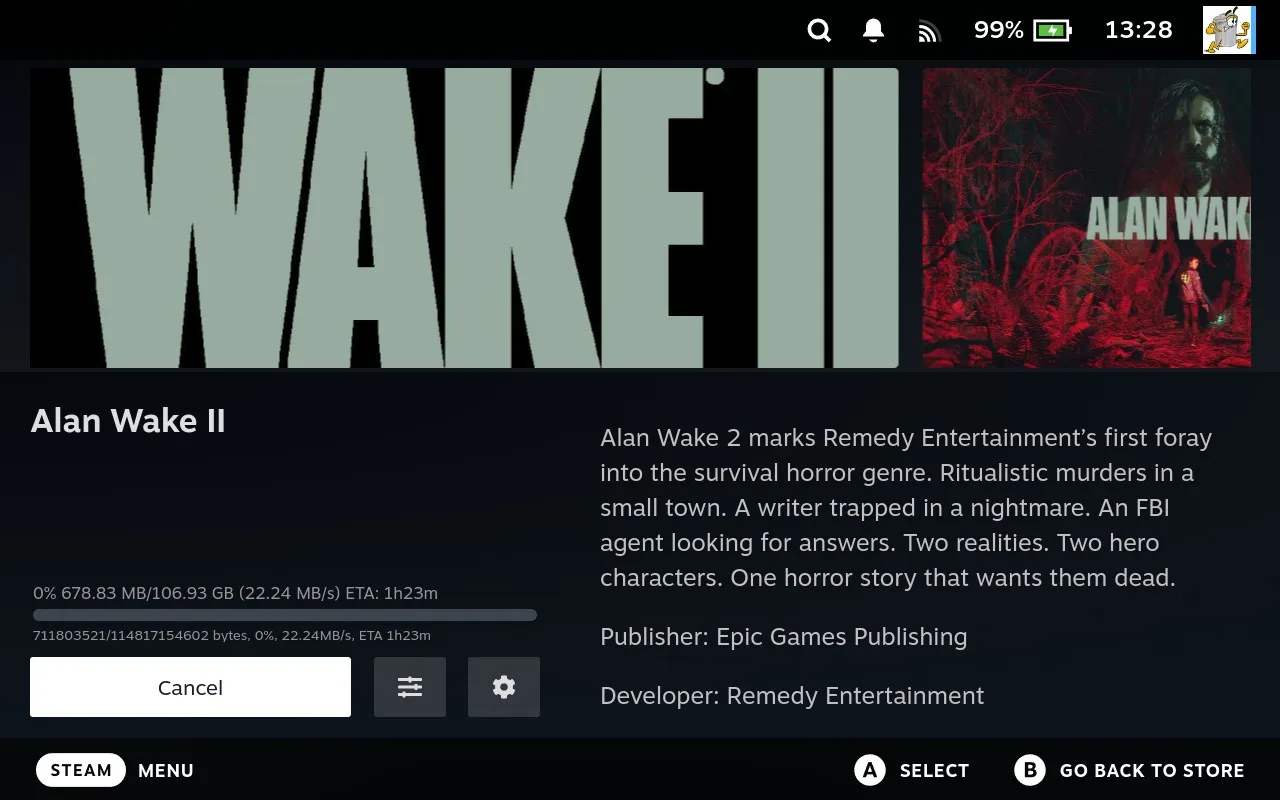
The files copy across your network, then the normal install runs. You can watch the progress and cancel if you need to. Once it's done, the game is ready to play.
Import From a Folder Instead
You don't have to scan the network every time. In the same Import window, choose Browse for game directory... to point Junk Store at a folder yourself. That works for a folder on this device or on any network machine listed in the sidebar, handy if the files are somewhere Junk Store hasn't picked up automatically.
More in the manual
The Junk Store Pro user manual covers the why behind these screens, if you want the detail rather than the steps.
- Reaching another machine - Browsing and copying files on another Deck, desktop or server
- Turning it on, and naming your device - The three discovery settings, and what each one announces
- Network settings - What the controls do, rather than what they are for
Stuck or need help?
Most issues are quick to sort out. Here's where to start.
- FAQ - General questions
- Troubleshooting - Common issues
Want the full detail? The user manual covers every screen and setting in Junk Store Pro, and is worth a look if you'd rather read up than hunt through fixes.
Still stuck? Open a support ticket right in the Support Portal
For game-specific issues, feedback, or just a chat, you'll find us on:
On Discord, head to the #js-pro-support channel.