Import Games Over Your Local Network with Junk Store Pro
This Week’s Pro Tip: Already have a game installed on one device? Junk Store Pro can copy those files straight across your local network to another device, so you don’t have to download the whole thing again. Handy when your connection is slow or capped.
This is a Junk Store Pro feature, and both devices need Pro installed.
Heads up: This doesn’t get around DRM. It copies game files you already have from another source on your local network, then runs the normal install. You still need to own the games to play them.
What You'll Need
- Junk Store Pro on both devices
- Both devices on the same local network
- An SSH key set up on your devices (how you set that up is your call, it depends on your setup)
- To own the game on the account you’re installing it under
Pair Your Devices (First Time Only)
Open the Junk Store File Manager on the device you’re importing to, find the other device in the sidebar, and press A on any of it’s shortcuts. A verification code pops up on both devices. Check the codes match, then choose Accept on the other device. Done, they’re linked from now on.
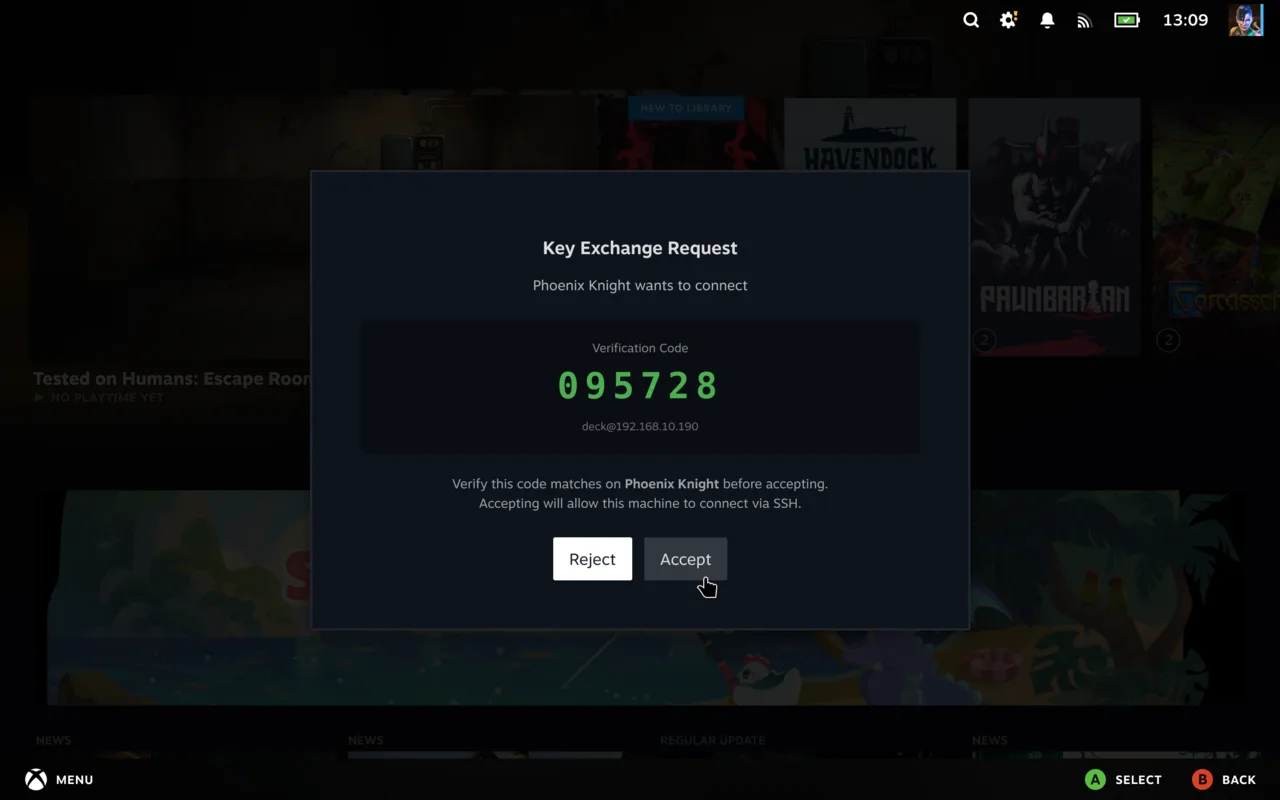 Check the codes match, then Accept
Import a Game
- Open the game's page and press X to Import instead of A to install
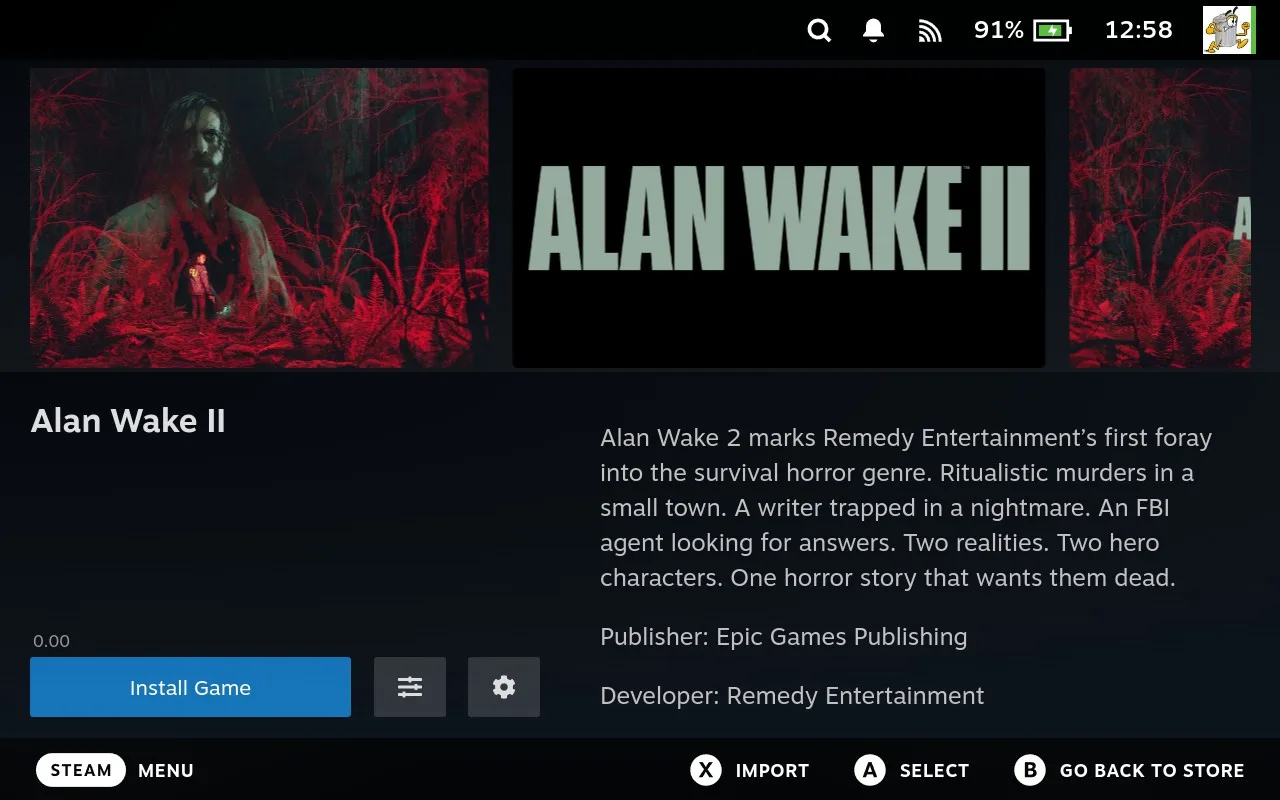 Press X on the game page to import instead of installing
 - Under Available on network, pick the device you want to import from
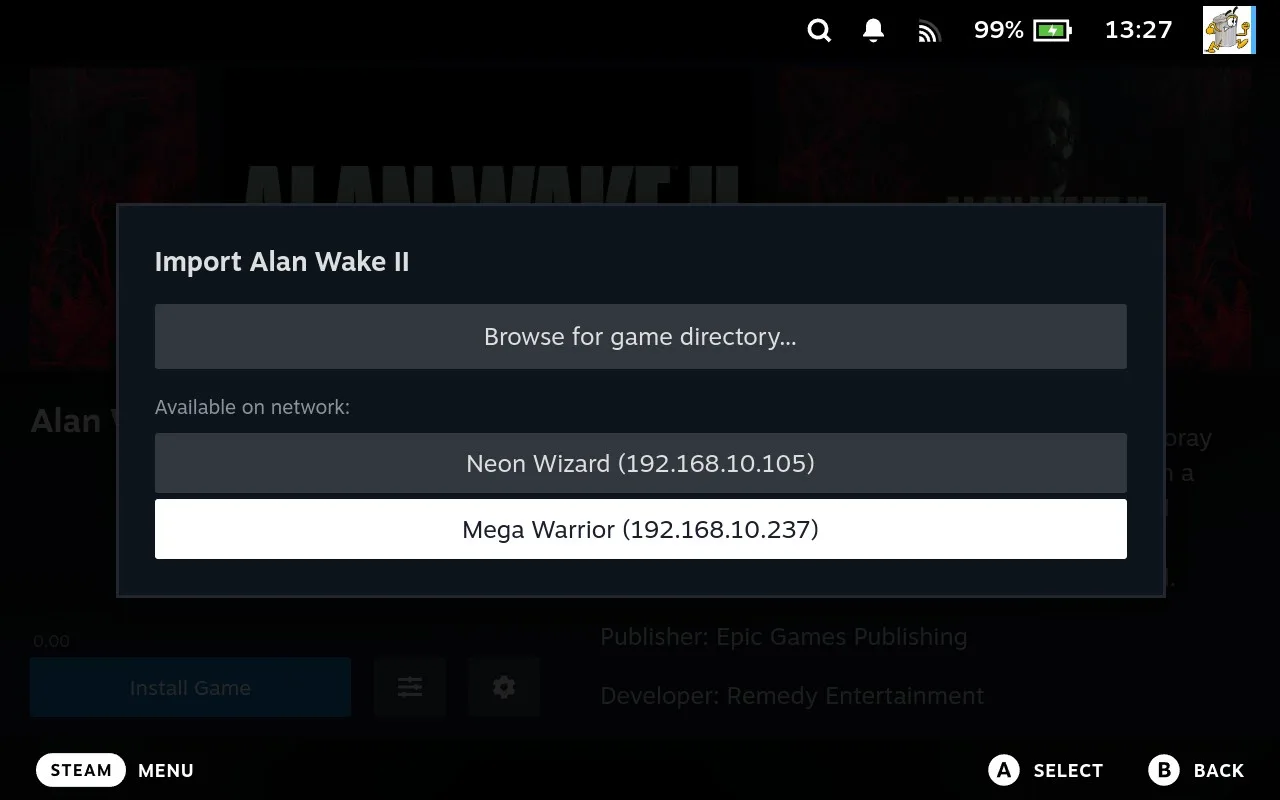 Pick the device you want to pull the game from
 - Wait for the copy to finish. The normal install runs afterwards and the game is ready to play.
Want more detail? Check out the full network import tutorial for step-by-step screenshots, pairing tips, and importing from a folder instead.
Once two Decks are paired, games aren’t the only thing you can do across the connection. You can clear the leftovers off both machines from whichever one is in your hands, which we cover in How to Clear Out Orphaned Non-Steam Game Files.
Networking is still a young feature, so there may be the odd rough edge. If something doesn’t behave, open a ticket right in the Support Portal and we’ll take a look.
Have questions about this tip? Join our community on Discord, Reddit or Lemmy!
Cheers,
Annie & Eben | The Junk Store Team